Adding a note to a direction
Notes are currently accessed via an icon on the directions list, which opens a modal dialog.
But the modal has several problems:
- it’s cramped and requires scrolling because the form is taller than the modal’s container
- it has two toggle switches, “flag as urgent note” and “flag as urgent task” that behave confusingly - for example, selecting both disables “flag as urgent note”
- the previous notes section is blank and takes up a lot of space when there are no notes
- the “Add note” button sticks to the bottom of the modal but sticky buttons have problems
So we redesigned the flow to use dedicated pages instead.
How it works
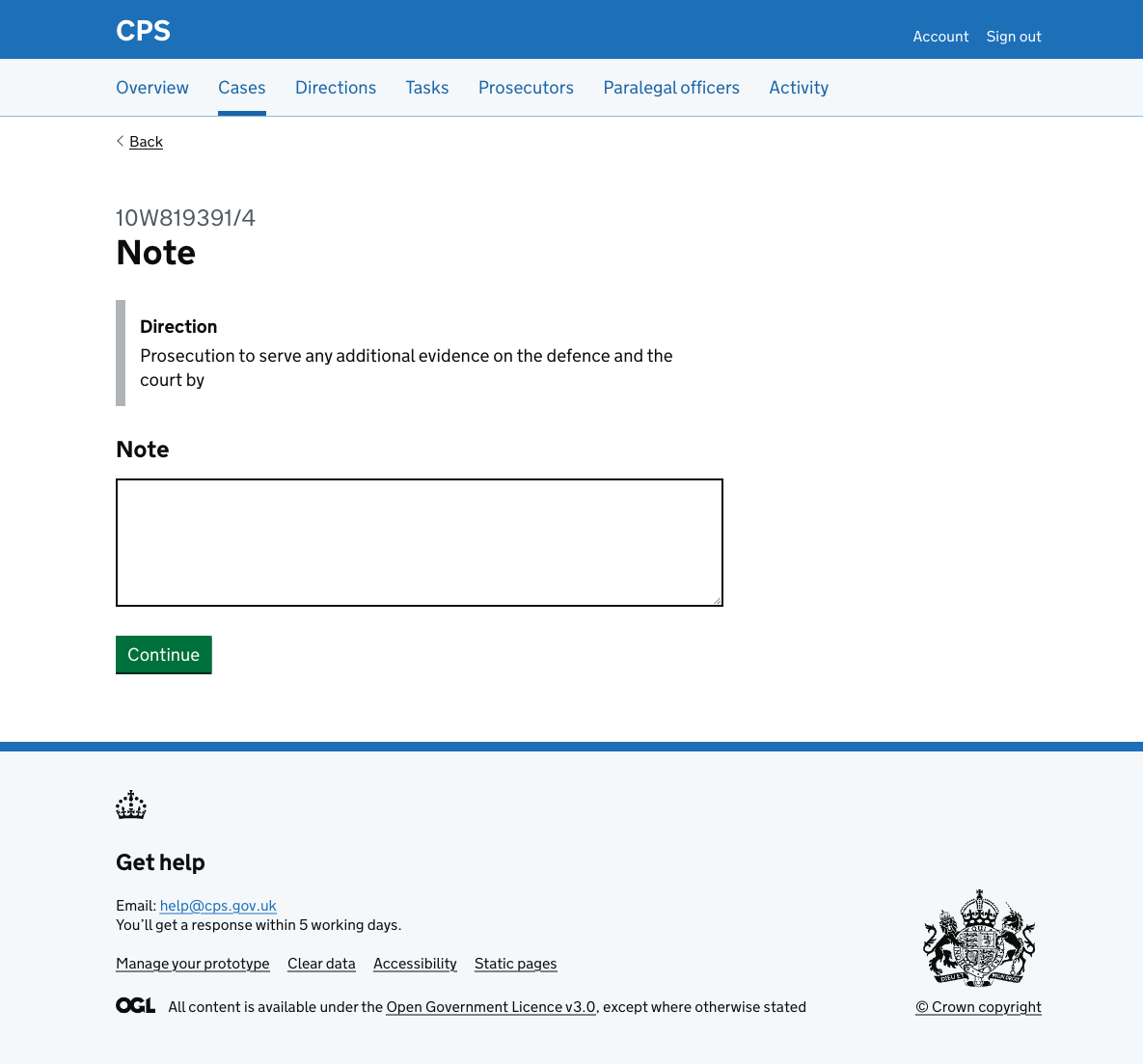
Clicking “Add note” on the direction details page takes the user to a page to enter a note. An inset shows the direction description for context.
After entering a note, the user is taken to the check answers page:
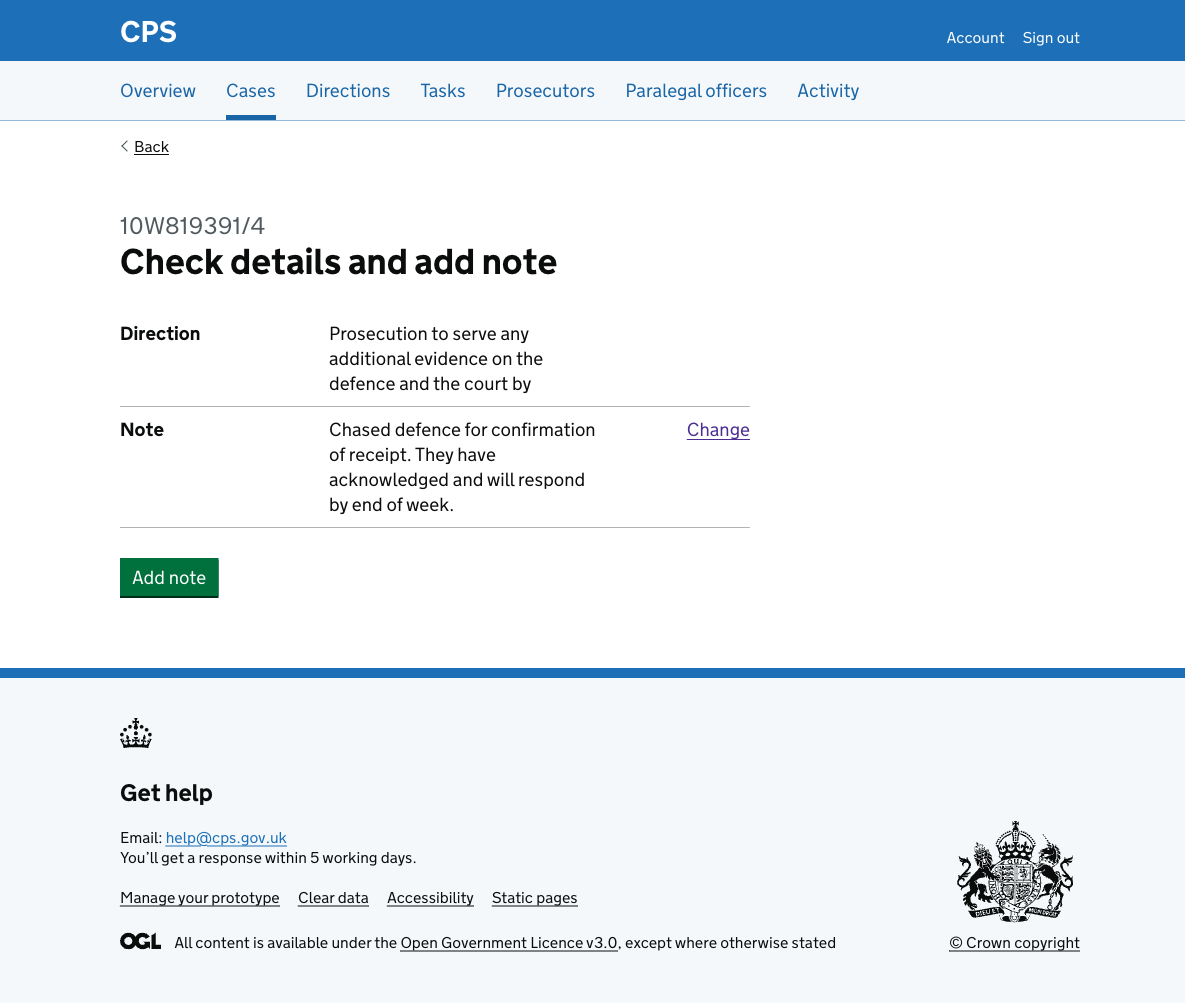
The note has a change link to go back and change it.
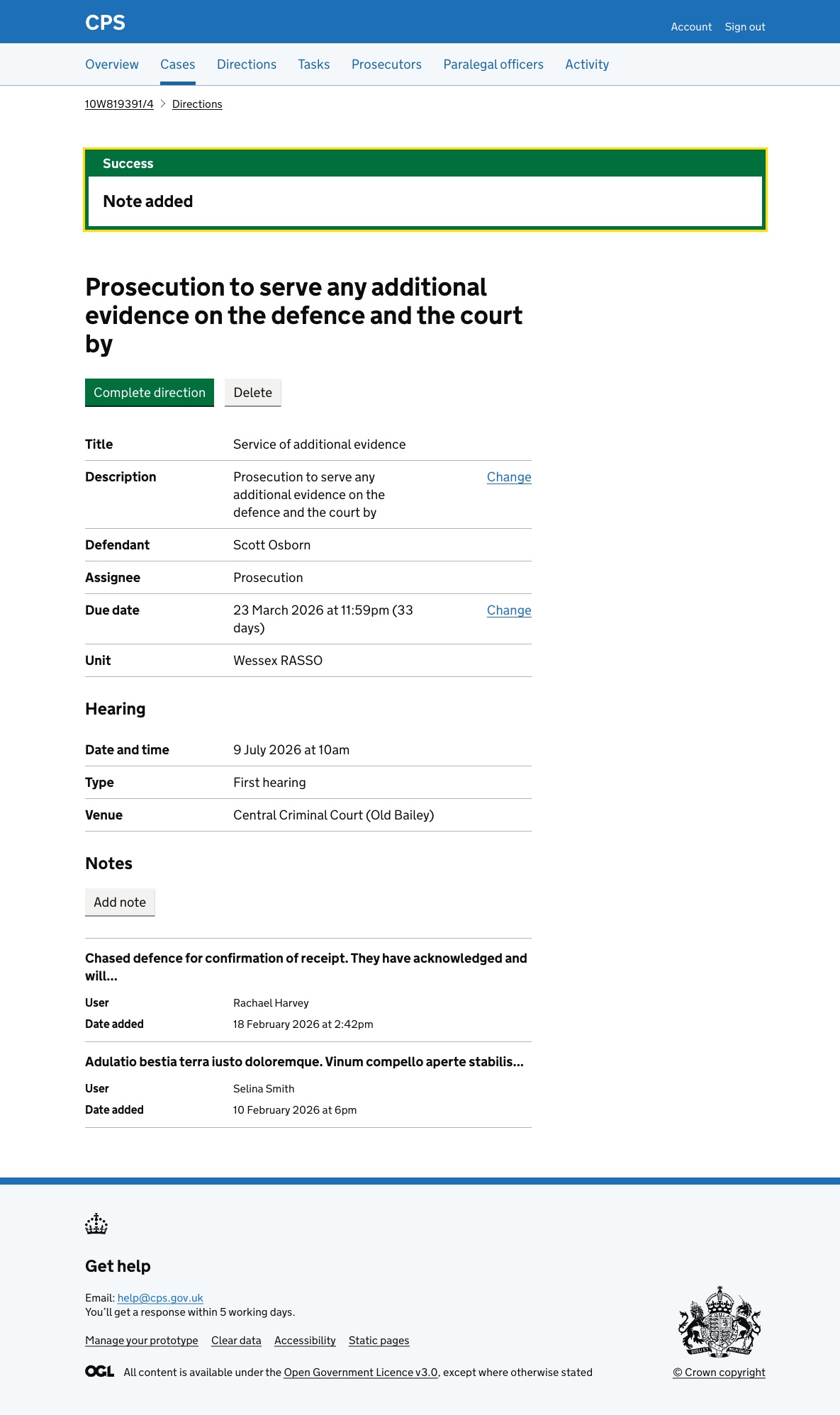
After clicking “Add note”, the user is taken back to the direction details page.
A success banner says “Note added” and the new note appears at the top of the notes list.
Activity log
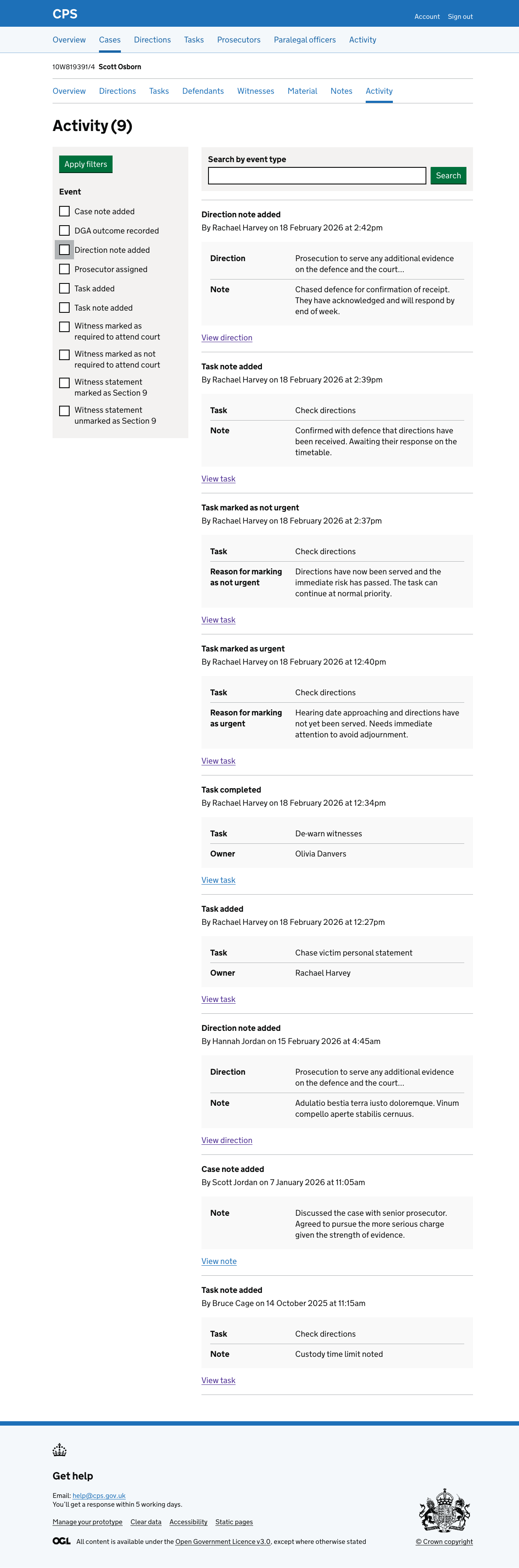
The action is recorded in the activity log as “Direction note added”, showing the direction description and the note text.
Error messages
Note
- No note entered: Enter a note
- Note is too long: Note must be 5,000 characters or fewer