Adding a note to a task
Notes are currently accessed via an icon on the task list, which opens a modal dialog.
The modal has the same problems when adding a note to a direction.
So we redesigned the flow to use dedicated pages instead.
How it works
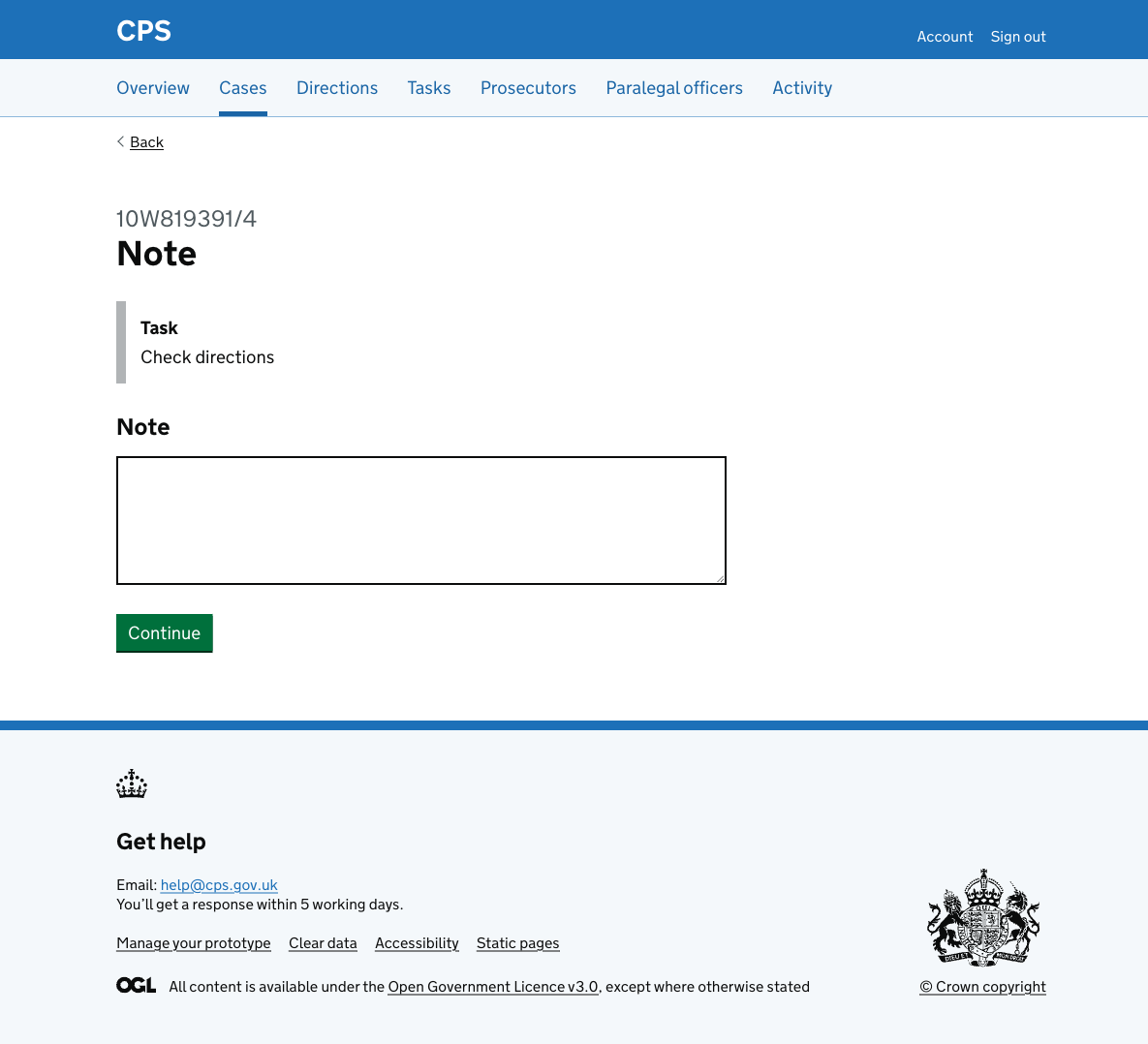
Clicking “Add note” on the task details page takes the user to a page to enter a note. An inset shows the task name so users can confirm they are adding a note to the right task.
After entering a note, the user is taken to the check answers page:
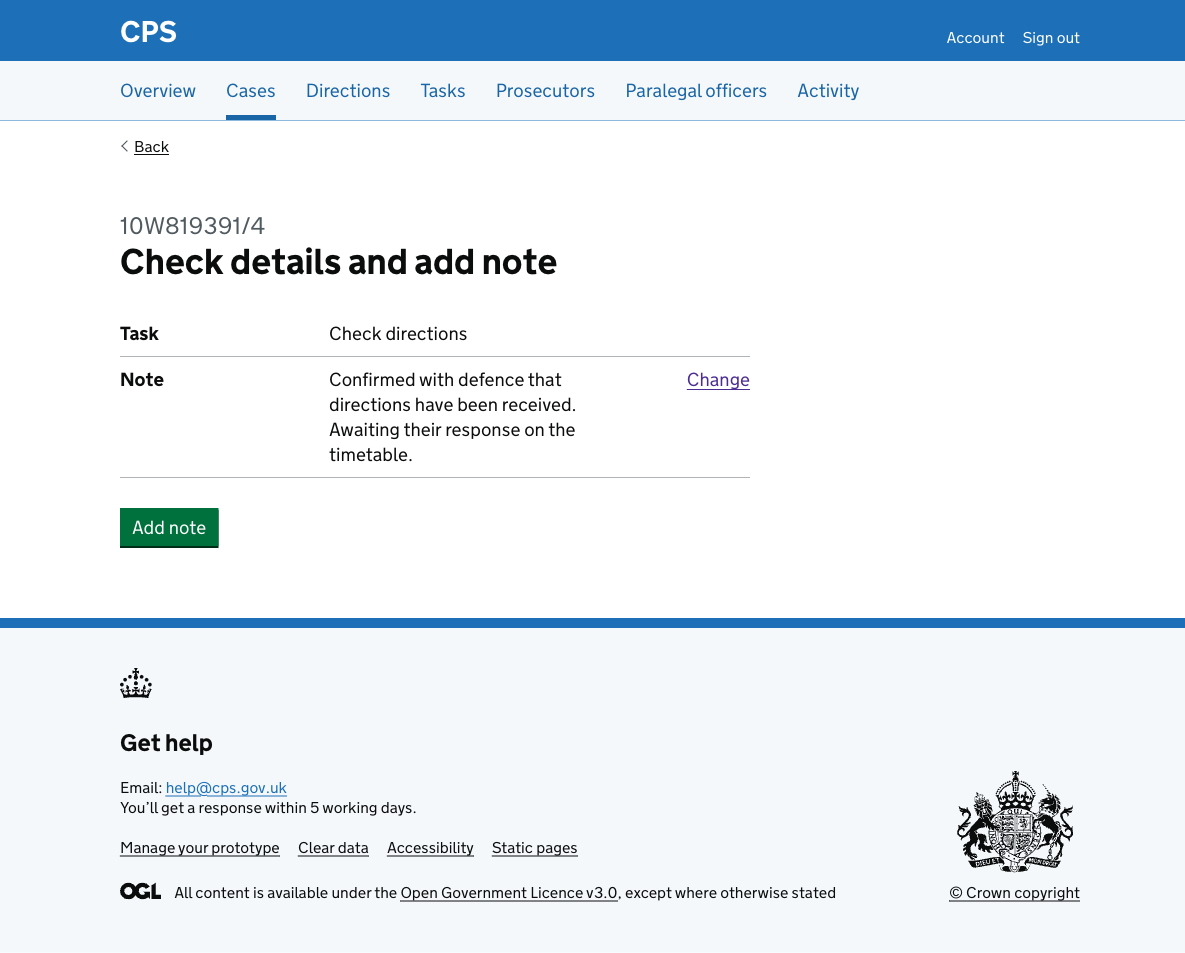
The note has a change link to go back and change it.
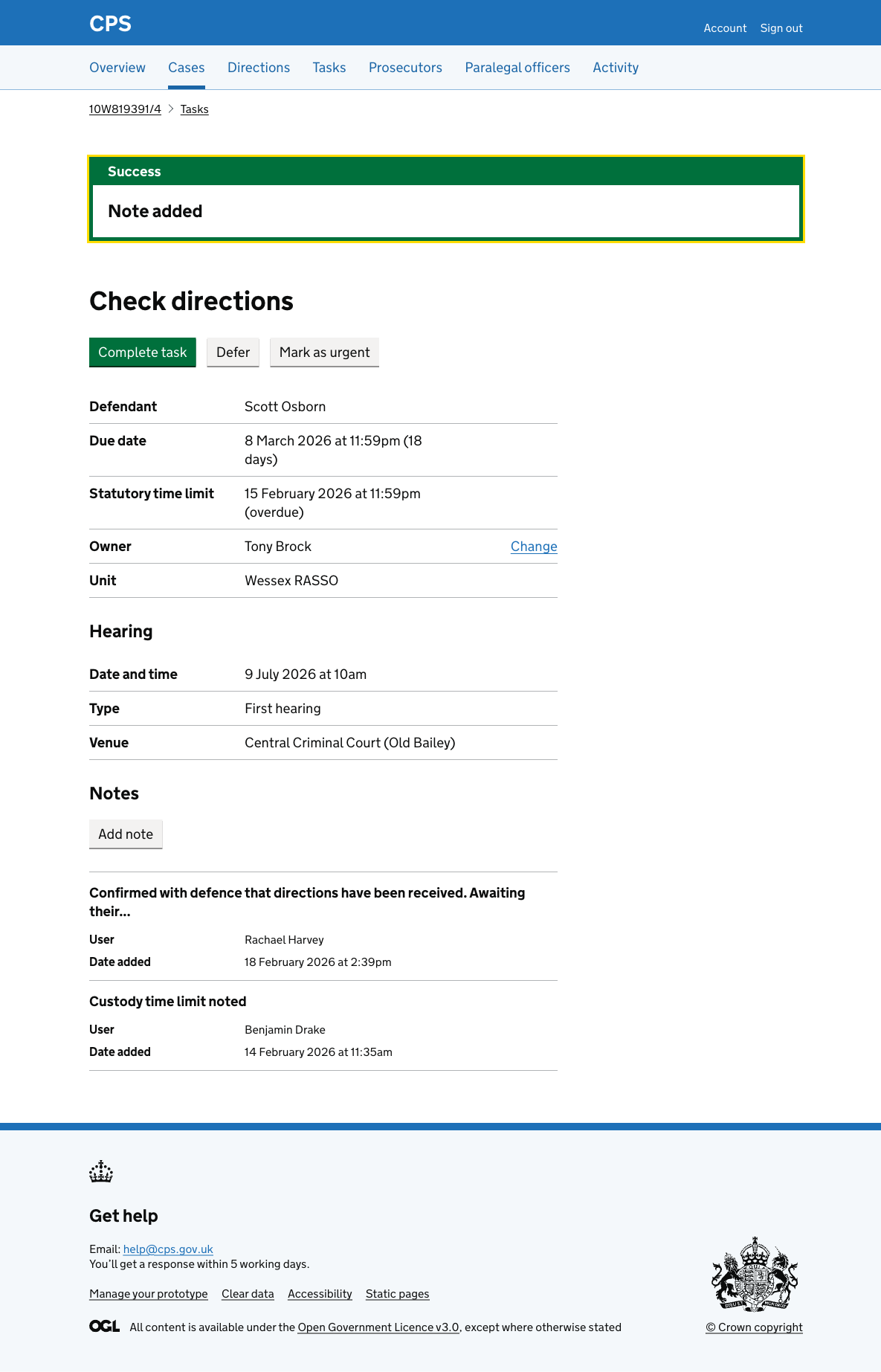
After clicking “Add note”, the user is taken back to the task details page.
A success banner says “Note added” and the new note appears at the top of the notes list.
Activity log
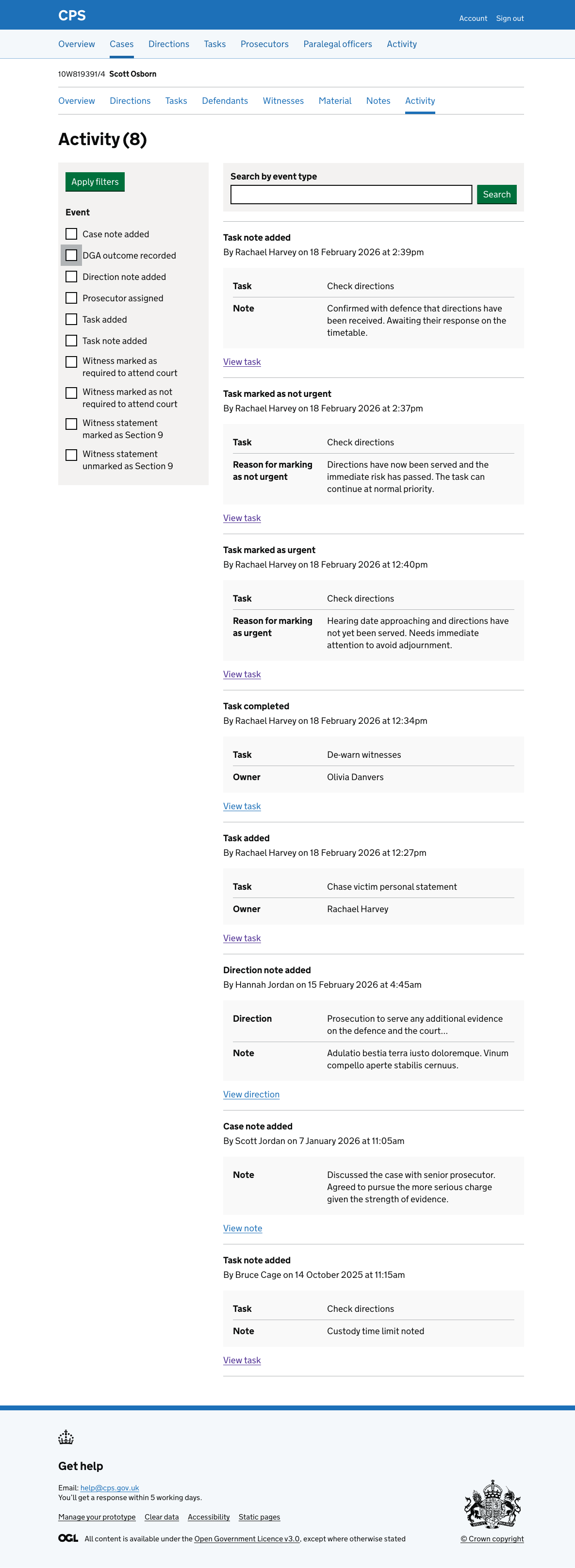
The action is recorded in the activity log as “Task note added”, showing the task name and the note text.
Error messages
Note
- No note entered: Enter a note
- Note is too long: Note must be 5,000 characters or fewer