Check new PCD case task iteration
The ‘Check new PCD case’ task is created when the police or an Investigative Agency submit a case for either Early Advice or a Pre-Charge Decision (PCD).
This happens when the system receives a Police TWIF PCD Request message (CM01) or when someone manually registers a case.
Casework assistants use this task to triage the request. They decide whether to accept or reject the case.
If they accept, they determine the review task type, identify the case type, and may route it to the appropriate prosecutor or team depending on the review type.
We identified several issues with the current design. For example, there were many non-standard patterns, making it harder to use and inaccessible.
So we redesigned the flow to use standard components and patterns from the GOV.UK Design System.
What we changed
We made the following design changes:
- Removed the blue information box as it was unnecessary
- Used caption pattern for case reference, defendant name, and task name to provide context in multi-step flows
- Removed the link to open the PCD request because users should be able to complete the flow without leaving it
- Changed to big radio buttons because they’re easier to use
- Changed buttons from ‘Next’ to ‘Continue’ to follow GOV.UK standards
- Changed buttons from ‘Done’ to ‘Continue’ because ‘Done’ is misleading as it’s not the end of the flow
- Removed cancel links as the flow is short and we think they’re unnecessary
- Made content clearer throughout
- Removed conditionally revealing inputs after existing inputs as that’s non-standard and causes accessibility issues
- Used two-thirds width layout for the flow as standard
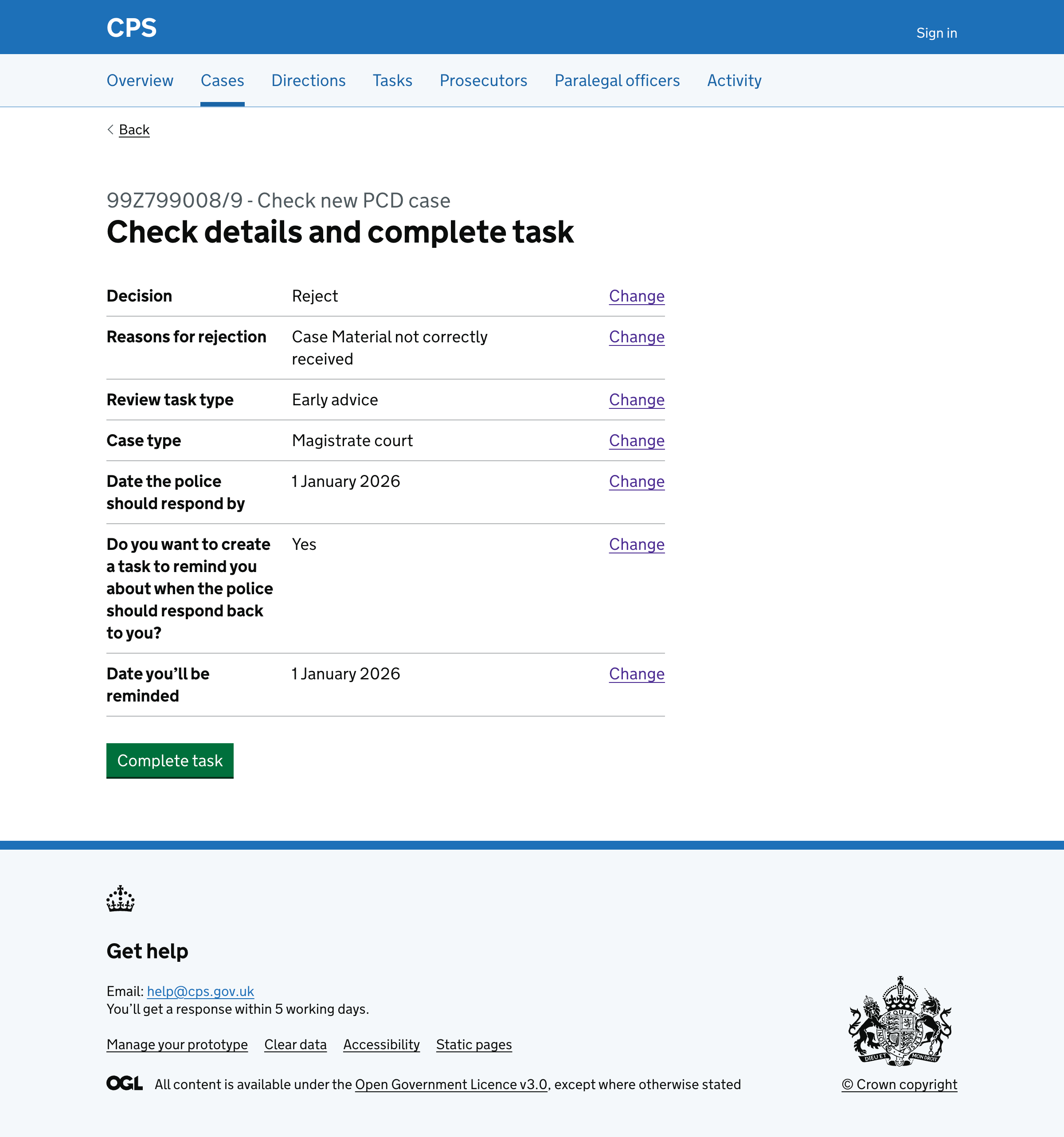
- Used a standard check answers page
- Added the ability to transfer the case as part of the flow
- Simplified allocation screens to avoid tabs and tables
- Used autocomplete component for task owner as the list is long
- Used autocomplete component for prosecutor as the list is long
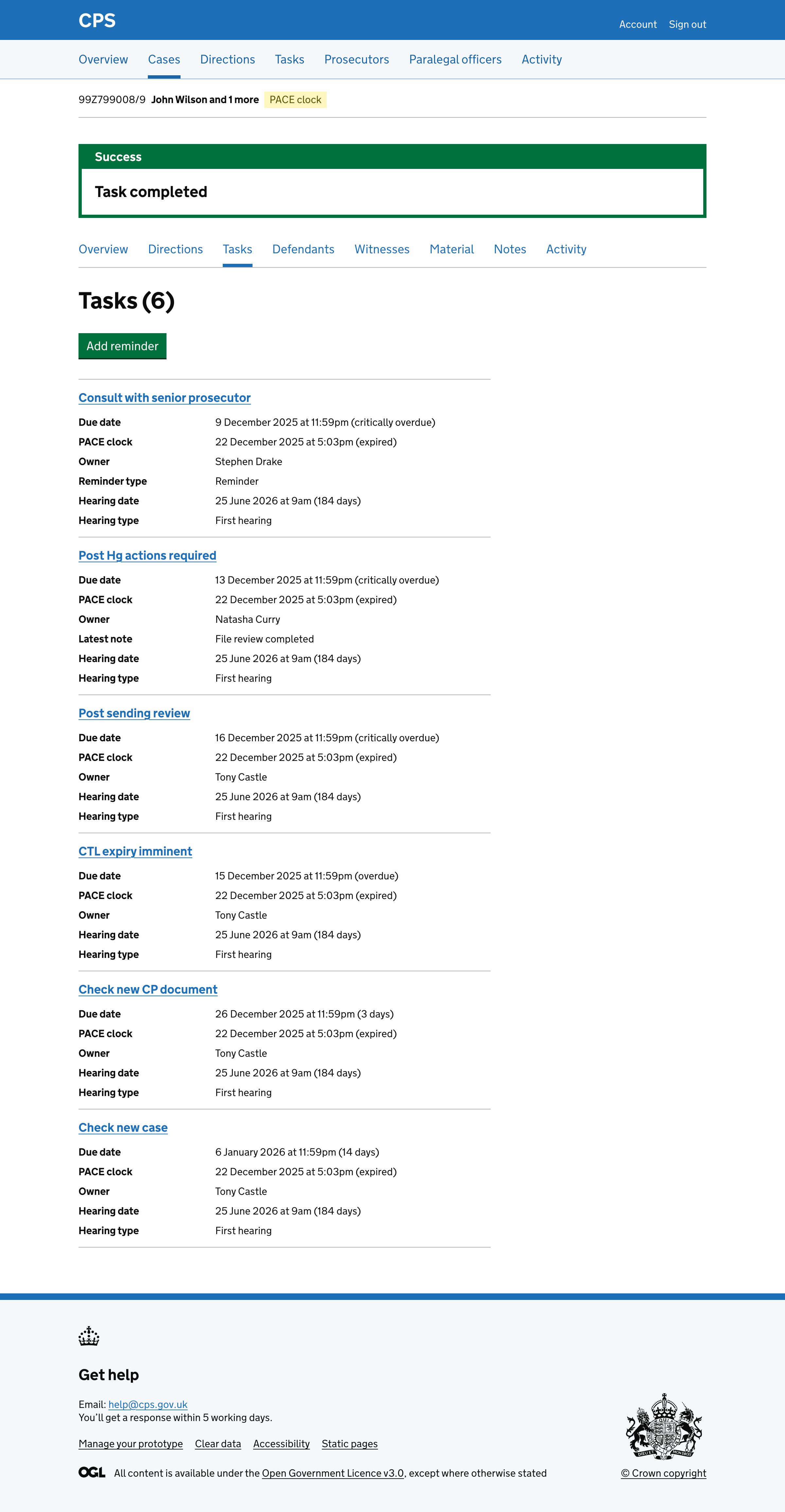
- Used standard success banner instead of toast message as toast messages obscure the screen and disappear automatically.
- Made many content changes to follow the style guide and use clear labels
- Reduced the number of steps - for example, we no longer force users to decide whether the task owner will be an individual or team, they just select from a single autocomplete
How it works
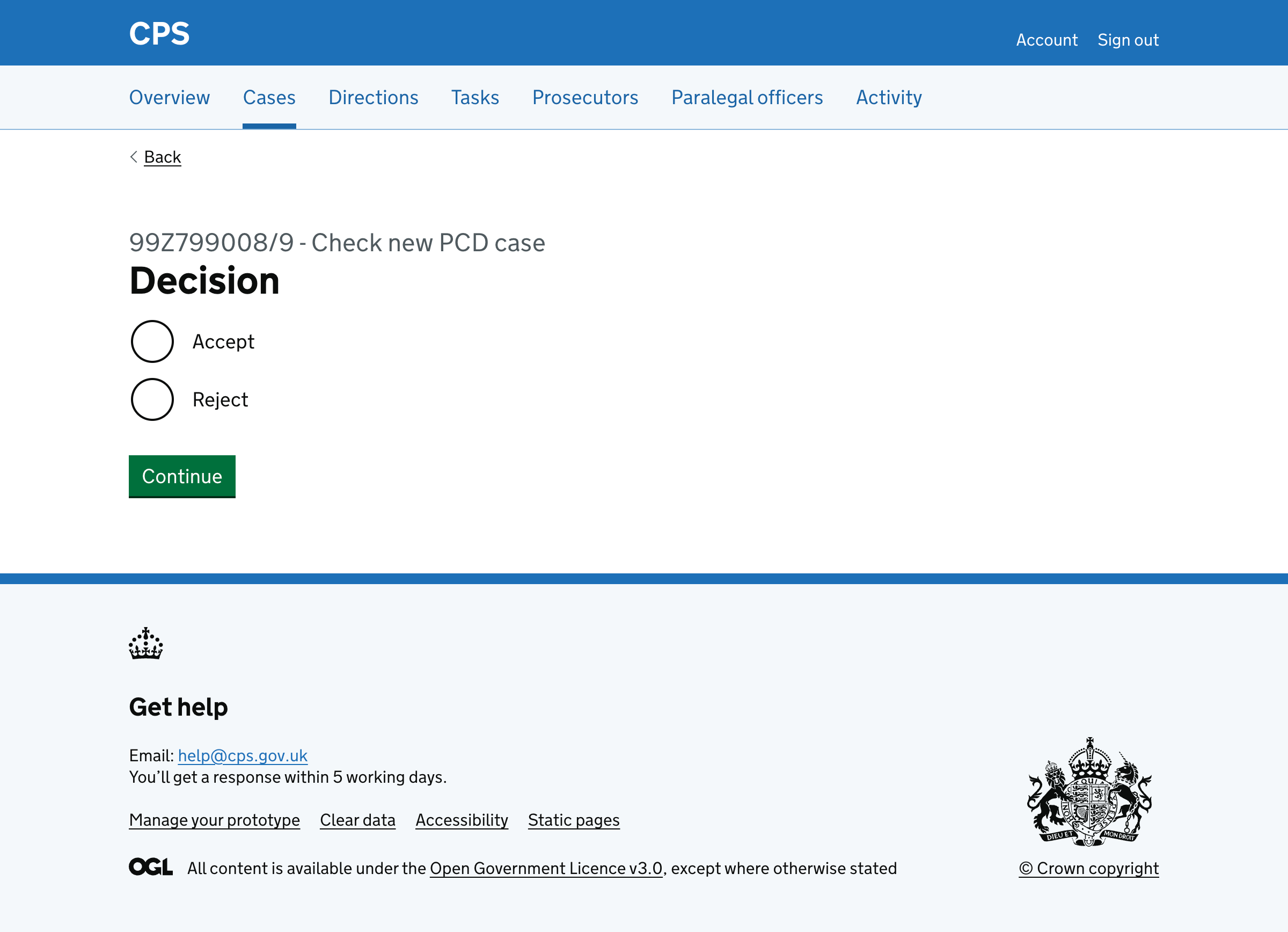
The flow begins with a decision page:
Accept flow
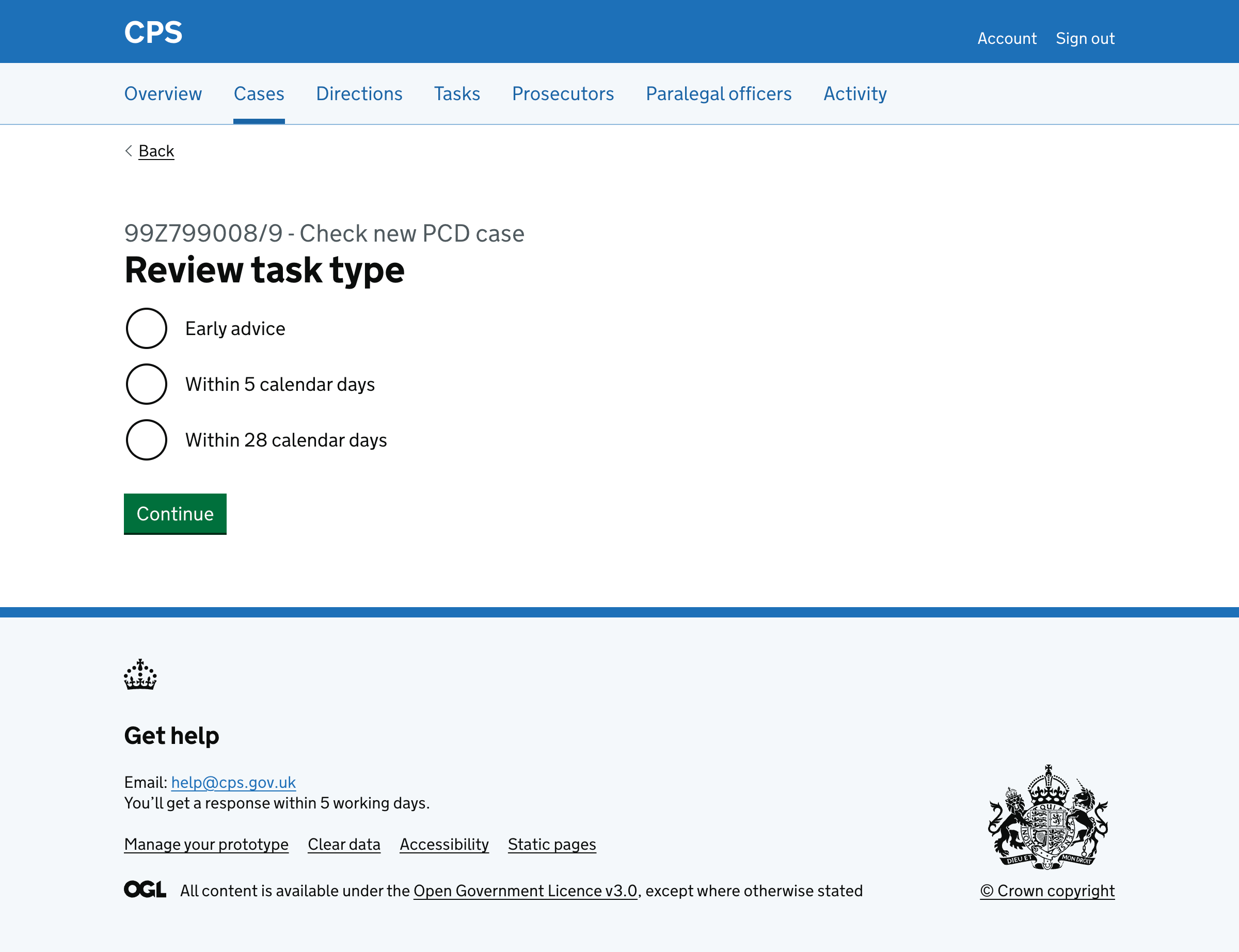
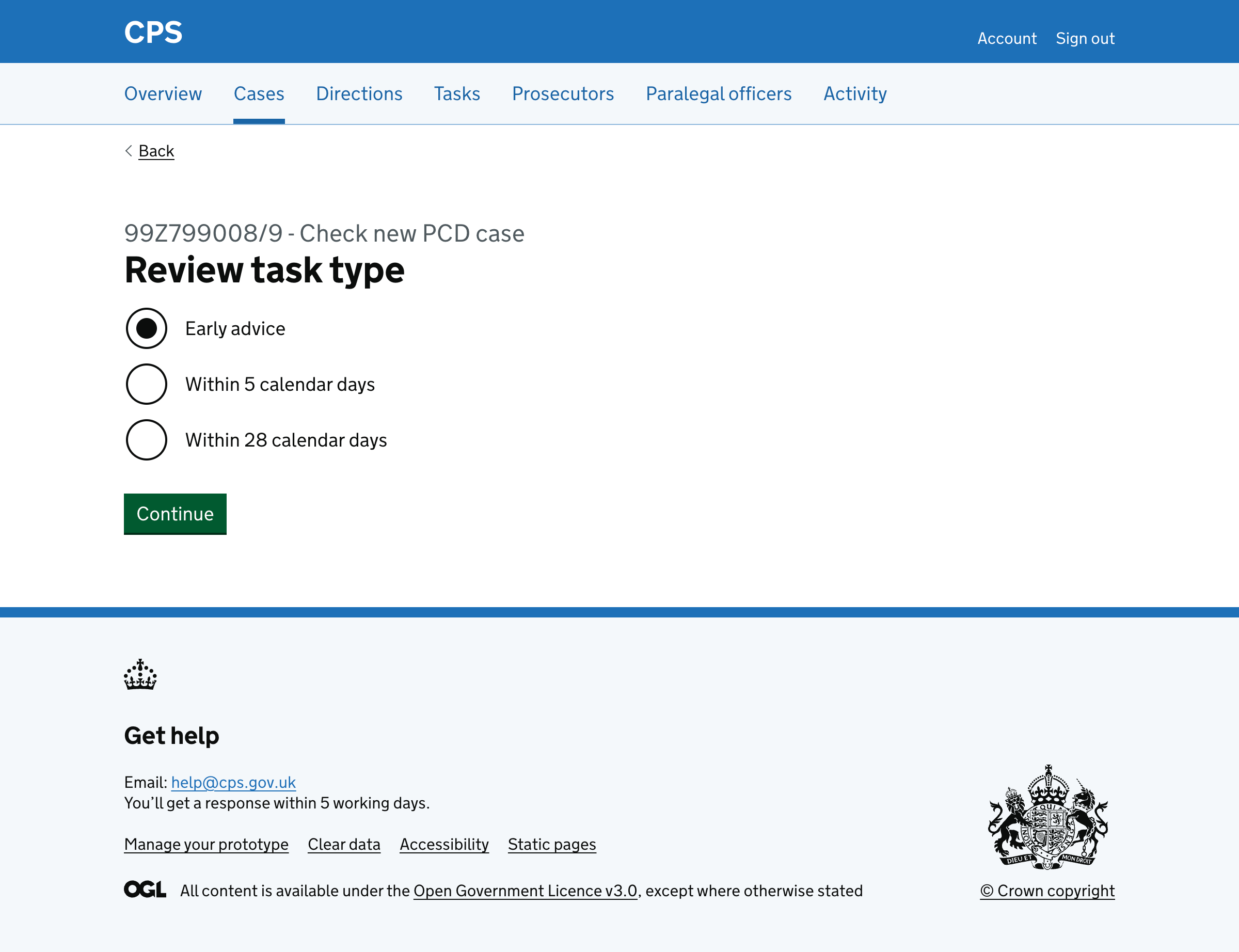
If the user selects ‘Accept’, they’re asked what type of review task this is.
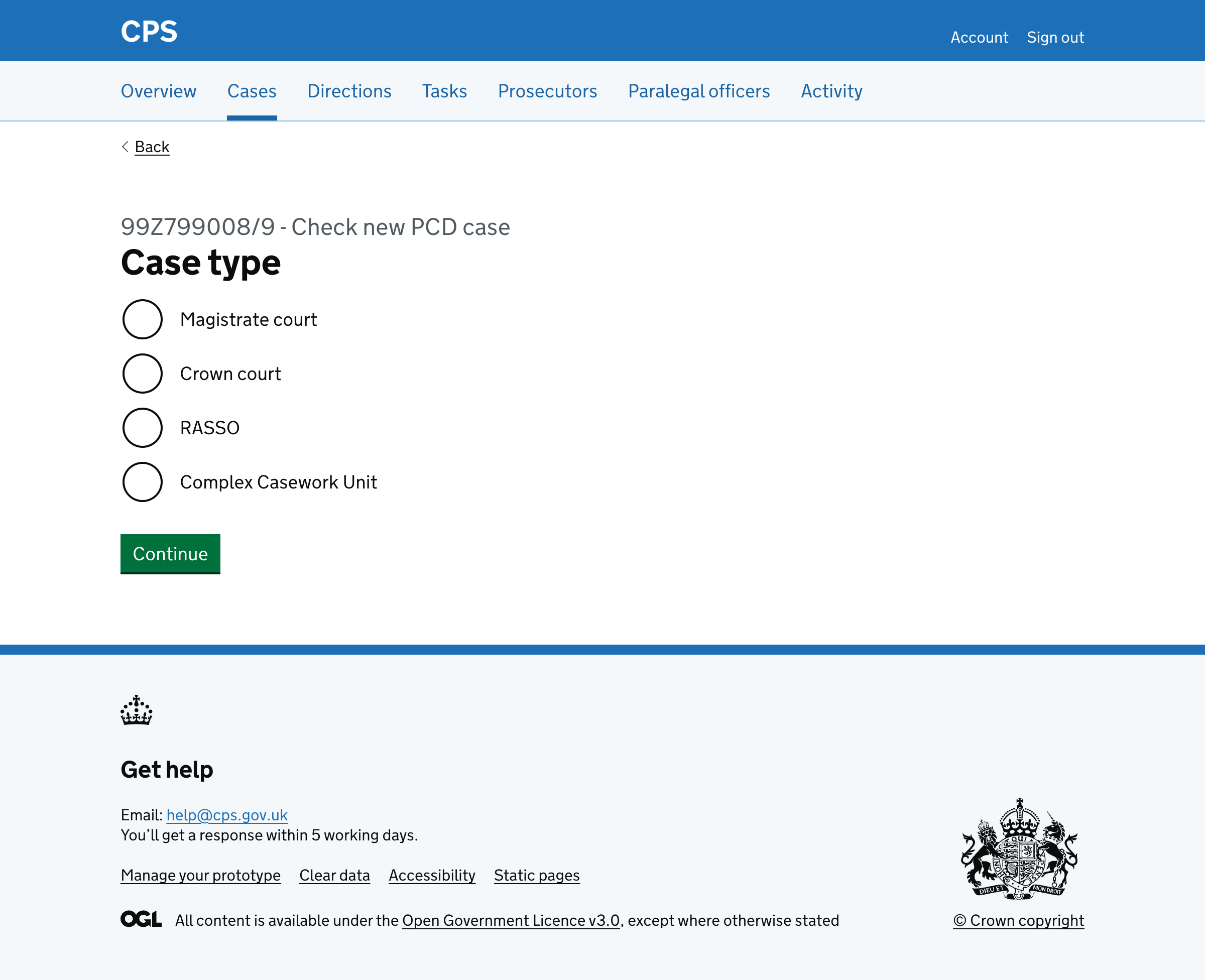
They then must select case type.
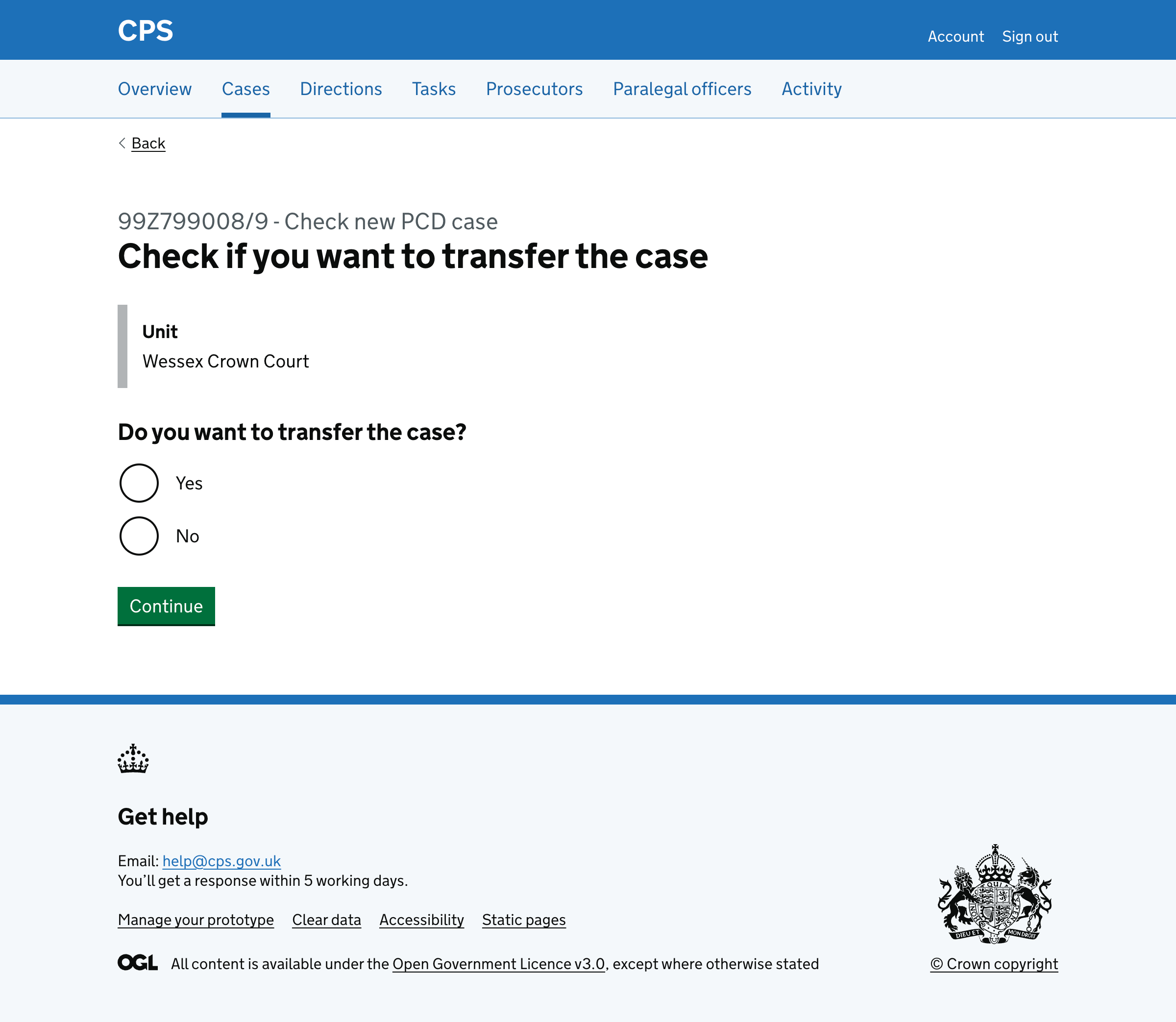
Next, they’re asked if they want to transfer the case. The page shows the current unit in inset text.
What happens next depends on:
- whether they chose to transfer
- what review task type they selected.
Transferring the case to another unit
If the user chooses to transfer the case, they’re asked if they want to change the area. The current area is shown in inset text.
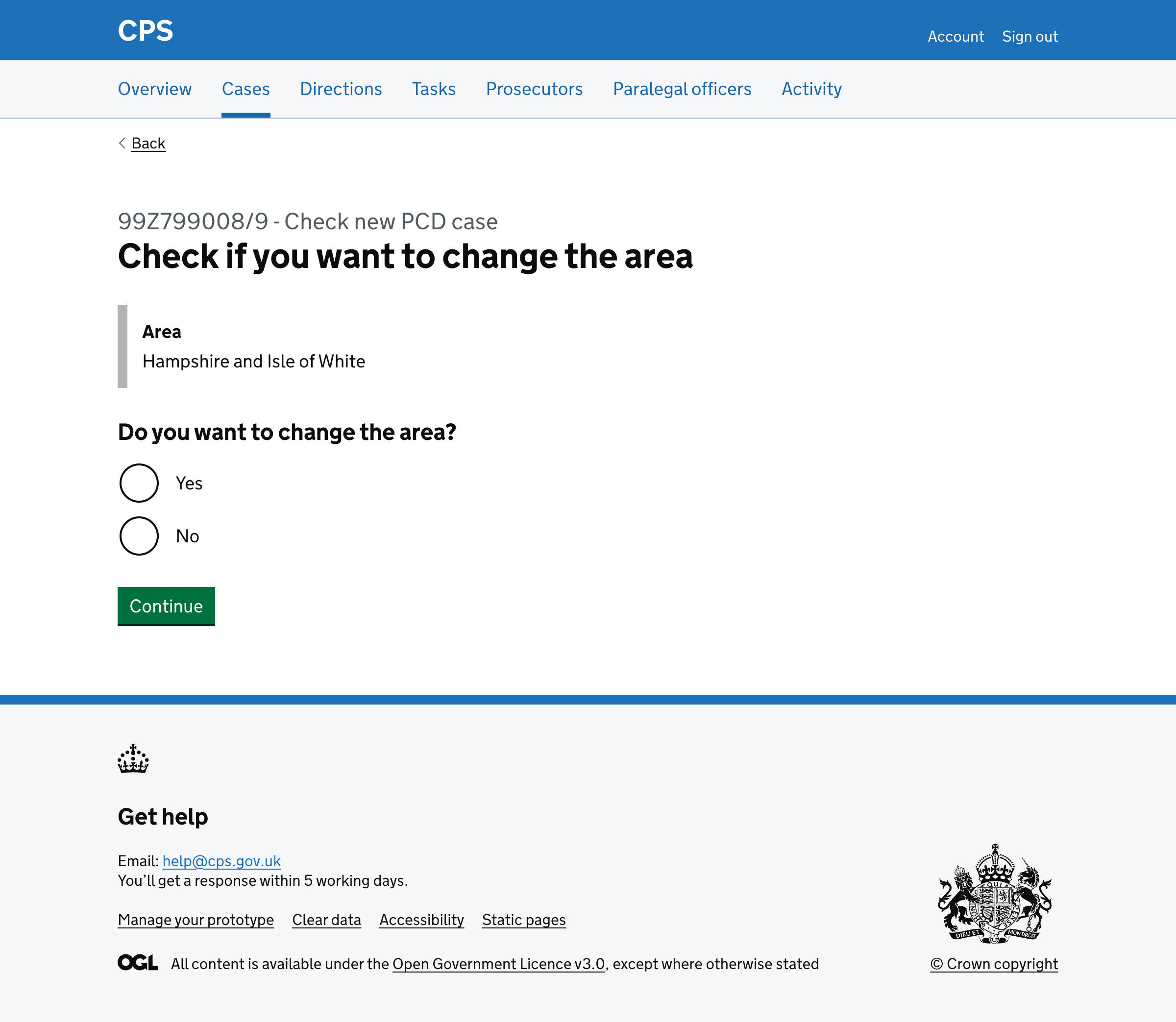
If they select ‘Yes’, an autocomplete field is revealed where they can select a different area.
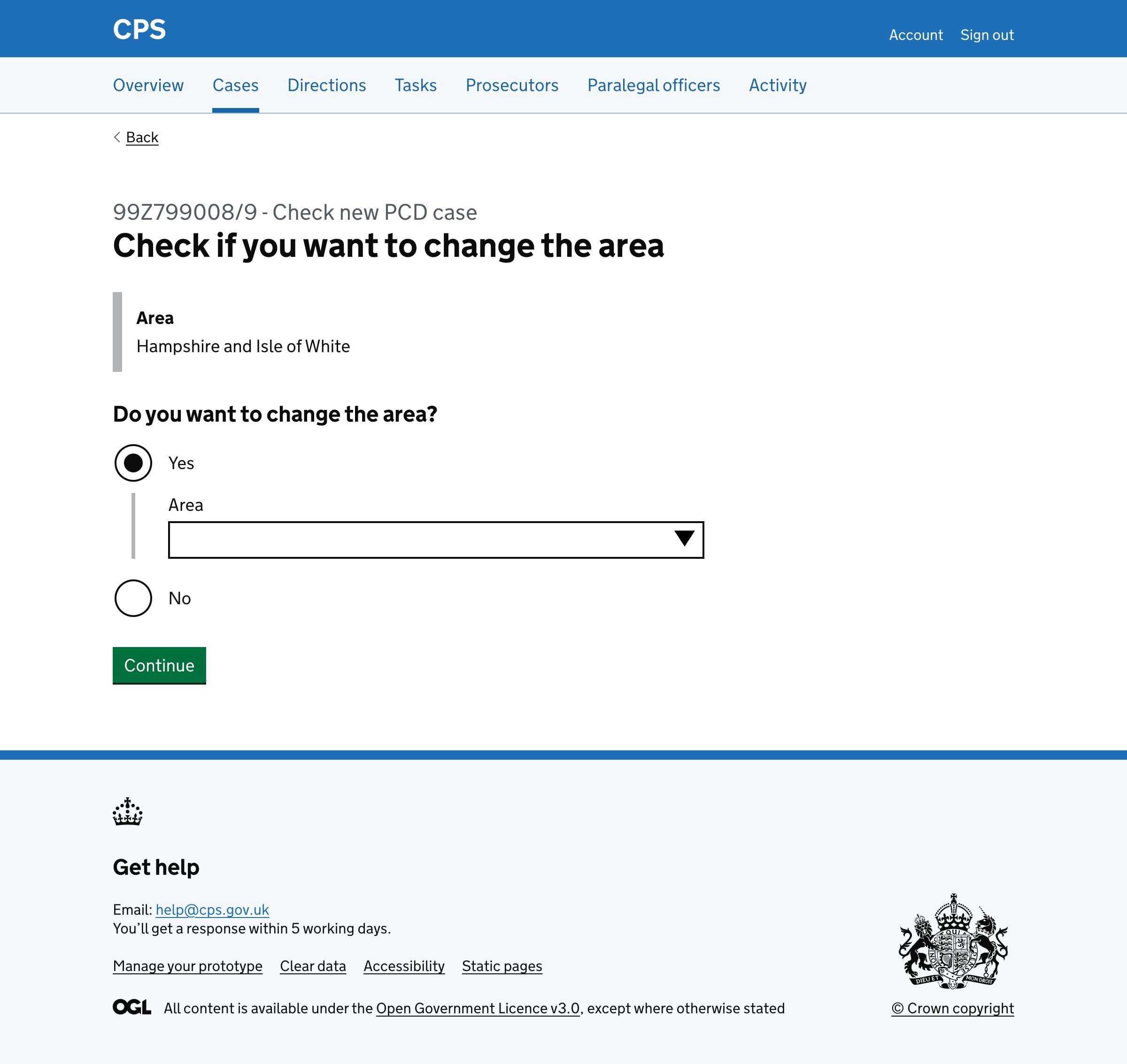
The autocomplete shows matching areas as they type.
Next, they select which unit to transfer the case to. The current unit is shown in inset text.
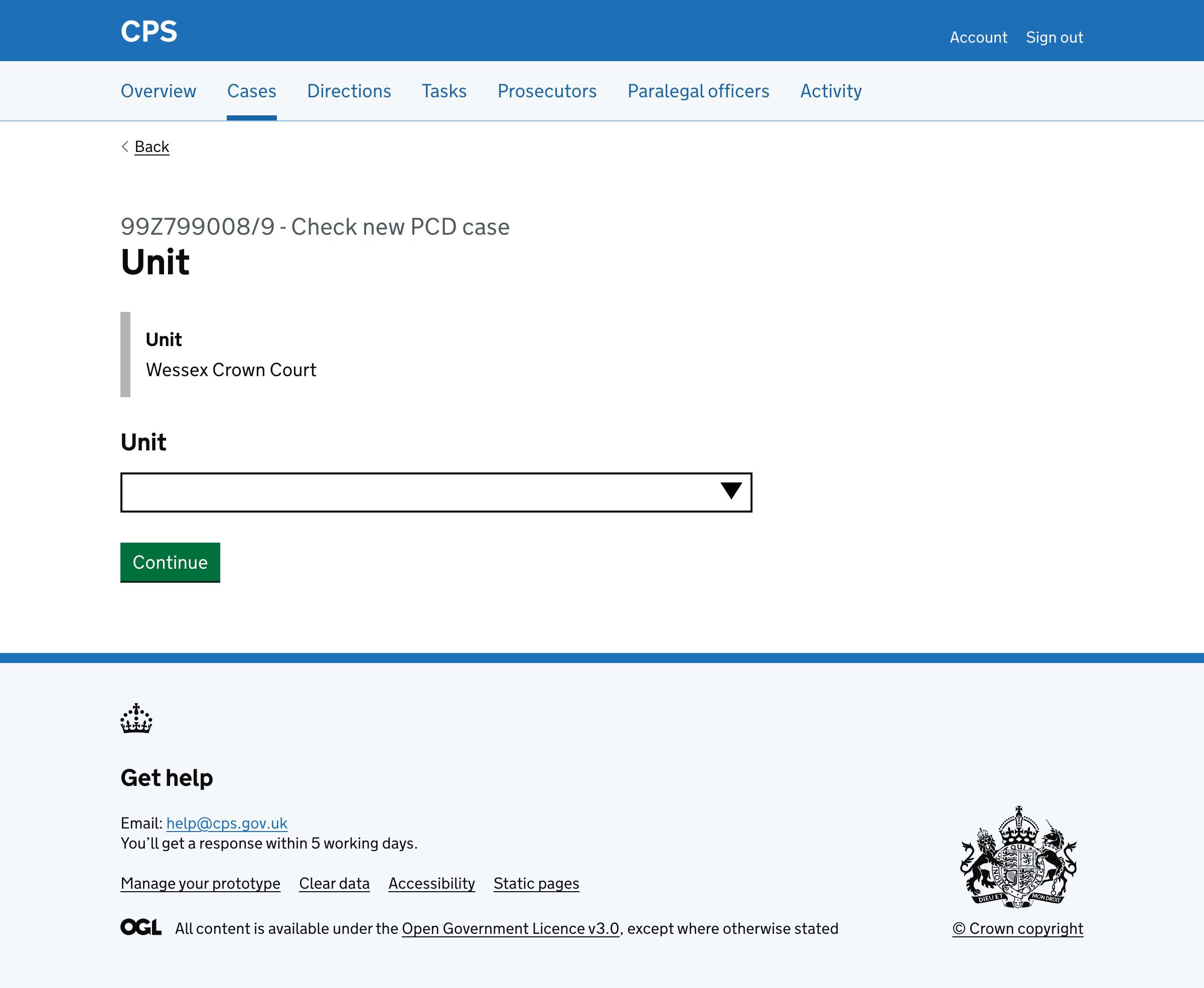
The unit autocomplete is filtered by the selected area (either the area they selected or their current area if they chose not to change it).
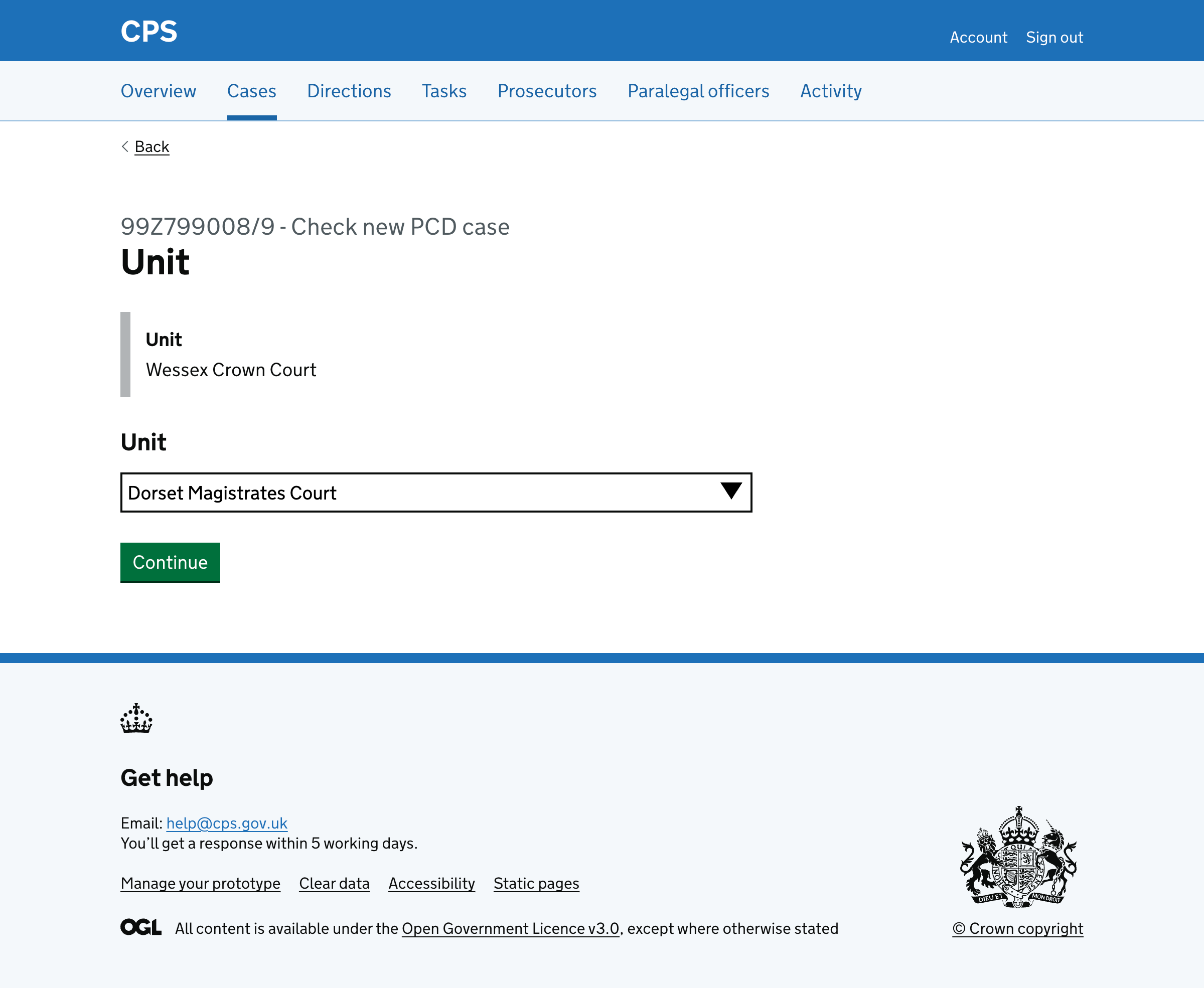
After the transfer question (whether they transferred or not), what happens next depends on the review task type selected earlier.
If the user selects ‘Within 5 calendar days’ or ‘Within 28 calendar days’, users go straight to check answers. These review types do not need task creation or prosecutor assignment.
If the user selects ‘Early advice’, users are asked to assign the case. What they’re asked depends on the case type:
Early advice - RASSO cases
For RASSO cases, users are asked who they want to assign the ‘early advice manager triage’ task to. This is shown for RASSO cases because an additional manager triage step will be created.
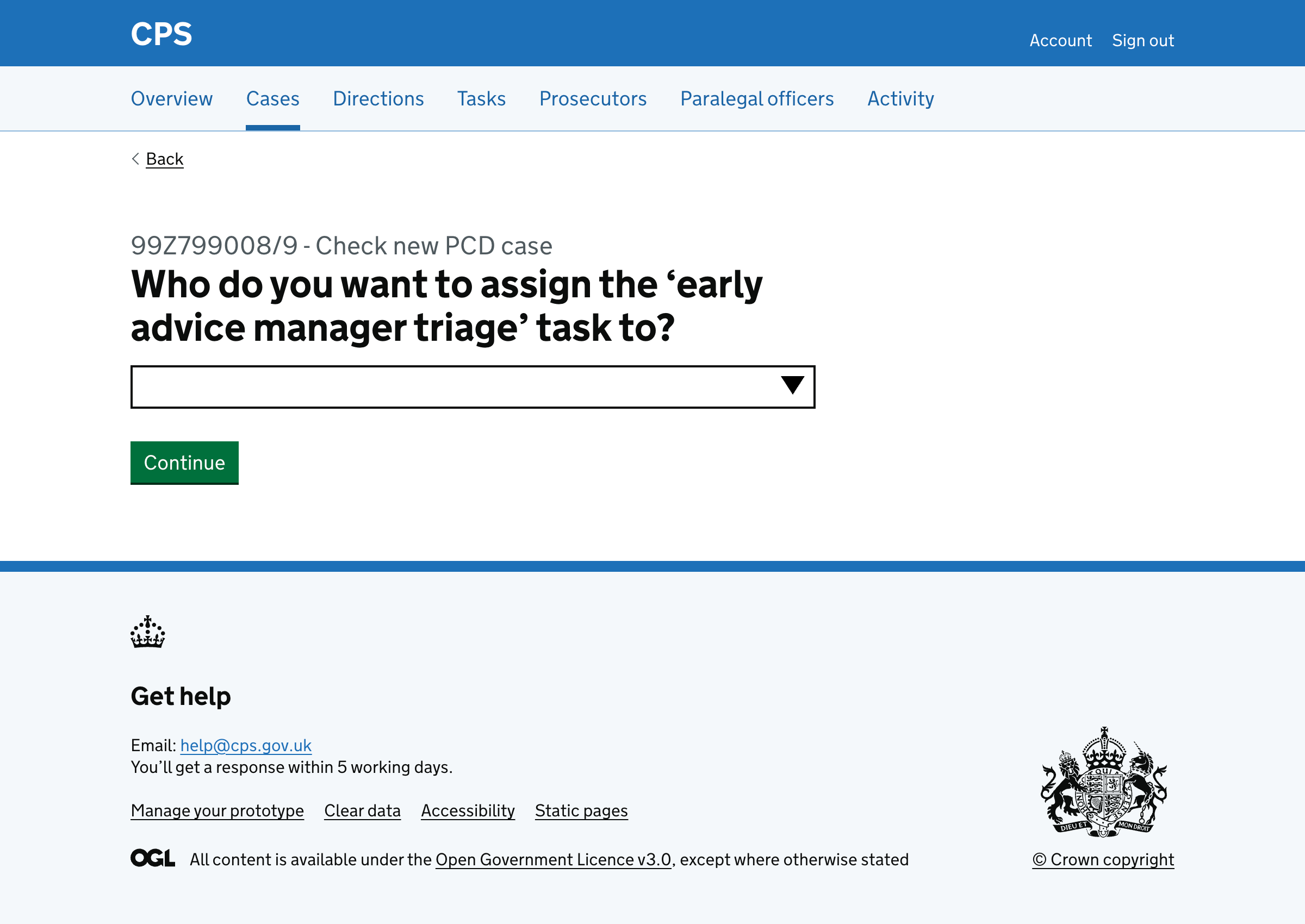
The autocomplete shows both individuals with their role in brackets and teams. When they type, matching results are shown.
The list is filtered by the unit - either the transferred unit if they transferred the case, or the current case unit if they didn’t.
After selecting a task owner, they see the check answers page.
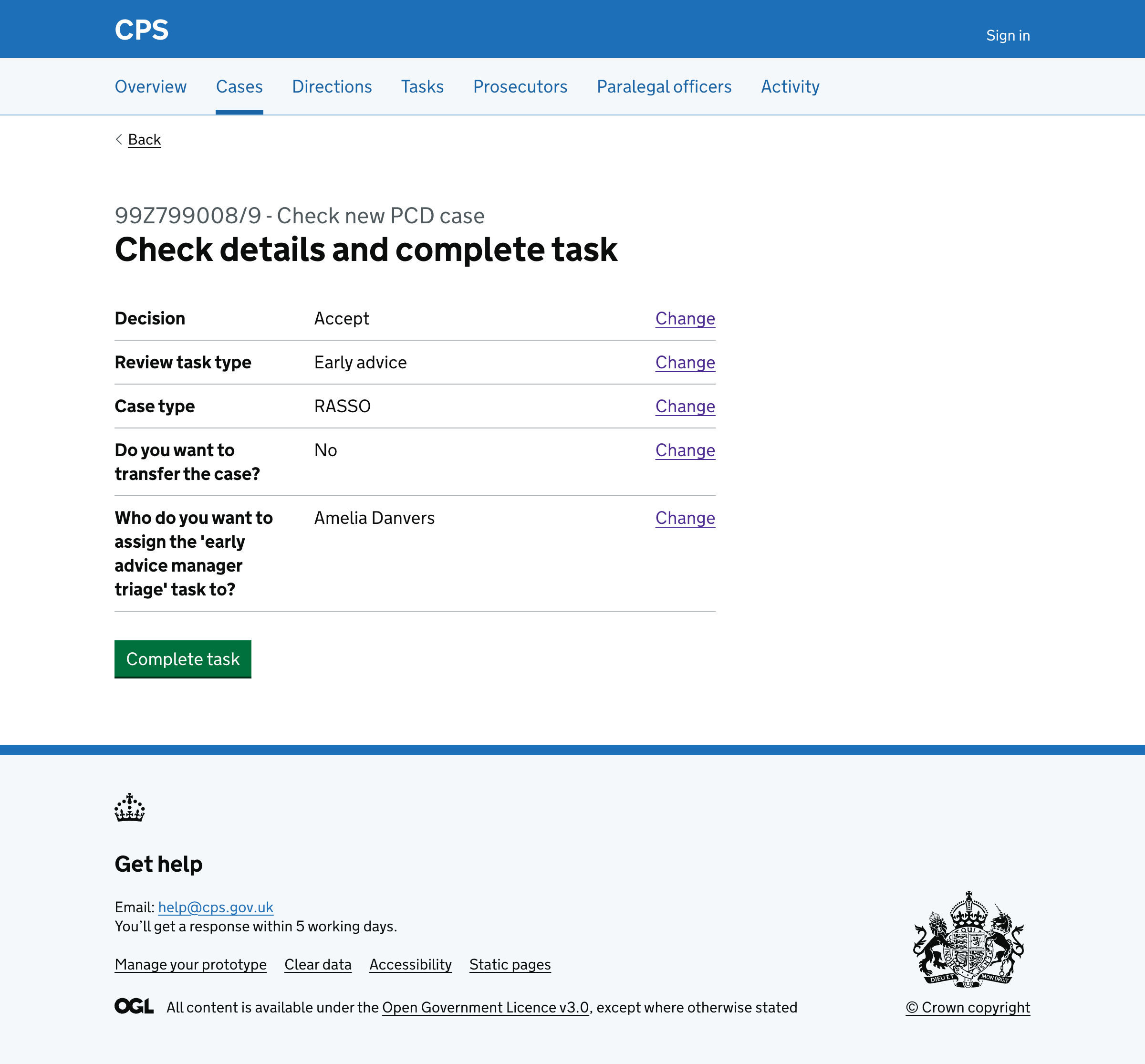
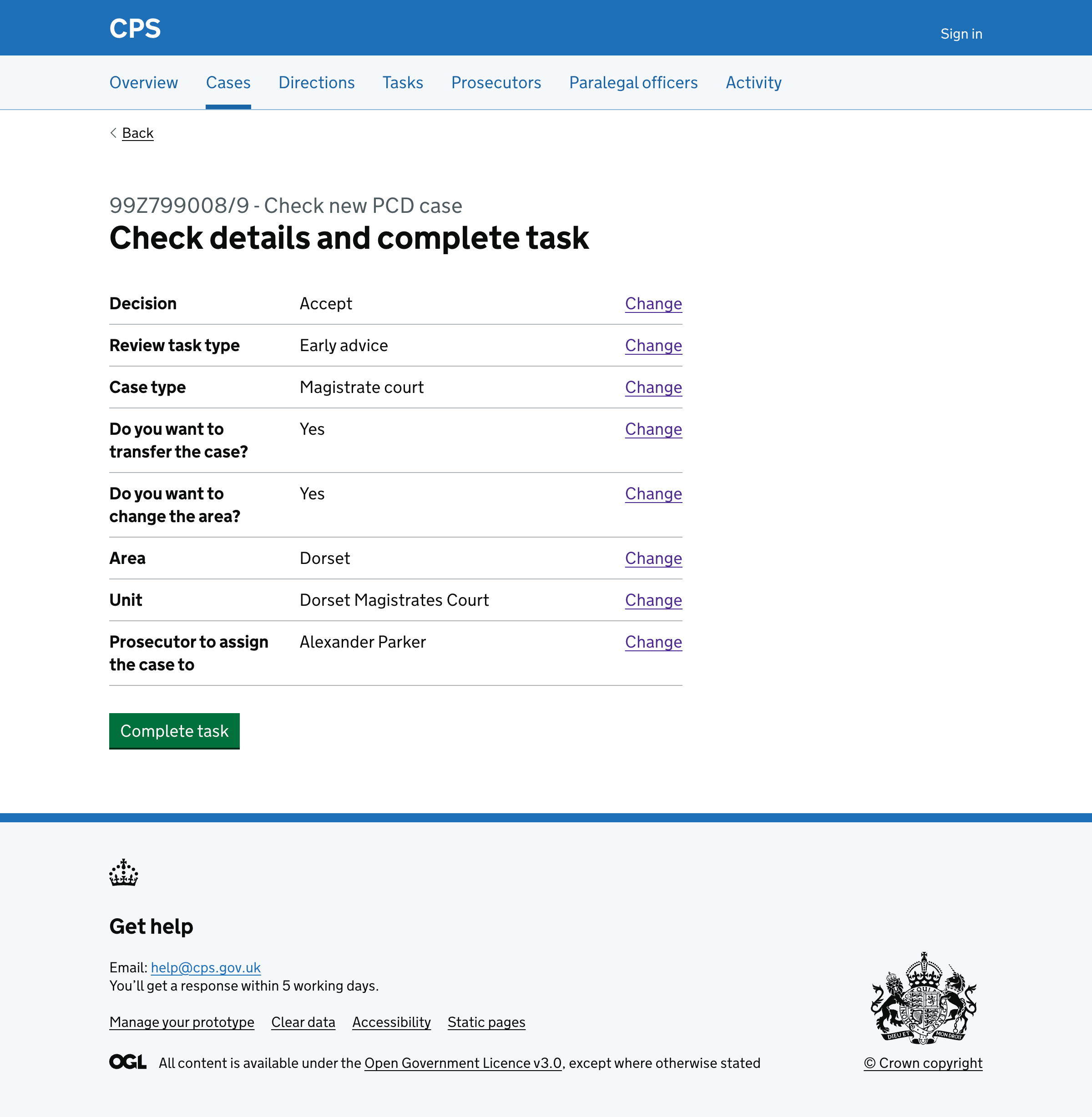
If they transferred the case, the check answers page shows all transfer details including the area and unit.
Early advice - non-RASSO cases
For non-RASSO early advice cases (Magistrate court, Crown court, or Complex Casework Unit), users go to the page to select a prosecutor to assign the case to.
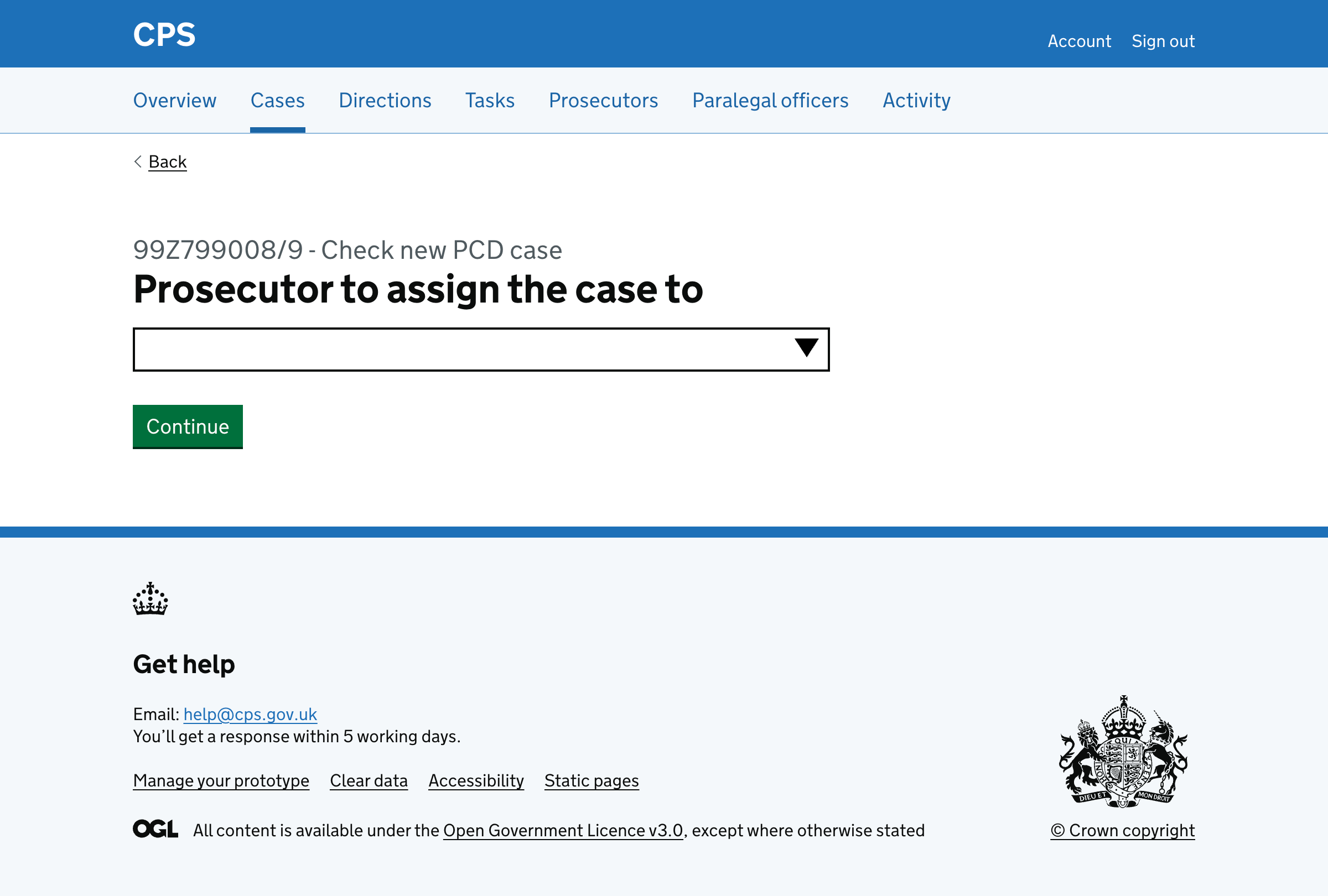
The autocomplete filters the list of prosecutors as they type.
Like the task owner page, the prosecutor list is filtered by the unit - either the transferred unit if they transferred the case, or the current case unit if they didn’t.
The check answers page shows the prosecutor assignment.
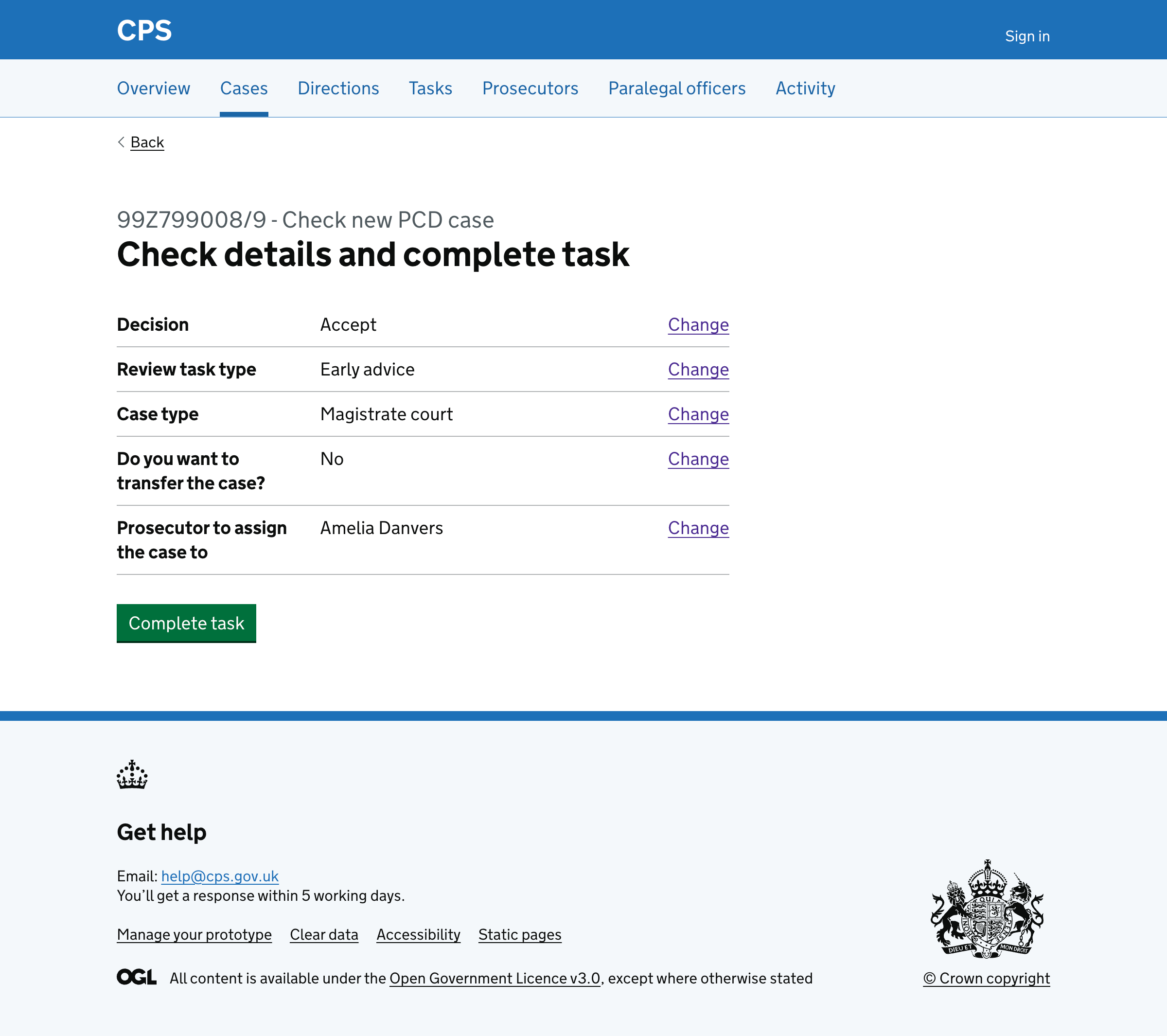
Reject flow
If the user chooses ‘Reject’ at the start, they’re asked to select reasons for rejection.
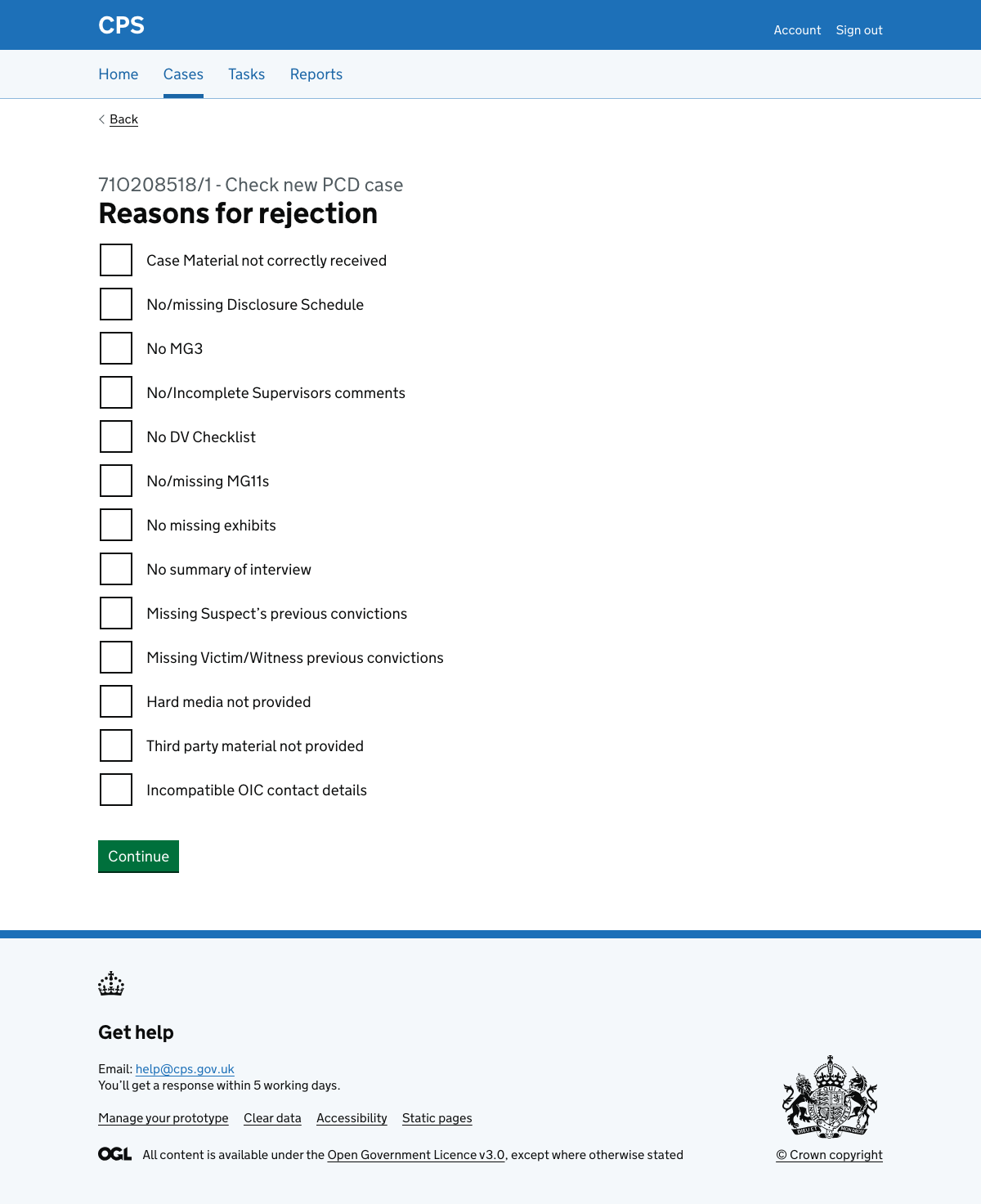
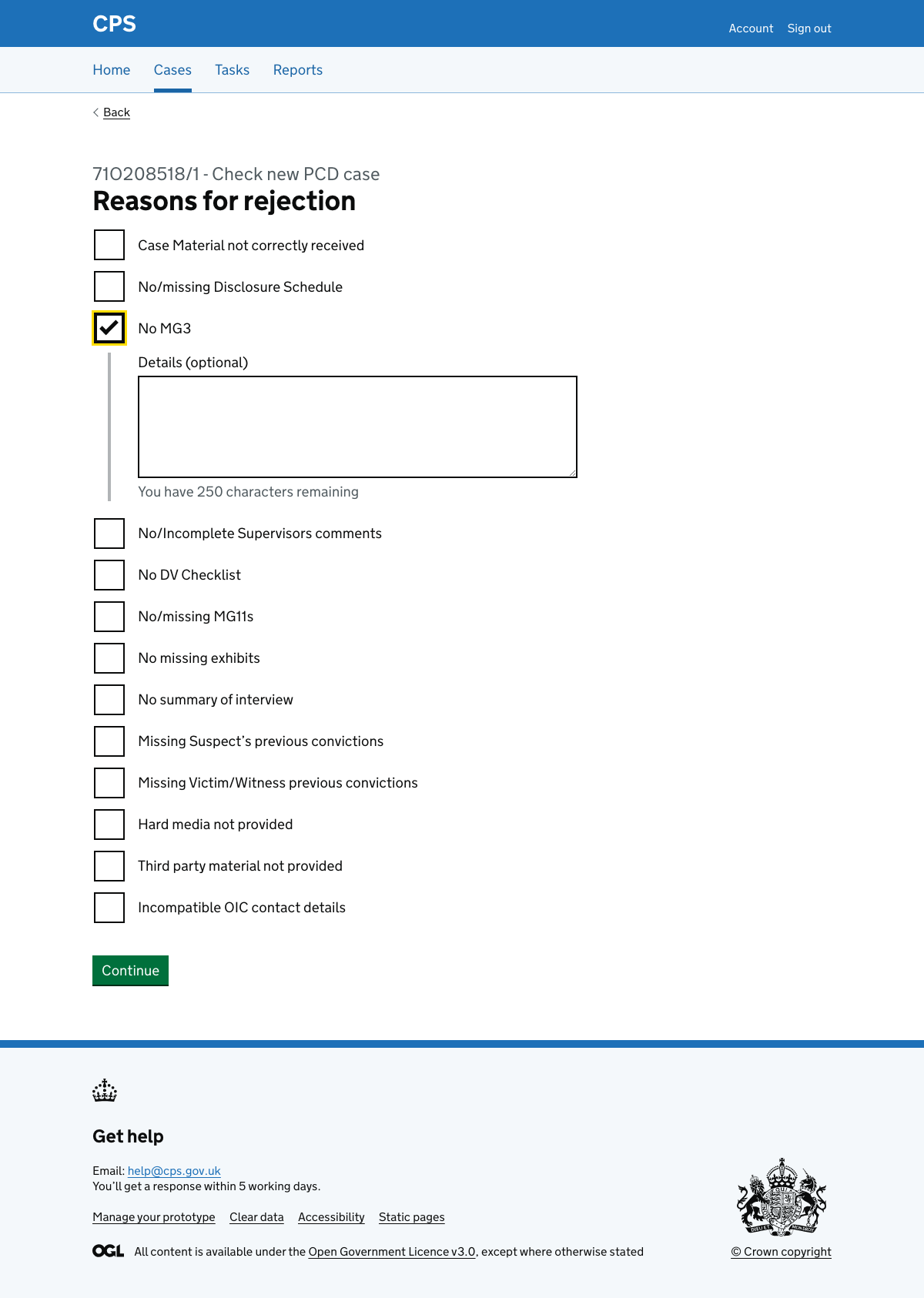
Selecting a checkbox, conditionally reveals a character count to add details.
After selecting reasons, they’re asked what type of review task this is.
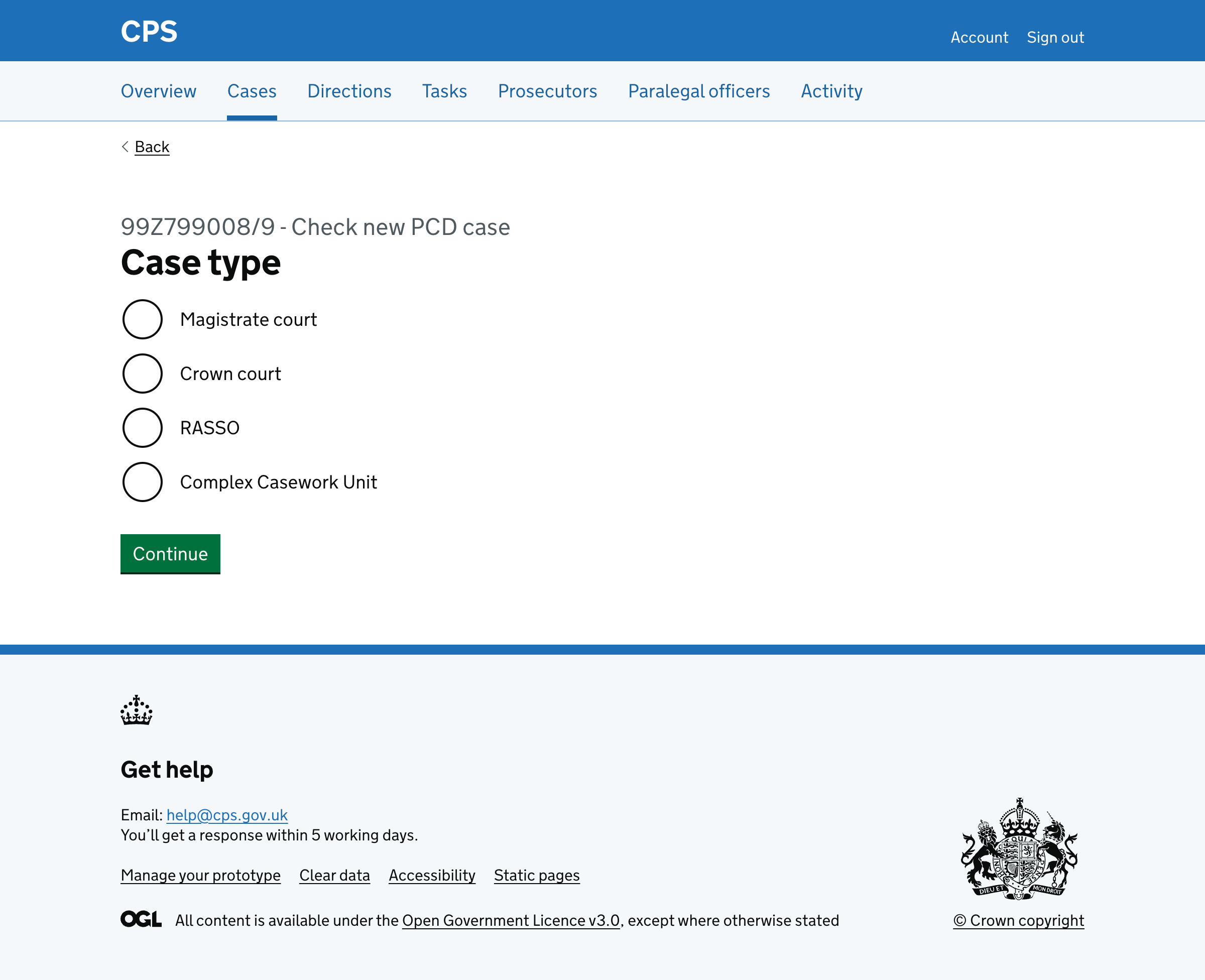
Then they’re asked to select case type.
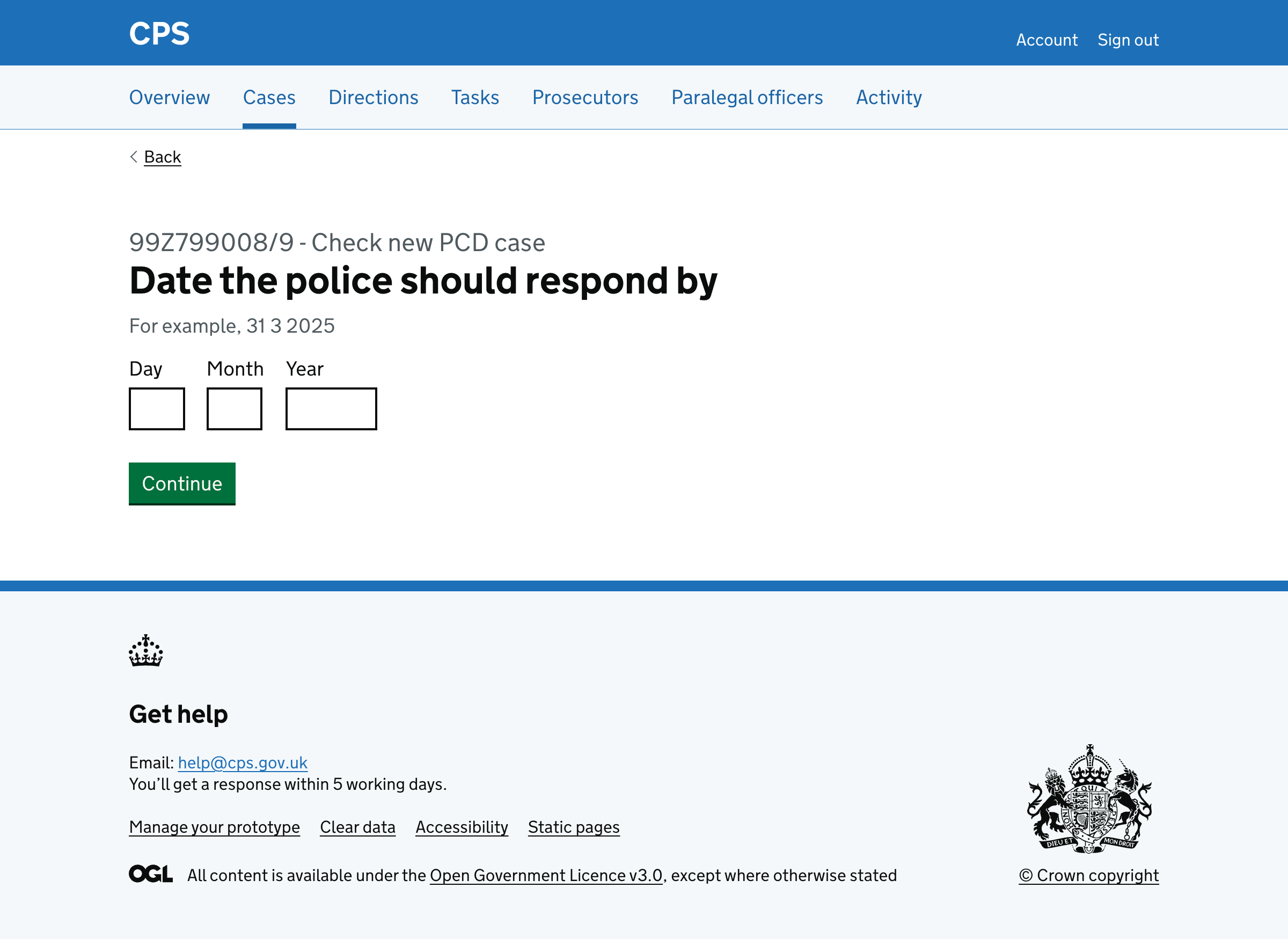
Then the user must provide the date the police should respond by.
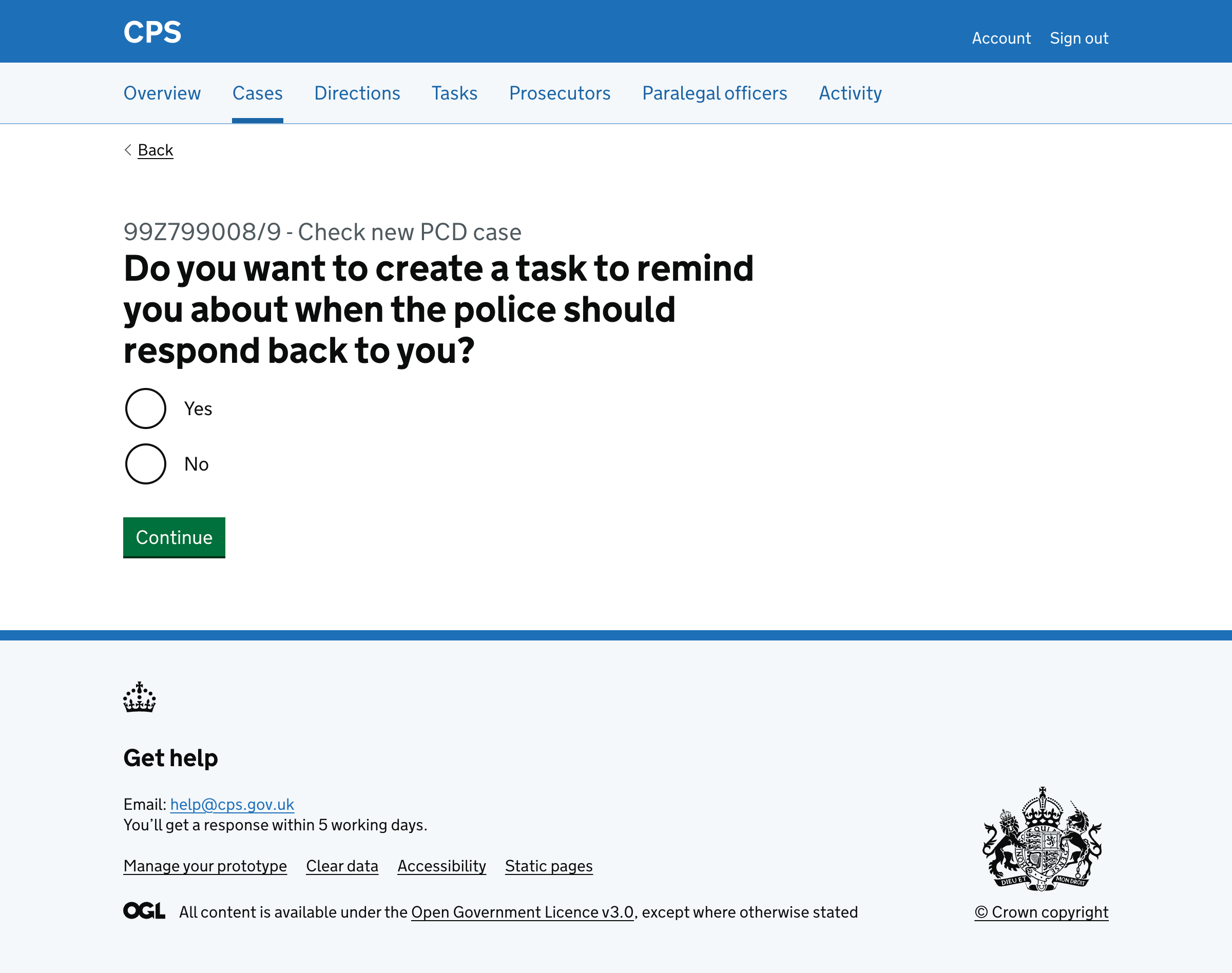
The user is then asked if they want to create a task to remind them about when the police should respond back to them.
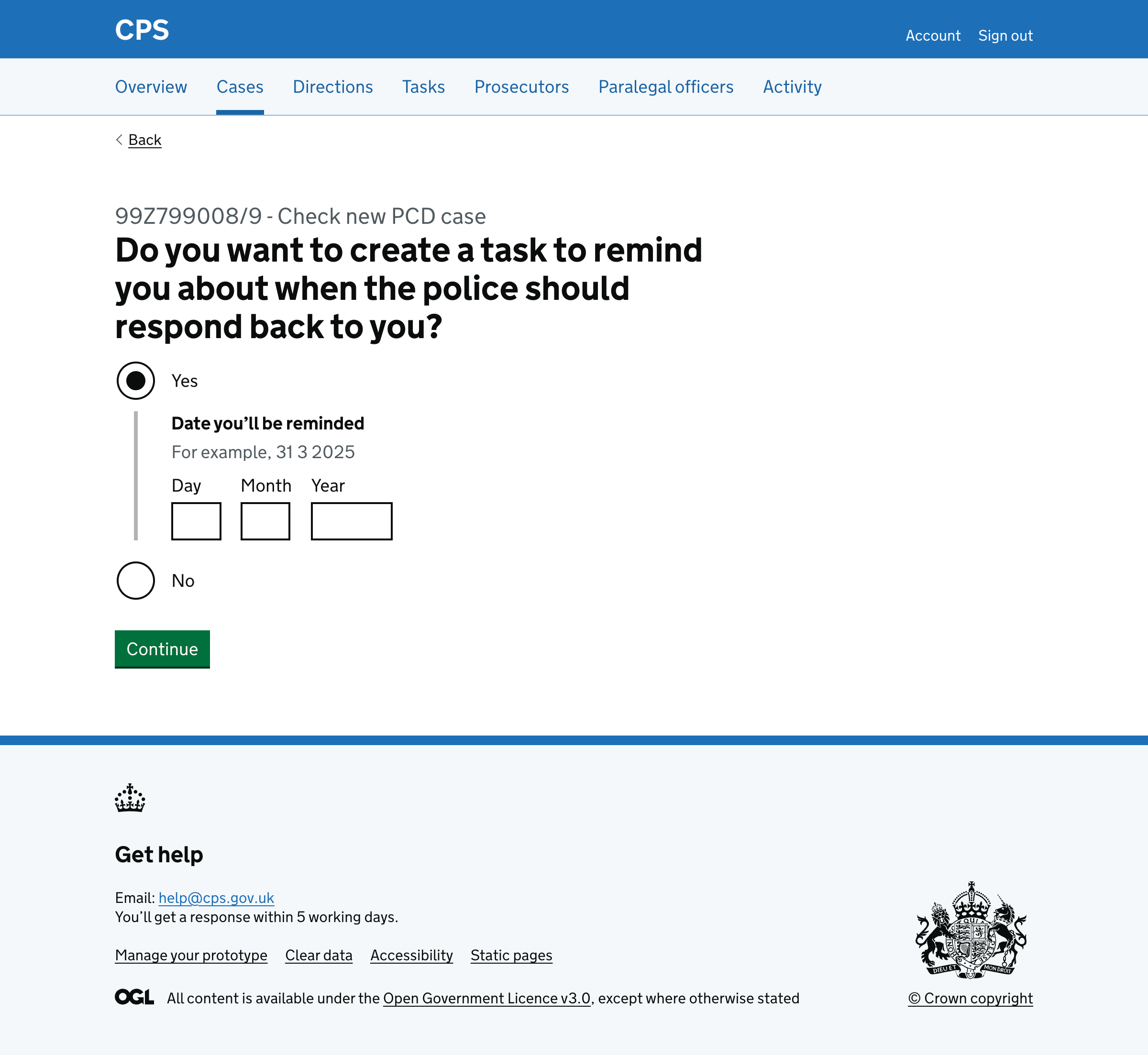
If they select ‘Yes’, a date input is conditionally revealed where they can set the reminder date.
Then they’re taken to the check answers page.
Completing the task
When the user clicks ‘Complete task’, they’re redirected to the case task list with a success banner.
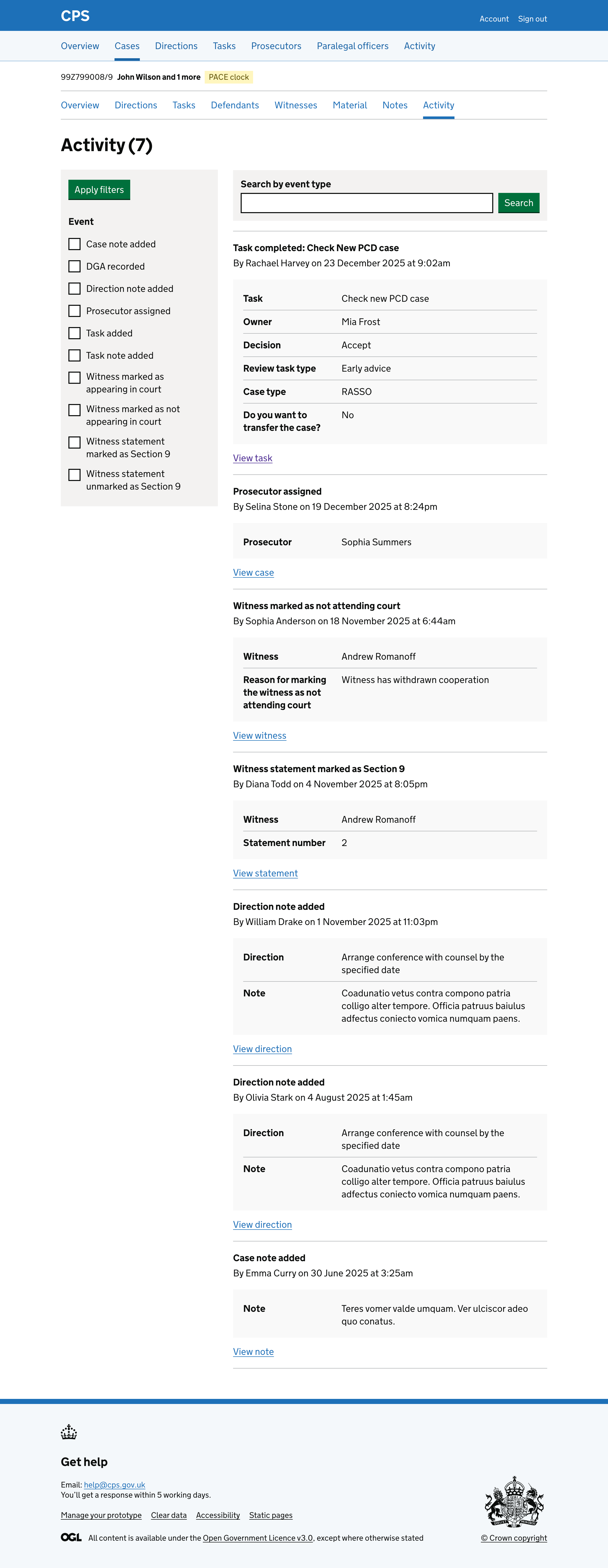
An entry is added to the case activity log showing the task was completed with all the relevant details.
For early advice RASSO cases an ‘early advice manage triage’ task is created with the owner being the selected owner.
Error messages
Decision
- Nothing selected: Select if you want to accept or reject
Case type
- Nothing selected: Select case type
Review task type
- Nothing selected: Select review task type
Reasons for rejection
- Nothing selected: Select reasons for rejection
Details
- Too long: Details about ‘No MG3’ must be 250 characters or less
Do you want to create a task to remind you about when the police should respond back to you?
- Nothing selected: Select yes if you want to create a task to remind you about when the police should respond back to you
Date you’ll be reminded
- Empty: Enter date you’ll be reminded
- Missing day: Date you’ll be reminded must include a day
- Missing month: Date you’ll be reminded must include a month
- Missing year: Date you’ll be reminded must include a year
- Invalid: Date you’ll be reminded must be a real date
- Must be future: Date you’ll be reminded must be in the future
Who do you want to assign the ‘early advice manager triage’ task to?
- Empty: Enter who you want to assign the ‘early advice manager triage’ task to
Do you want to transfer the case?
- Nothing selected: Select yes if you want to transfer the case
Do you want to change the area?
- Nothing selected: Select yes if you want to change the area
Area
- Empty: Enter area
Unit
- Empty: Enter unit
Prosecutor to assign the case to
- Empty: Enter prosecutor to assign the case to
Date the police should respond by
- Empty: Enter date the police should respond by
- Missing day: Date the police should respond by must include a day
- Missing month: Date the police should respond by must include a month
- Missing year: Date the police should respond by must include a year
- Invalid: Date the police should respond by must be a real date
- Must be future: Date the police should respond by must be in the future