Marking a direction as complete
Users need to be able to complete directions.
How it works
Users get to the flow by clicking “Complete direction” on the direction details page.
The confirmation page shows the direction description in an inset and asks users to confirm they want to complete it.
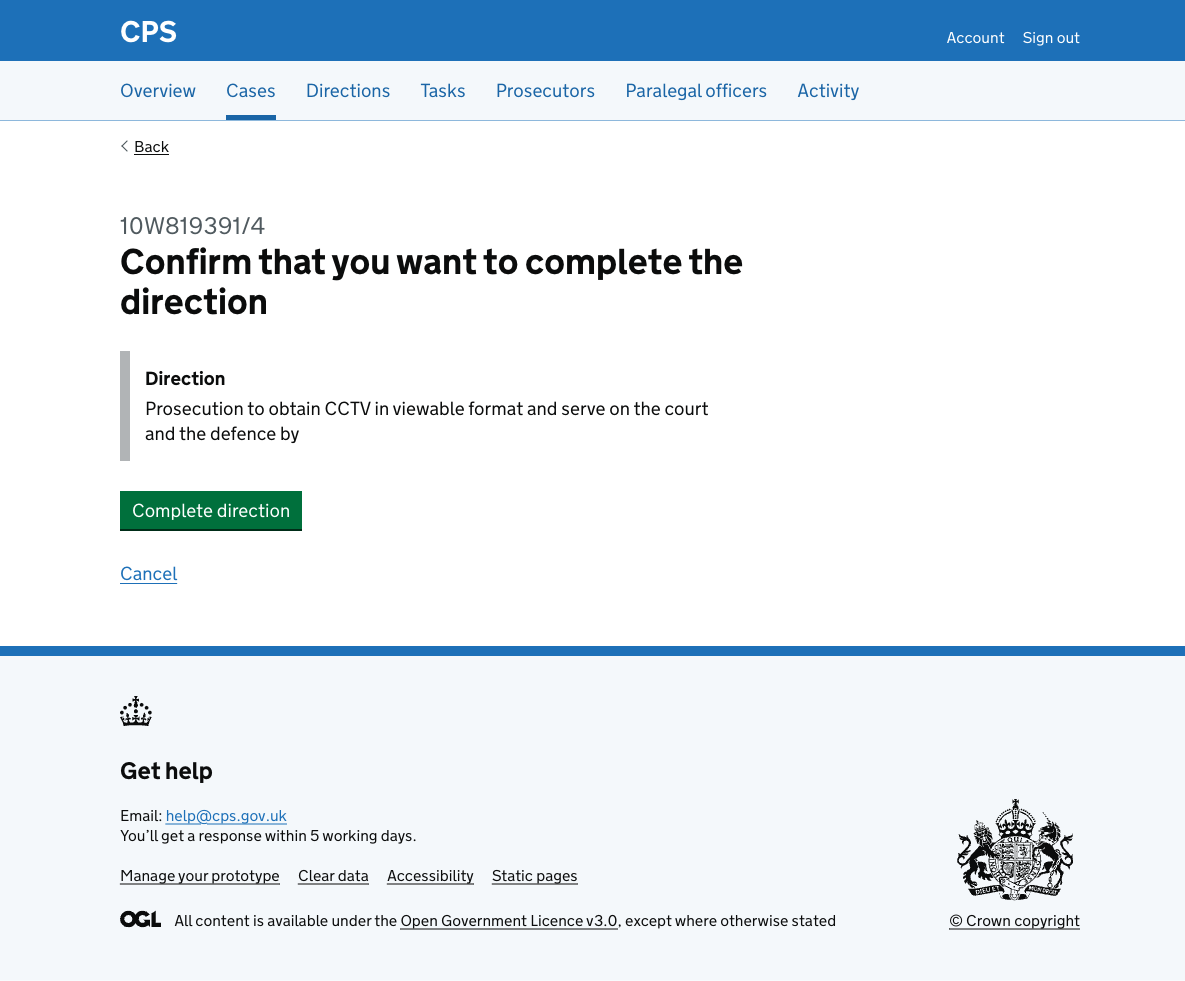
A cancel link lets users go back to the direction details page without making any changes.
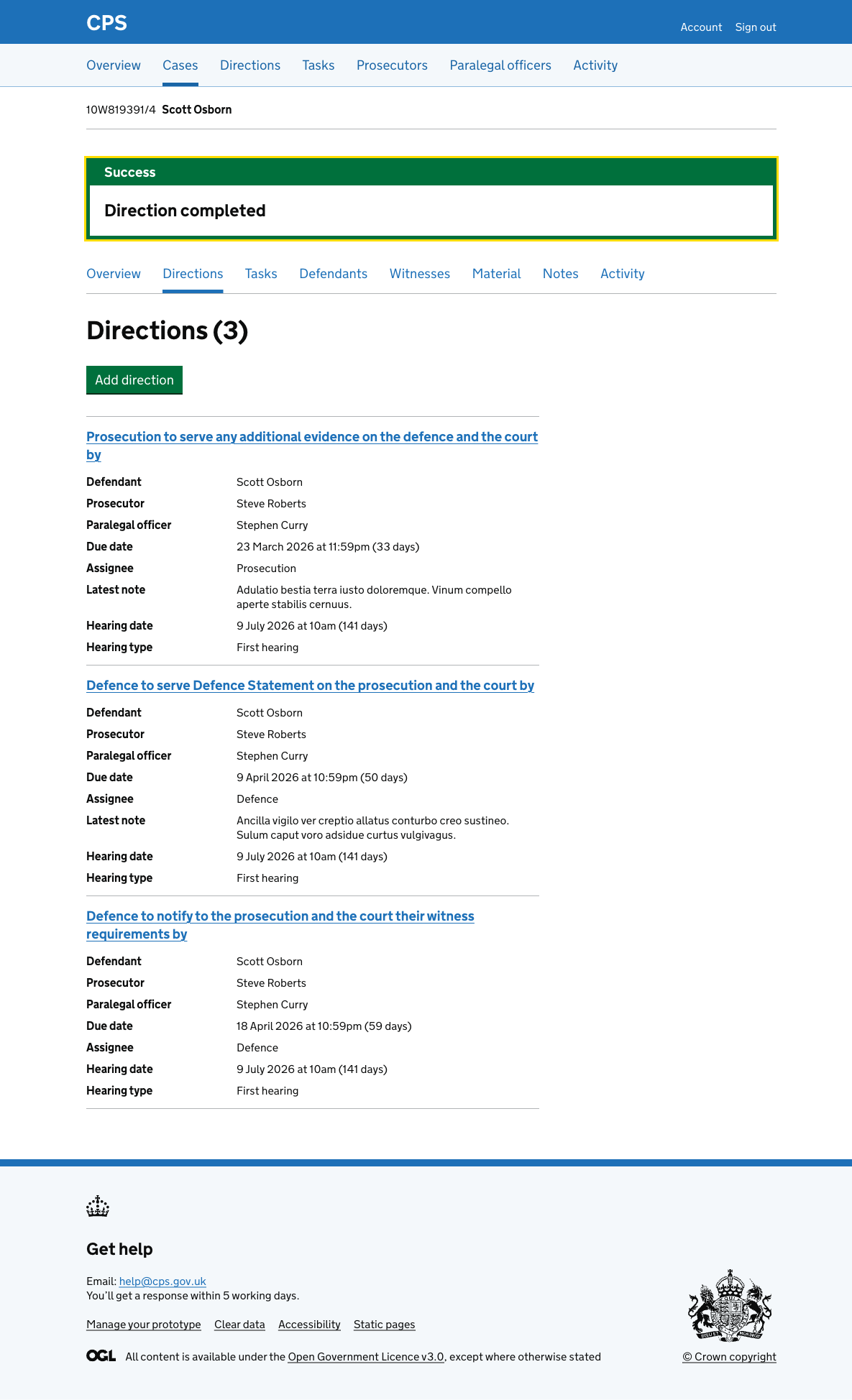
After confirming, the user is taken back to the case direction list where a success banner says “Direction completed”.
The completed direction no longer appears in the list.
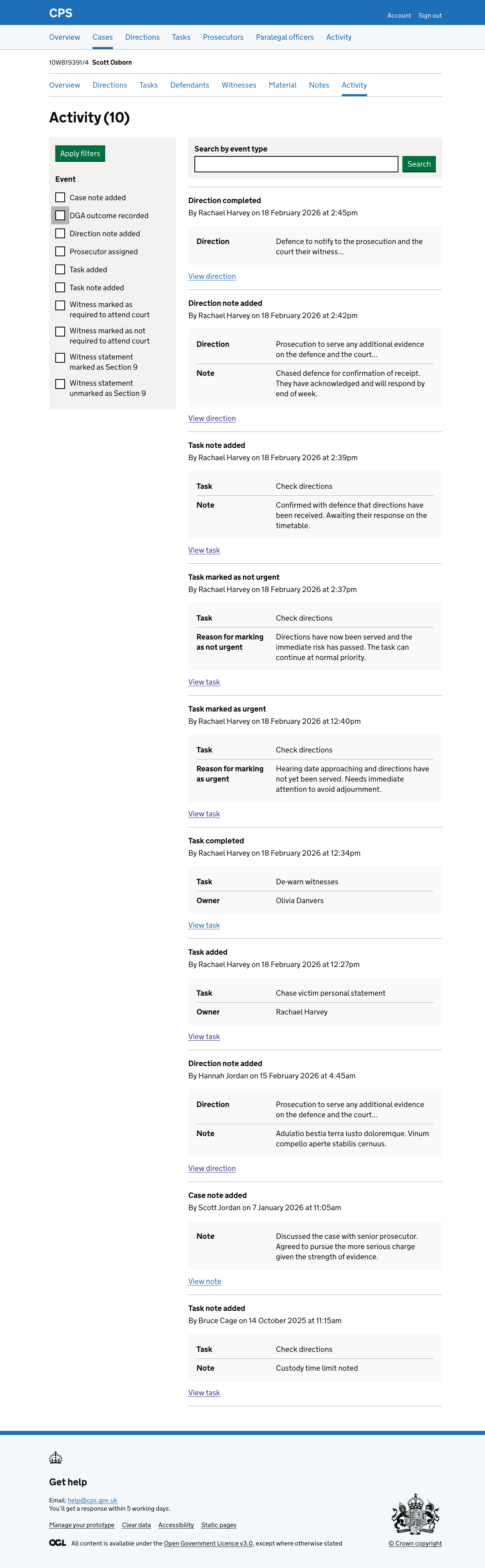
Activity log
The action is recorded in the activity log as “Direction completed”, showing the direction description and a link to view the direction.