Marking a task as not urgent
Tasks that have been marked as urgent can be marked as not urgent.
How it works
Clicking “Mark as not urgent” on the task details page takes the user to a page to enter a reason for marking the task as not urgent.
An inset shows the task name so users can confirm they are acting on the right task.
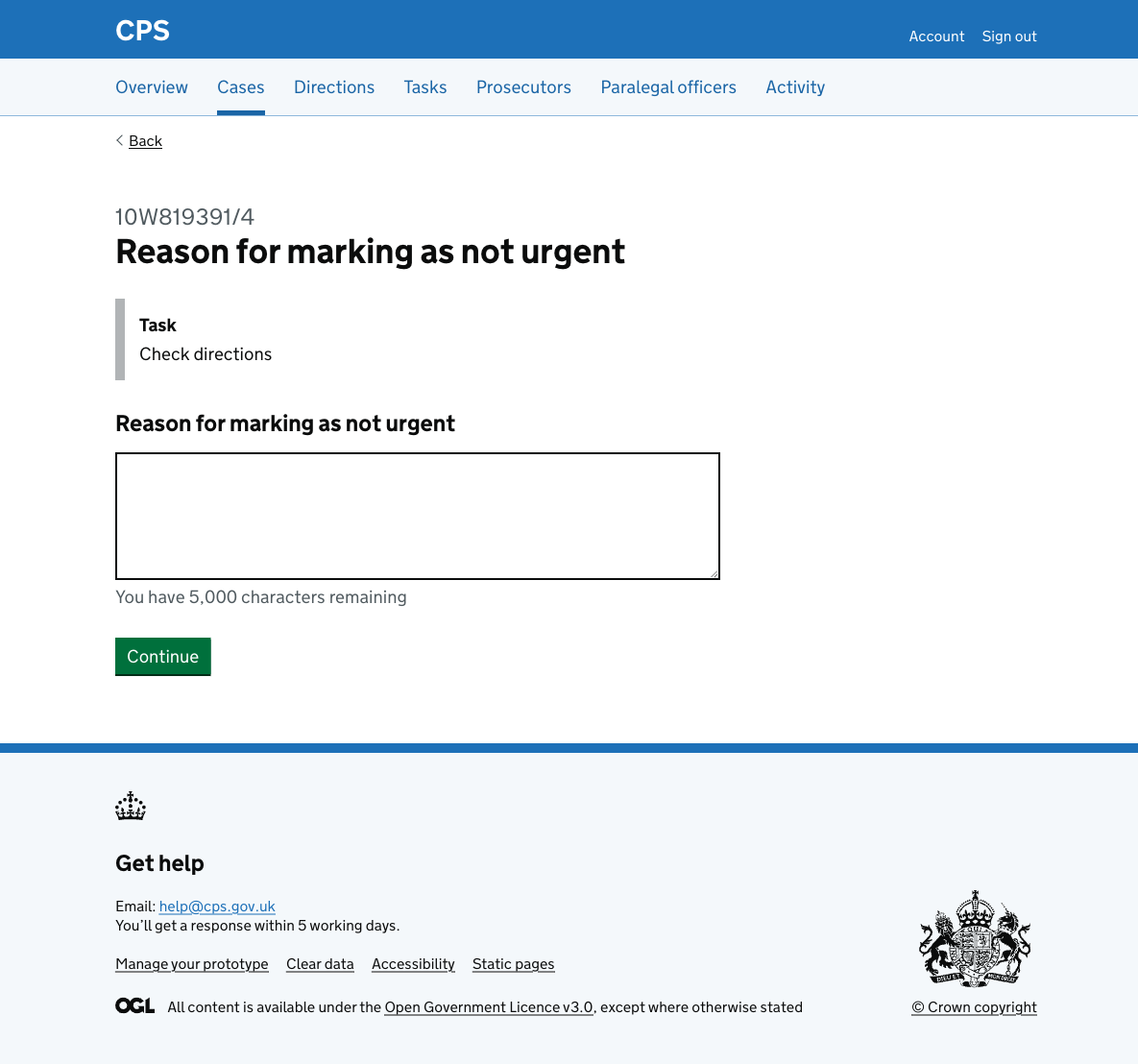
After entering a reason, the user is taken to the check answers page:
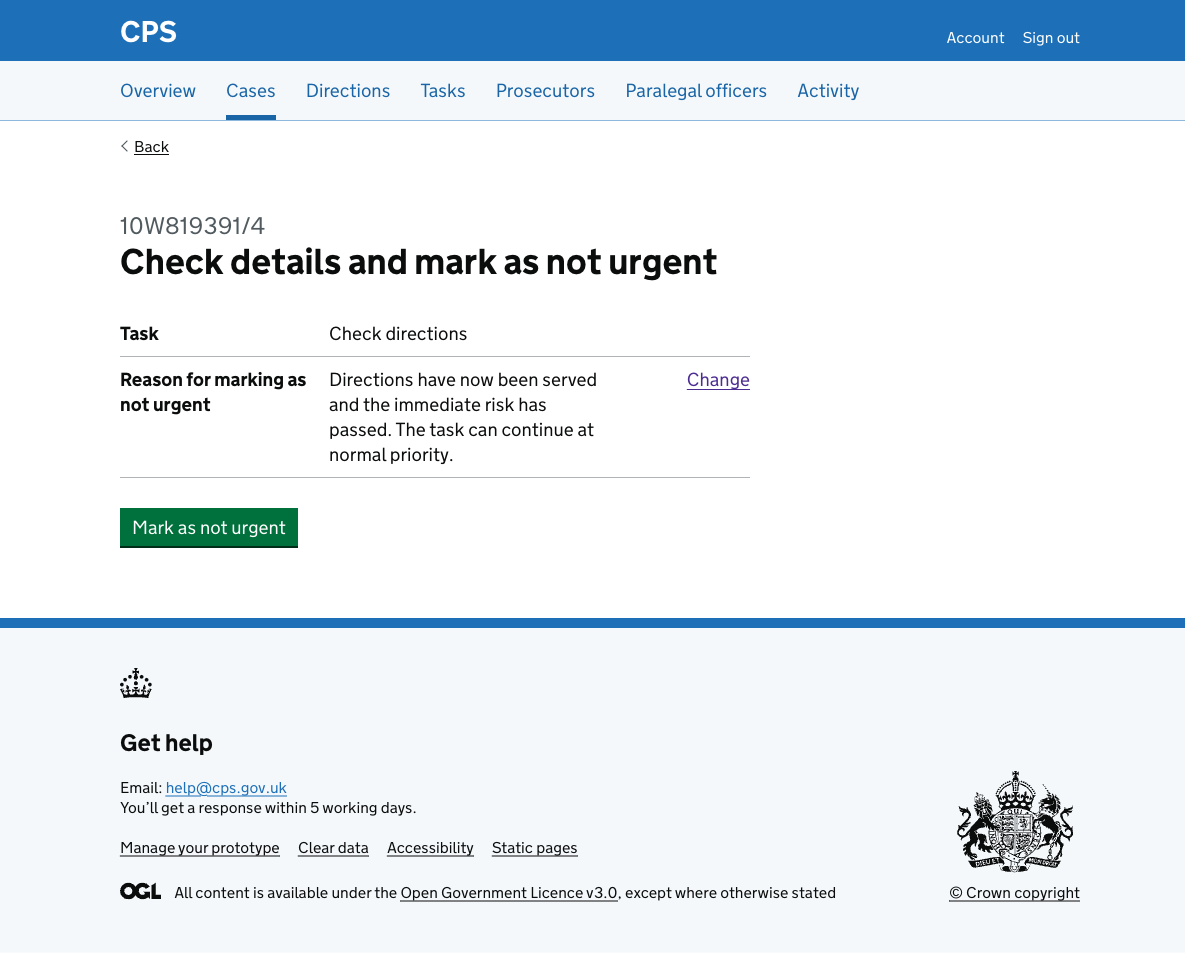
The reason has a change link to go back and change it.
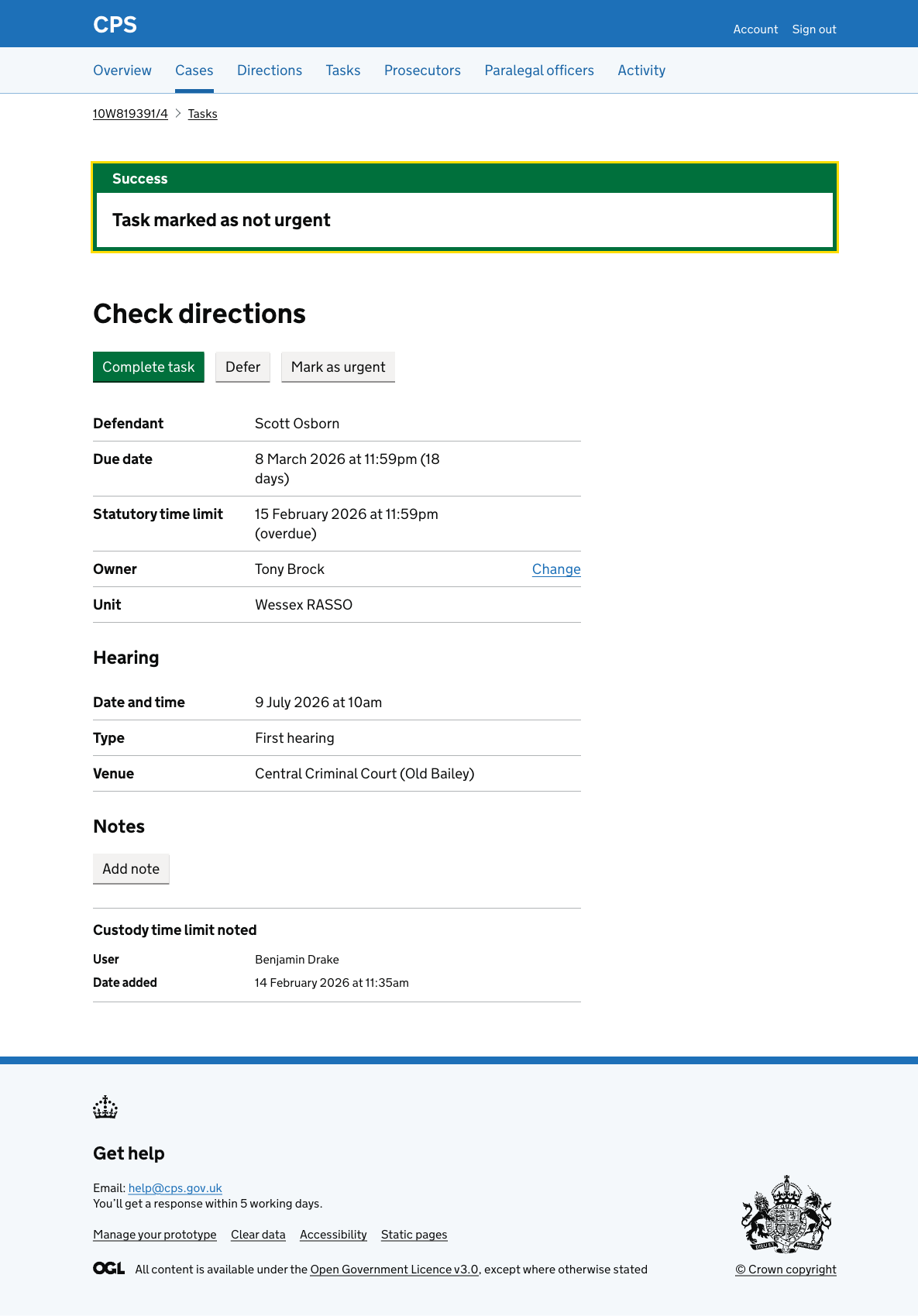
After clicking “Mark as not urgent”, the user is taken back to the task details page. A success banner says “Task marked as not urgent”.
The ‘Urgent’ tag is removed from the task heading and the “Mark as not urgent” button is replaced with “Mark as urgent”.
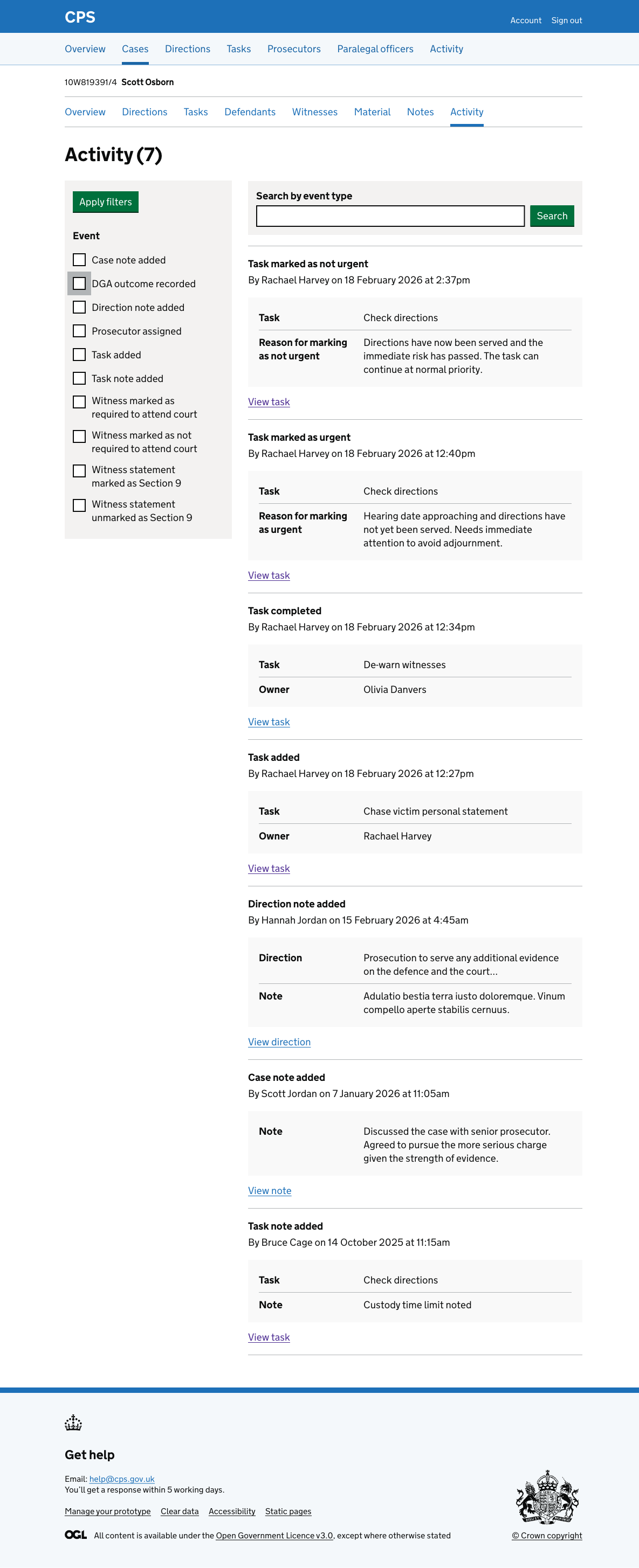
Activity log
The action is recorded in the activity log as “Task marked as not urgent”, showing the task name and the reason.
Error messages
Reason for marking as not urgent
- No reason entered: Enter a reason for marking as not urgent
- Reason is too long: Reason for marking as not urgent must be 5,000 characters or fewer