Updating a DGA dispute outcome
Legal managers can update a DGA dispute outcome before the deadline by clicking ‘change’ on the DGA reporting page for a case.
How it works
The flow is similar to the flow for recording a dispute outcome.
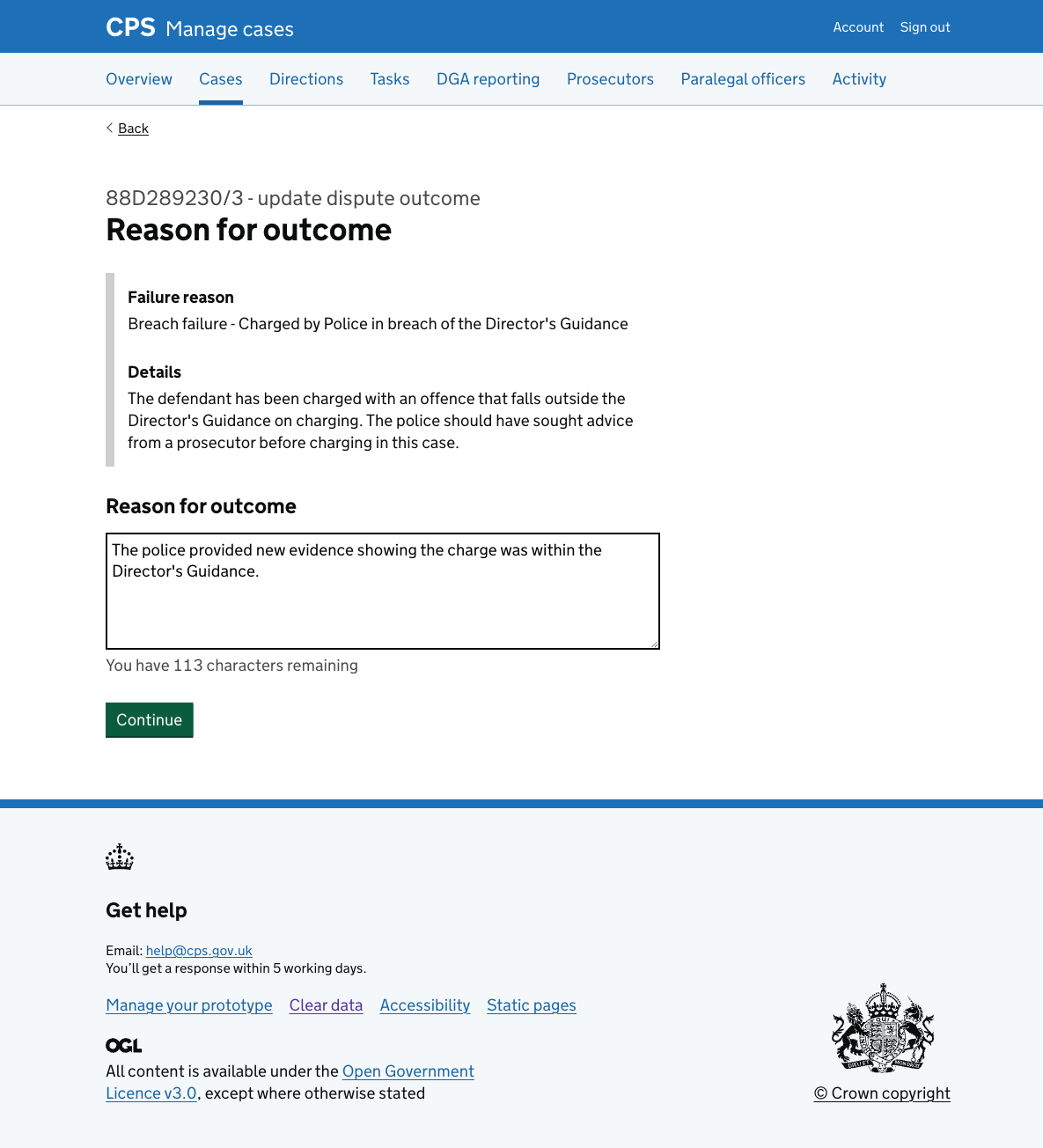
The difference is that each page is pre-populated with the previously recorded answers and the content says ‘Update dispute outcome’ where it would have said ‘Record dispute outcome’.
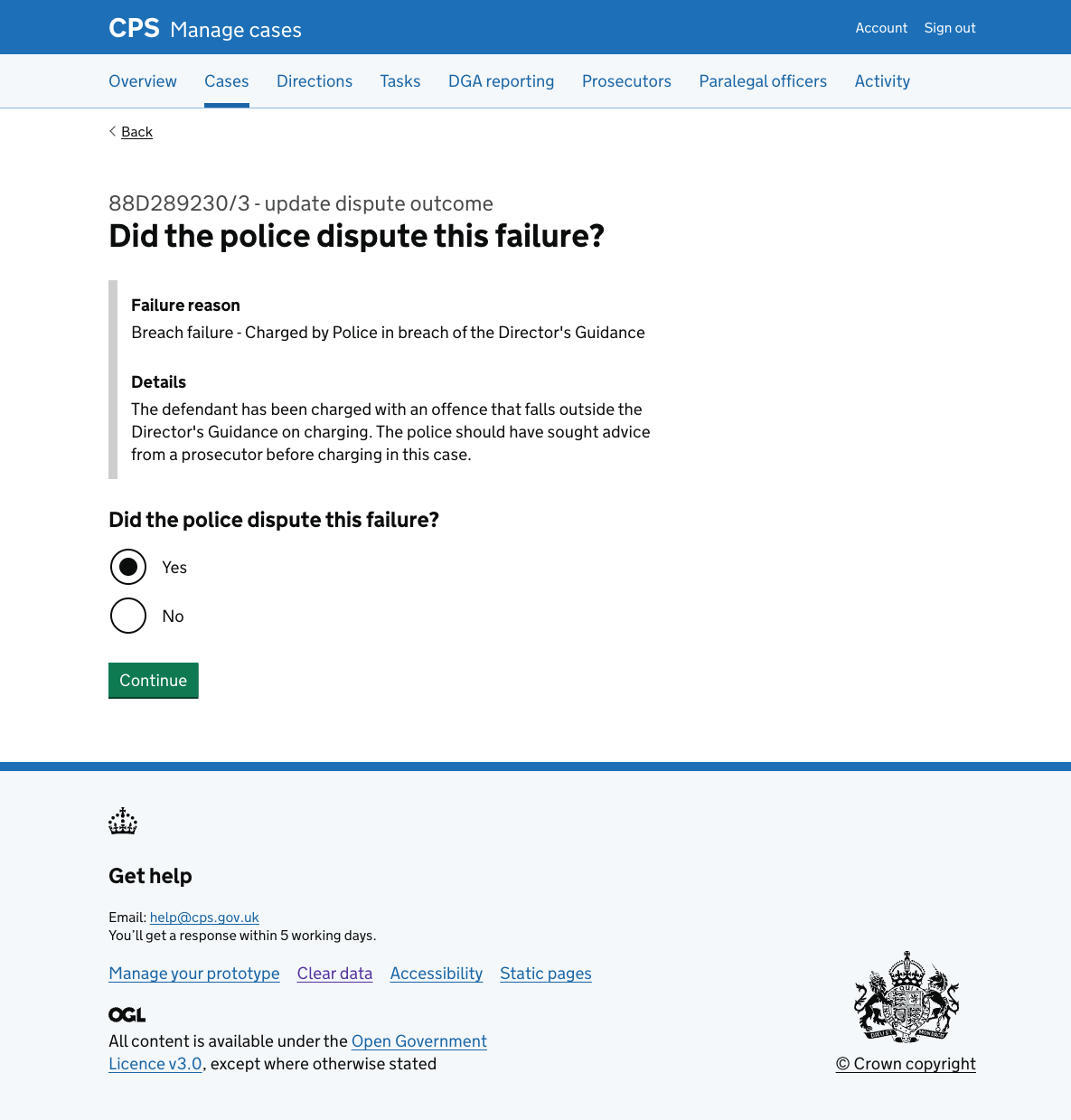
Changing an answer
Clicking ‘Change’ takes the user to that question.
After answering, they return straight to the check answers page rather than continuing through every subsequent step.
This works well when the answer being changed does not affect later questions - for example, updating the reason for outcome without needing to revisit the CPS acceptance or discussion method questions.
If the user changes “Did the police dispute this failure?” from ‘No’ to ‘Yes’, they’re not returned to the check answers page immediately. This is because additional questions must be answered.
Check answers page
The check answers page shows all answers with change links.
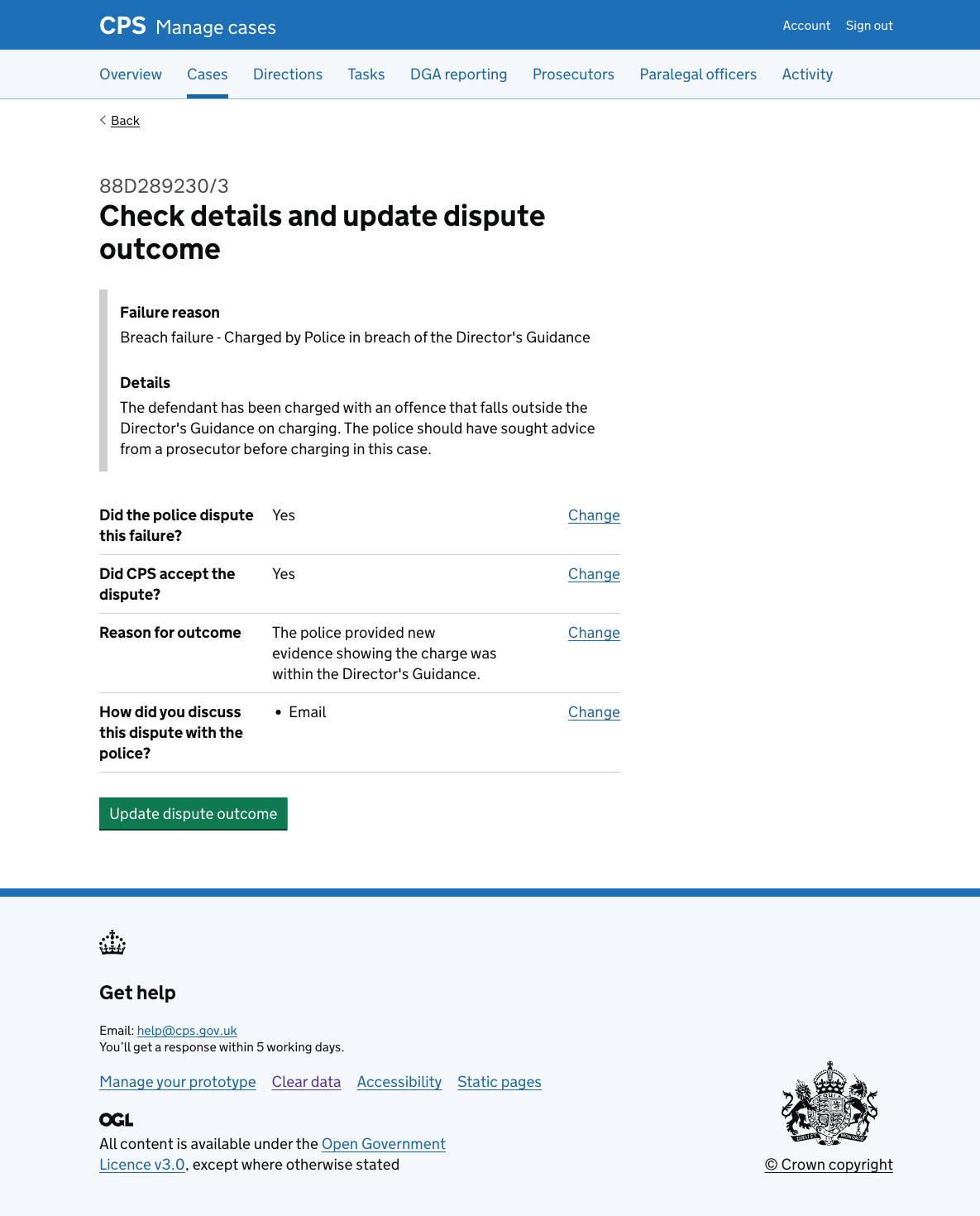
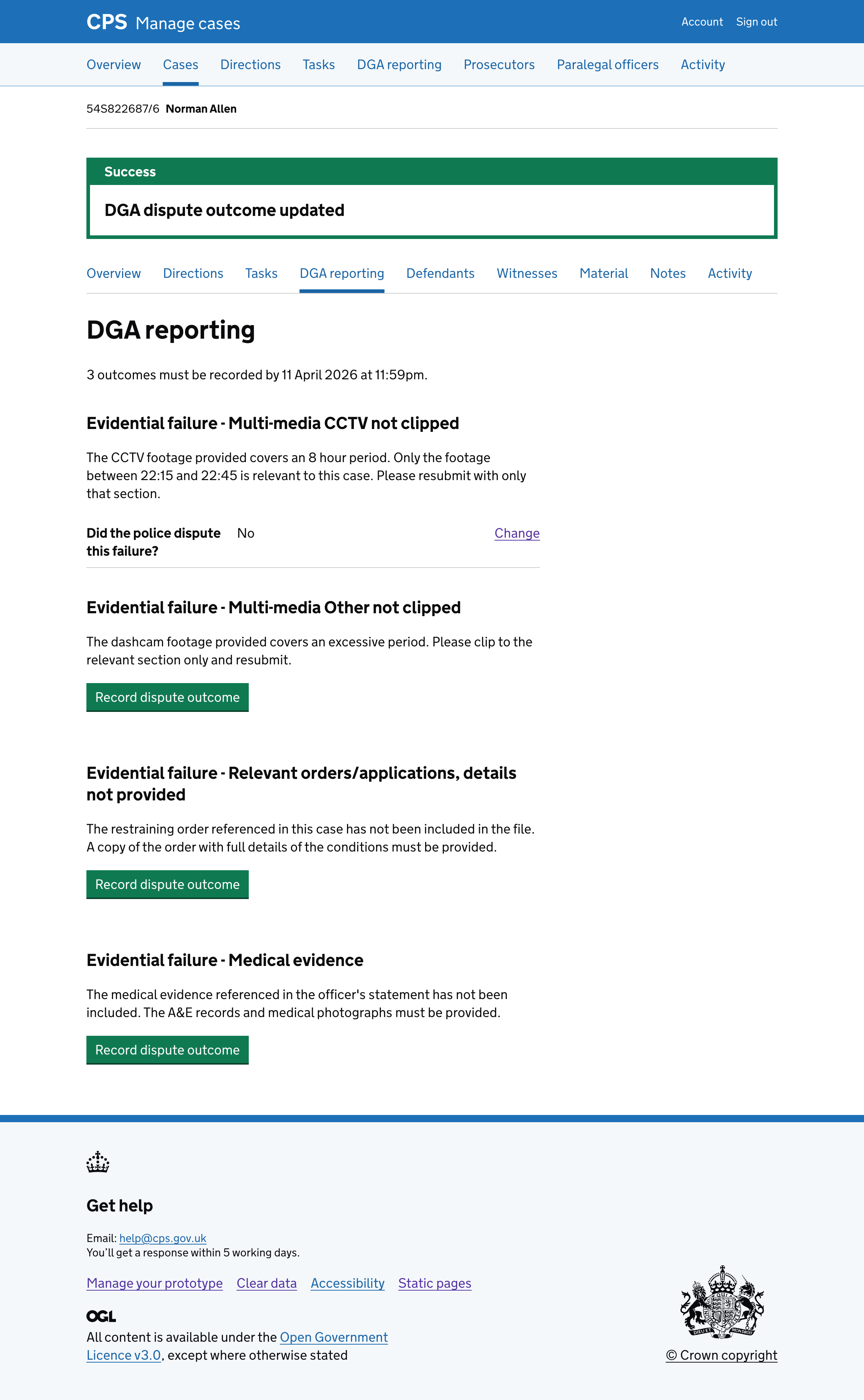
After confirming, the user is returned to DGA reporting page with a “DGA dispute outcome updated” success banner.
Activity log
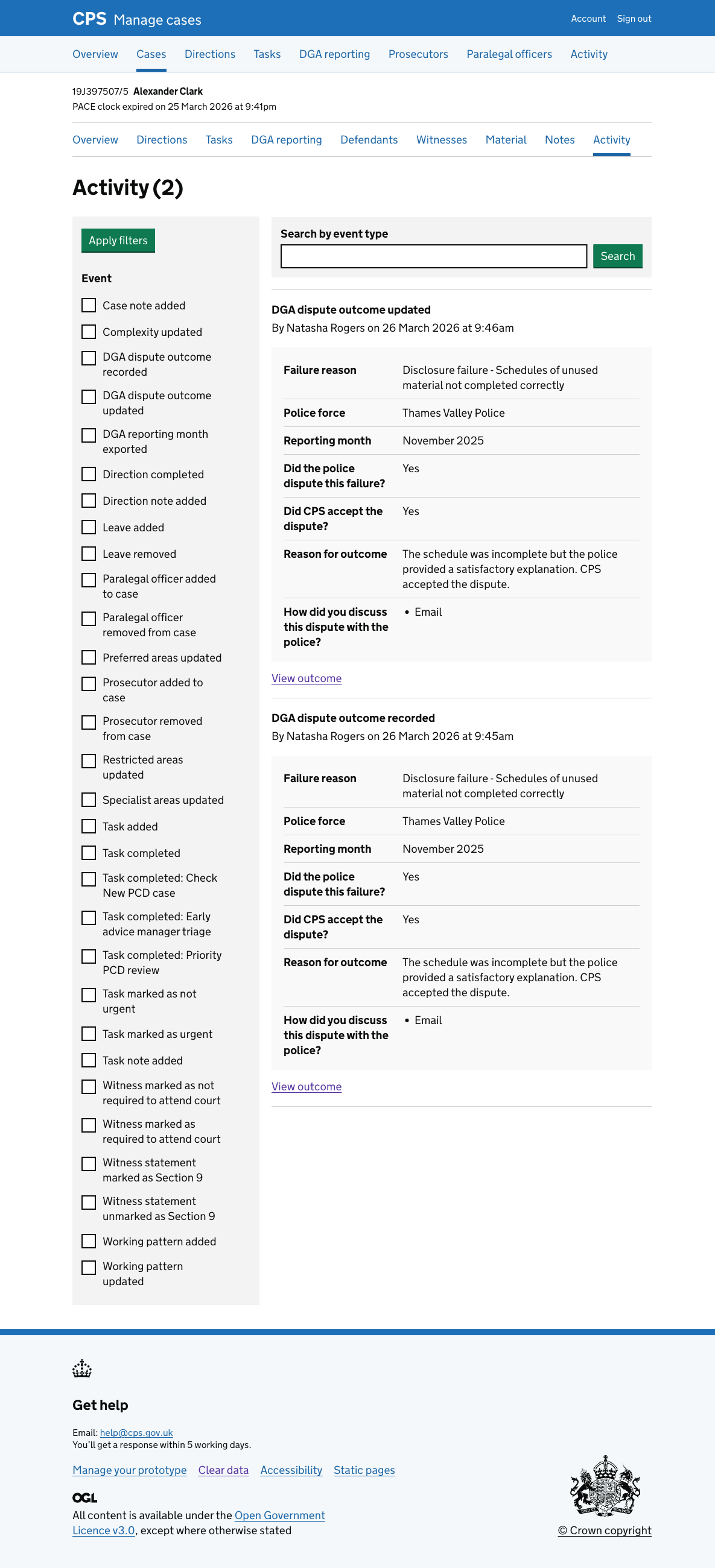
The action is recorded in the activity log as “DGA dispute outcome updated”, showing the same fields as when an outcome is first recorded.
Error messages
Did the police dispute this failure?
- Nothing selected: “Select yes if the police disputed this failure”
Did CPS accept the dispute?
- Nothing selected: “Select yes if CPS accepted the dispute”
Reason for outcome
- Empty: “Enter a reason for outcome”
- Too long: “Reason for outcome must be 200 characters or fewer”
How did you discuss this dispute with the police?
- Nothing selected: “Select how you discussed this dispute with the police”