Viewing task details
Users need to see the full details of a task and take action on it.
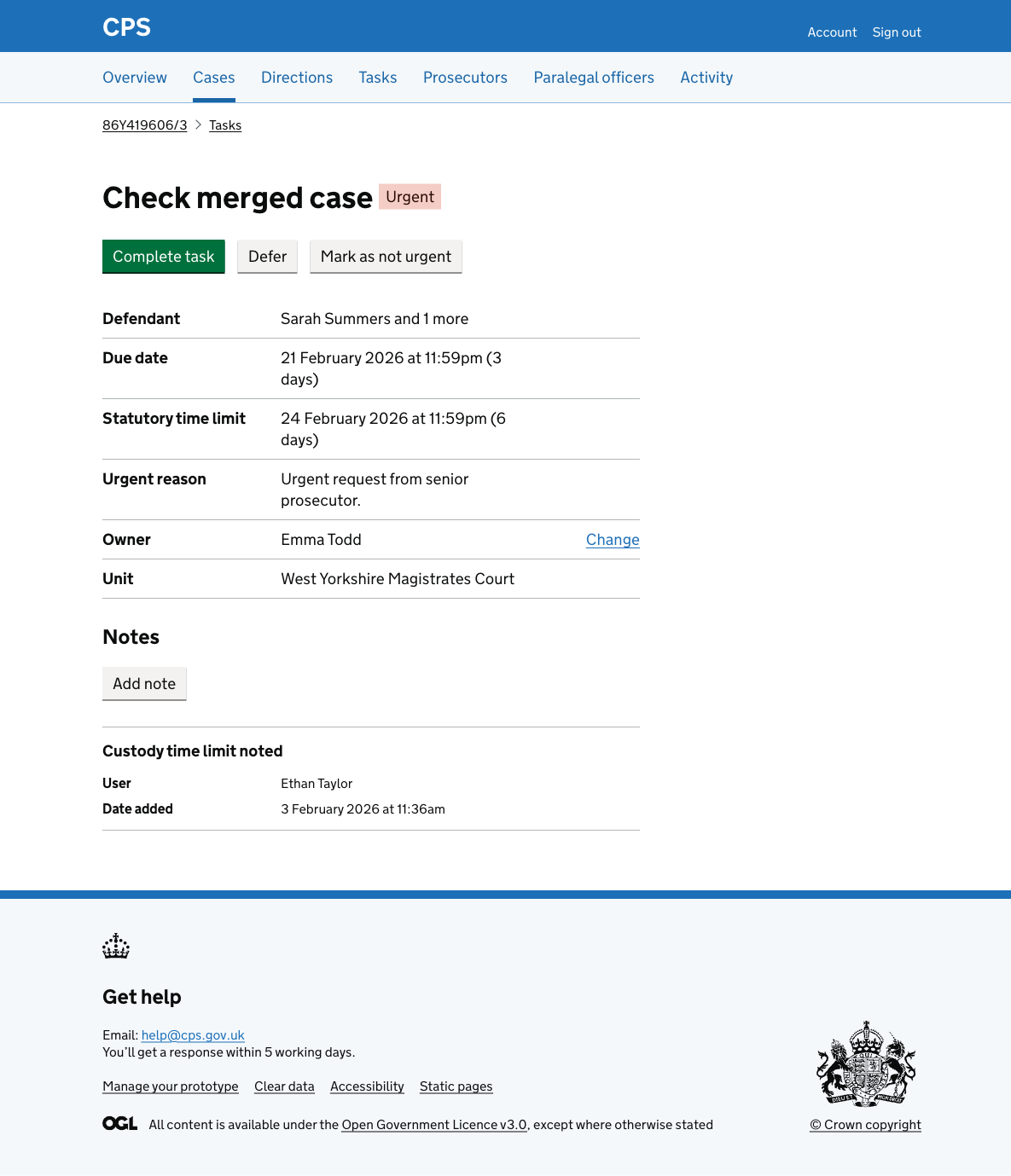
The task details page shows all the information about a task and gives users the actions they need.
How it works
Users open a task by clicking a task name in the case task list or the task list.
The page heading shows the task name and an urgent tag if applicable.
Three actions are available:
- Complete task
- Defer
- Mark as urgent
- Mark as not urgent
- Add note
The summary list shows:
- description (for reminders only, with a change link)
- defendant
- due date (with days remaining or overdue status)
- custody time limit (if applicable)
- statutory time limit (if applicable)
- PACE clock (if applicable)
- urgent reason (if applicable)
- owner (with a change link)
- unit
- reminder type (for reminders only)
Where a case has a hearing, a separate hearing section shows the date and time, type, and venue.
The notes section shows all notes added to the task, each with the note text, the user who added it, and the date it was added.