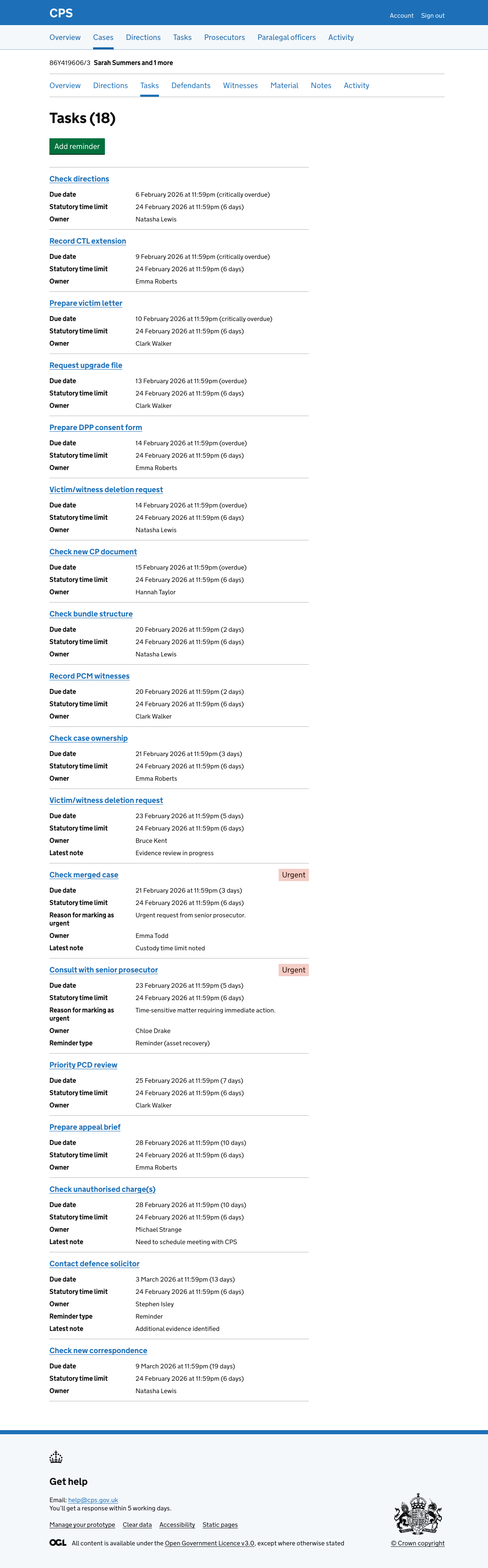
Viewing tasks for a case
The task list shows all tasks across all cases. The case task list shows all the tasks for a single case in one place.
How it works
Users get to the case task list by navigating to a case and clicking “Tasks” in the sub navigation.
The page shows all open tasks for the case, sorted by due date.
The page shows:
- task name (as a link)
- urgent tag (if applicable)
- due date (with status - critically overdue, overdue, or days remaining)
- statutory time limit (if applicable)
- custody time limit (if applicable)
- PACE clock (if applicable)
- reason for marking as urgent (if applicable)
- owner
- reminder type (if applicable)
- latest note (if applicable)
- hearing date and type (if applicable)
We only show fields that have values, so there are no empty rows.