Adding ability to close all documents
Users often open multiple documents when reviewing or checking materials. Closing documents one by one is slow and increases cognitive load.
We introduced a way to close all open documents in a single action from the document tab area. This helps users quickly clear the viewer and move on to the next task.
Problem
Users often review several documents at the same time (for example, statements and exhibits). Each document opens in a tab.
Users told us that:
- closing tabs individually is repetitive and time consuming
- having many open tabs makes the interface harder to use
- it is difficult to regain focus when the viewer feels cluttered
There was no way to quickly reset the number of open tabs.
Design goals
The design needed to:
- reduce time spent managing tabs
- reduce visual clutter
- prevent accidental loss of work
- fit with existing tab patterns in Review and redact
- be consistent with other parts of the overall service
- be accessible and work with keyboard navigation
Design approach
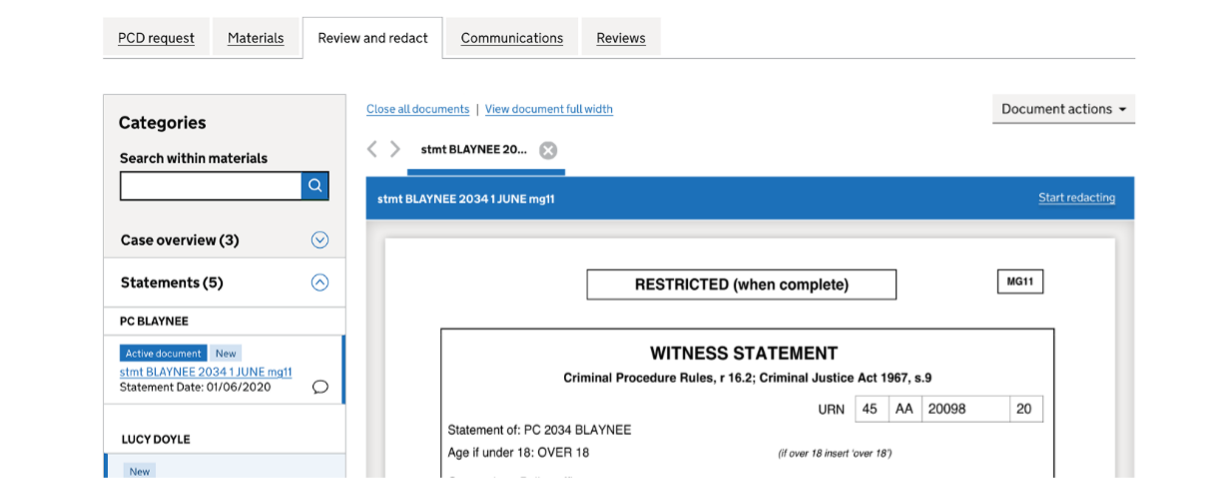
We added a ‘Close all documents’ action within the document tab area and aligned it with wider changes to document controls and tab behaviour.
Placement
The action sits above the tab strip alongside other utility links (for example, ‘View document full width’).
This location:
- keeps it close to the tabs it affects
- makes it discoverable once users open multiple documents
- avoids competing with primary actions like “Start redacting”
We avoided placing it as a primary button to reduce the risk of accidental use.
Interaction
Selecting ‘Close all documents’:
- closes all open document tabs
- returns the viewer to an empty state
This mirrors common patterns from browsers and document-based tools.
Handling unsaved changes
To prevent data loss:
- if no documents have unsaved changes, all tabs close immediately
- if one or more documents have unsaved changes, users are interrupted and prompted to:
- save changes
- discard changes
- cancel and return to the documents
This ensures users stay in control.
Accessibility
The design:
- uses a clearly labelled link-style control
- is reachable through keyboard navigation in the tab area
- follows expected focus order
- provides clear messaging in the unsaved changes prompt
Extending the pattern
This design for Materials and Communications adopts the same ‘Close all documents’ pattern used in the designs for the Digital Case File (DCF).
Rationale
Applying the pattern consistently:
- reduces the need for users to learn different behaviours in different areas
- creates a more predictable and scalable tab experience
Outcome
The feature:
- reduces the time needed to manage multiple documents
- helps users reset tabs quickly
- improves consistency
- maintains safety for in-progress work