Enabling copy and paste on the Review and redact tab
Problem
Users working in the Review and redact tab cannot copy and paste text from documents because the redaction tool is active by default.
The current behaviour:
- enables redaction mode automatically when the tab opens
- captures click and drag interactions for redaction rather than text selection
- triggers a redaction pop‑up when users attempt to select text
This creates an immediate usability issue:
- users cannot complete common tasks such as copying text into case notes, reviews or communications
- users often do not intend to redact when opening the tab
- users do not understand why standard interactions (select, copy, right‑click) are blocked
The existing text area tool button is also poorly understood. Users do not recognise that it controls redaction mode.
Evidence
From observation and feedback:
- users frequently attempt to highlight text and expect standard selection behaviour
- users interpret the redaction behaviour as a bug or restriction
- users rarely discover how to exit redaction mode once activated
- the current icon‑based control lacks clear meaning
This indicates a mismatch between:
- user intent (reviewing and extracting information)
- system behaviour (forcing redaction interactions)
Design goals
Our design goals were to:
- allow users to copy and paste text when reviewing documents
- make redaction an explicit, intentional mode
- improve understanding of how to start and stop redaction
- maintain existing redaction functionality
- reduce accidental redactions and interruptions
Design changes
Default state
When users open the Review and redact tab:
- redaction mode is disabled by default
- the interface behaves consistently with the rest of the service
- users can select text using the standard cursor and copy and paste freely
This removes the immediate blocker to user tasks.
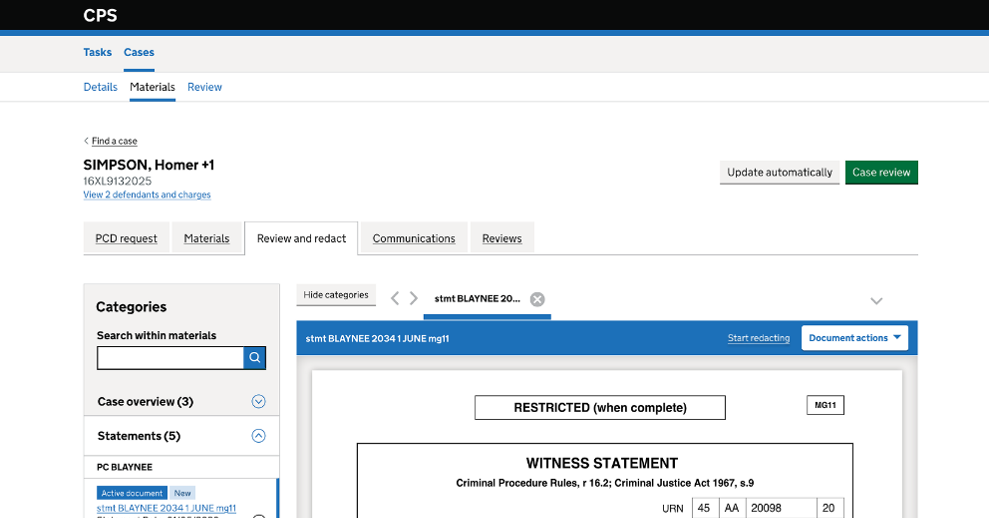
Entry point to redaction
The existing text area tool button is replaced with a ‘Start redacting’ link in the document toolbar.
Rationale:
- uses plain language rather than an unclear icon
- makes the action explicit and intentional
- aligns with GOV.UK guidance on clear, descriptive labels
Toggle behaviour
Selecting ‘Start redacting’:
- enables all existing redaction functionality
- changes the link to ‘Stop redacting’
Selecting ‘Stop redacting’:
- returns the document to standard interaction mode
- allows text selection and copying again
This introduces a clear, reversible mode switch.
Cursor feedback
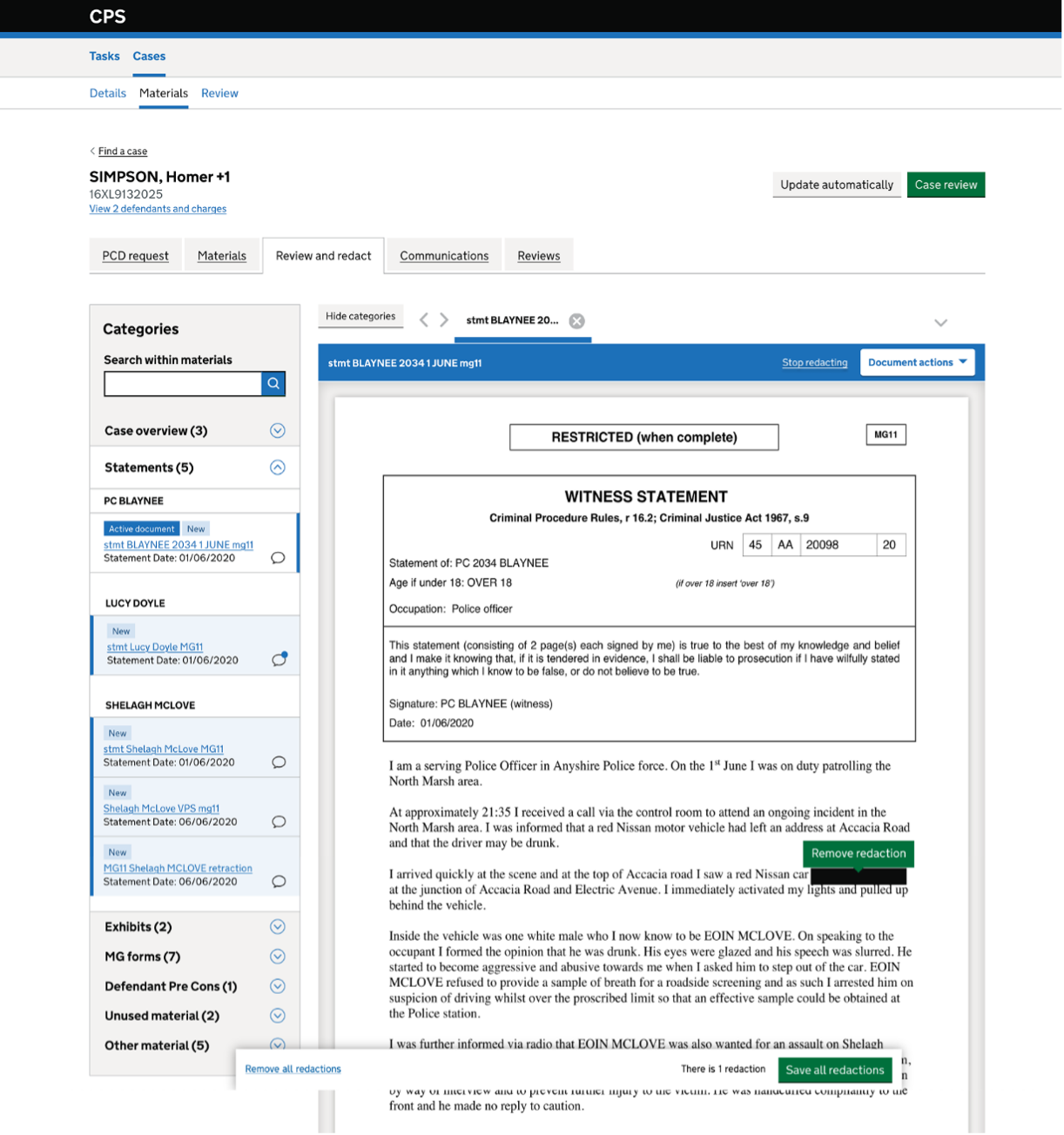
When redaction mode is enabled:
- hovering over text displays an I‑beam cursor
- indicates that text can be selected for redaction
- not hovering over text displays a crosshair cursor indicating area‑based redaction
This approach:
- provides immediate visual feedback about what action will occur
- reduces uncertainty and improves precision
Redaction interactions
Existing behaviour is retained so users can:
- create text and area redactions
- remove redactions inline
- save redactions using the existing ‘Save all redactions’ control
- remove all redactions
No changes are made to underlying redaction workflows.
Unsaved changes
The existing unsaved redactions modal is displayed if a user:
- Enables redaction mode
- Creates one or more redactions
- Attempts to navigate away without saving
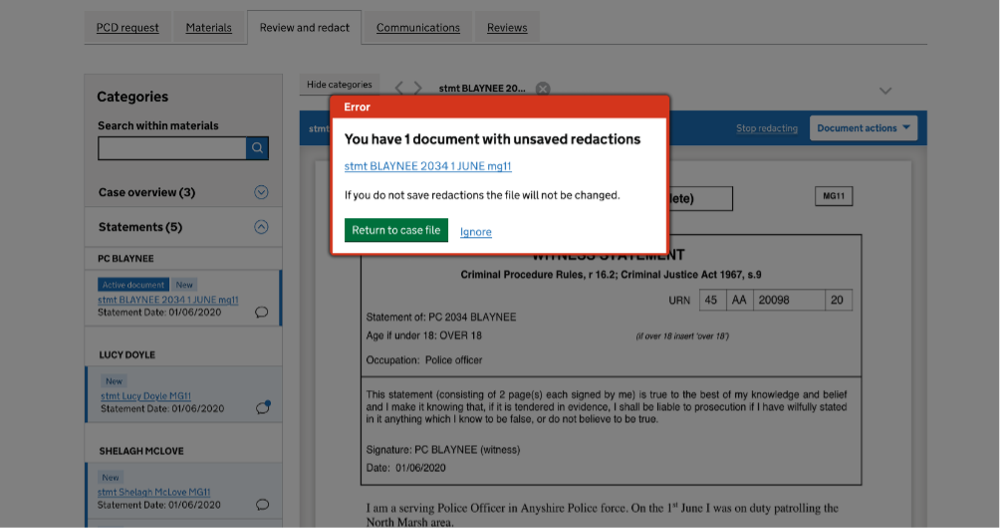
This preserves current safeguards and prevents accidental data loss.
User impact
This change:
- restores expected behaviour for document review tasks
- separates reading and extracting from redacting
- reduces accidental actions and cognitive load
- improves learnability through clear labels and feedback
Images shown reflect the design at the time
The images used in this post show the interface at the time the design work was carried out. Some elements may have since been updated. For example, the error message is changing as part of another piece of work.