Iterations on redaction designs
Context
Redaction is the process of permanently obscuring sensitive information from documents before they are shared.
It is a key feature of the Casework App and has been available to caseworkers, paralegals and prosecutors.
To streamline user experience and improve maintainability, we have merged Casework App with Housekeeping UI into a single application.
This design history is reflected in version 1.2 of the prototype and explains the current design for the private beta of the merged application, now known as ‘Manage materials and communications’.
The design supports redaction within the flow of reviewing case materials, rather than as a separate task.
Problem
Redaction is a legally sensitive task. Errors can have serious consequences, so users prioritise accuracy and confidence over speed.
All colleagues are responsible for ensuring documents are adequately redacted to prevent unauthorised disclosure.
Users carry out redaction with different levels of frequency and familiarity, which affects confidence and approach.
Current designs
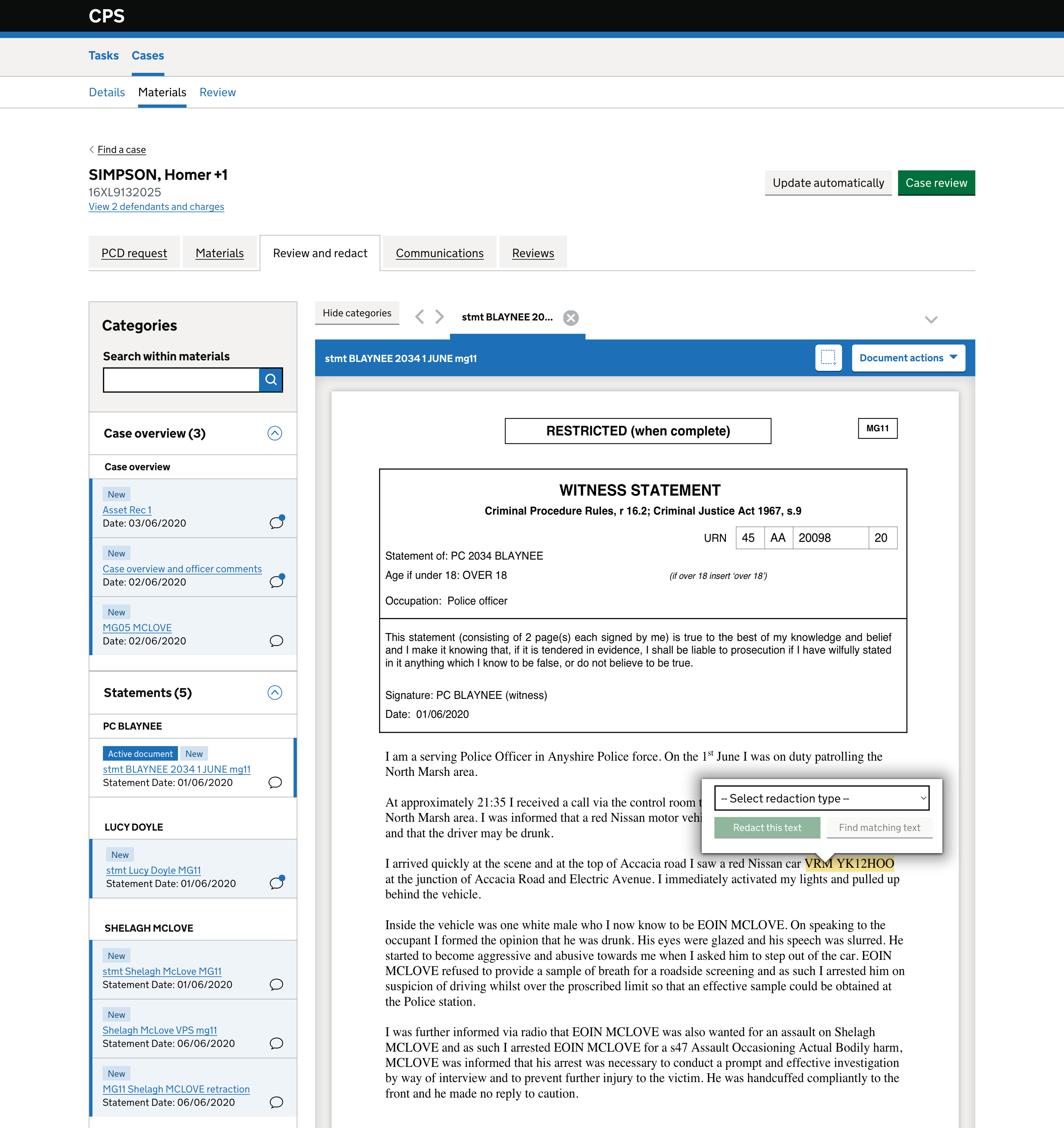
Using direct text selection
We currently allow users to highlight text in the document.
When text is selected, a small overlay appears with actions:
- Redact this text
- Find matching text
This avoids separate tooling or modes.
Providing contextual actions
The overlay only appears when text is selected. This helps to:
- avoid clutter in the interface
- keep the user focused on the document
- make the next step obvious at the point of need
Supporting repeated redactions
The find matching text option helps users locate identical text across the document.
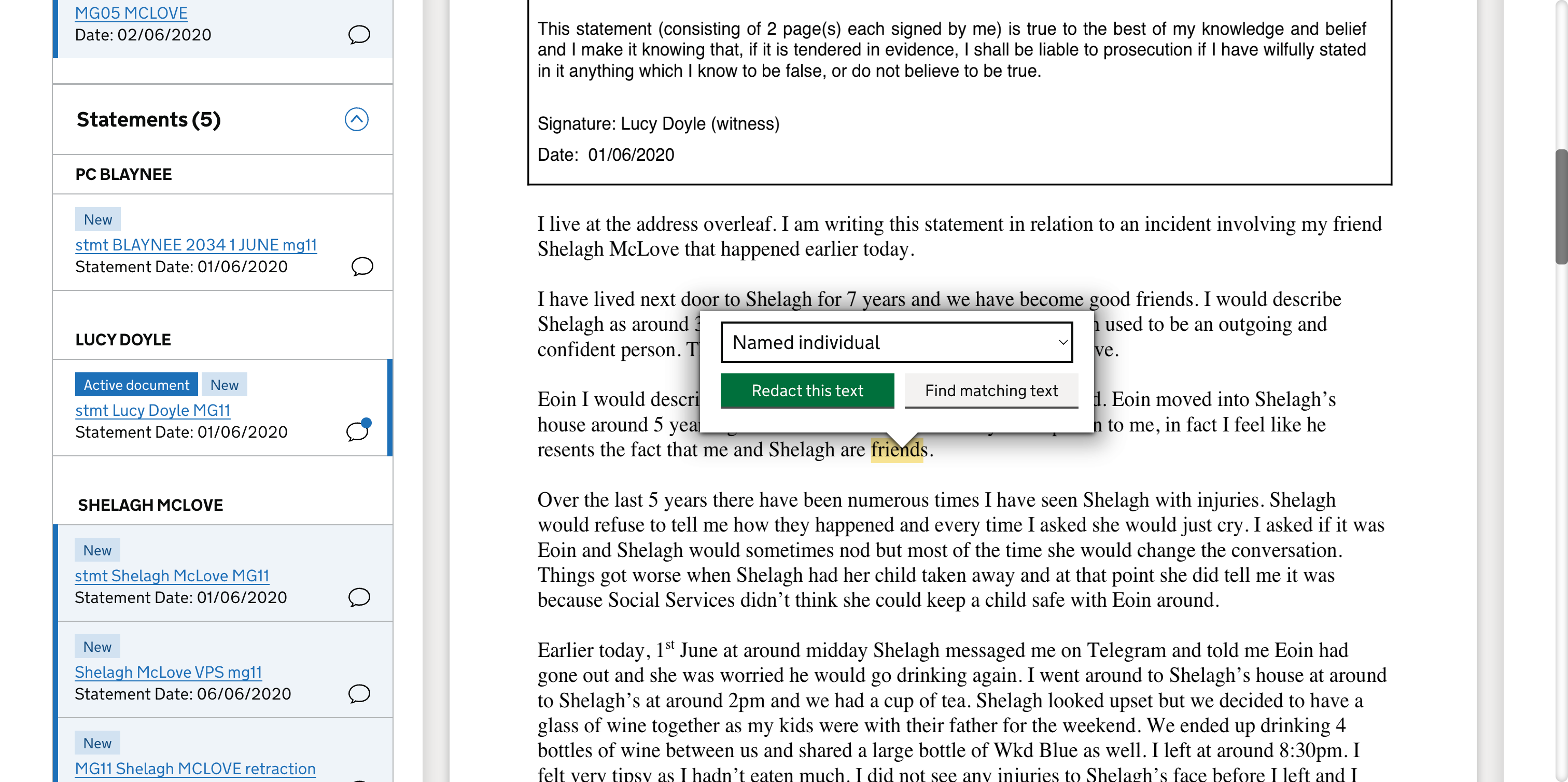
The aim of this design is to:
- reduce risk of missing repeated sensitive information
- speed up bulk redaction tasks
- support common scenarios (names, vehicle registrations, addresses)
Embedding redaction in the review flow
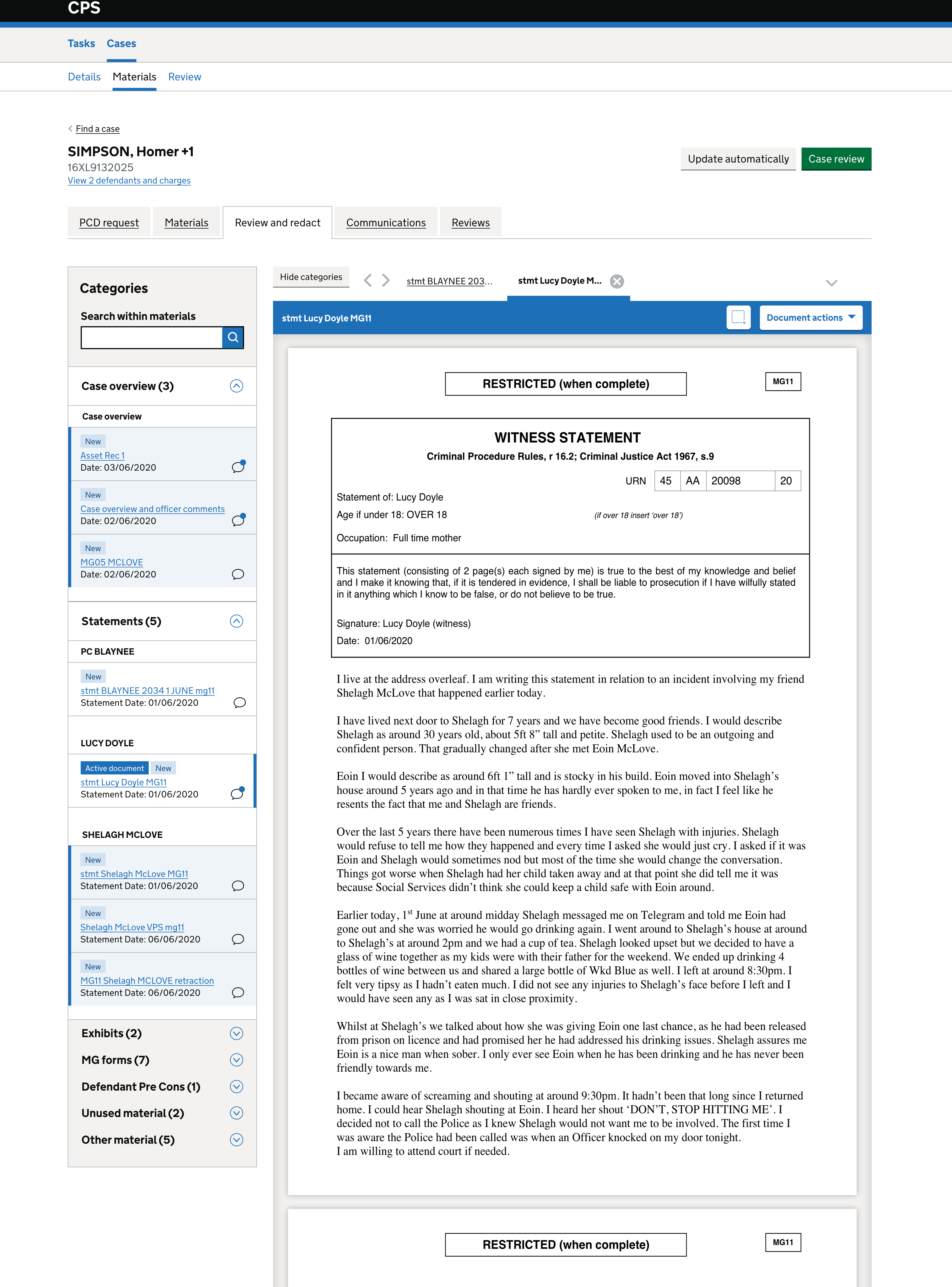
Redaction sits primarily in the Review and redact tab, and can also be accessed through the Materials tab.
It sits alongside other areas of the service, including:
- Communications
- Reviews
The user remains in the same view. This helps to:
- keep redaction part of the process
- reduce context switching
- align with how users already work through materials
What we learned
- users are not always clear how to start
- some controls are hard to find
- text selection is not always precise
- users need a better balance between automation and control
Future considerations
- clearer entry points
- better precision
- improved control visibility
- identifying missed redactions
- simplifying modes, including improving both text selection and area redaction