Letting users create an account or sign in before asking them questions
A user starts the current service by choosing whether they are:
- a barrister
- a solicitor with higher rights of audience, allowing them to work in Crown Courts
- a solicitor who wants to work in Magistrates’ or Youth Courts
If they choose the last of these options then they go straight to create an account or sign in. However, most users are instead asked:
- the panel type they want to apply for, such as general crime or serious fraud
- their name, which they select from a drop down menu listing all current panel members – they choose ‘new joiner’ if they are not on any panels
- the panel level they want to apply for
They may also be asked some additional questions depending on the options they’ve selected. For example they may be asked whether they want to apply for a permanent or temporary position on the panel.
After they answer these questions, the user does one of the following:
- signs in and goes to their dashboard
- creates an account and goes to their dashboard
- goes straight to their dashboard - if they’ve already signed in
A new application will already have been created for them and will appear in their dashboard.
Why we made a change
Asking for personal information (such as name) and application information (such as panel type) before account creation or sign in has caused issues such as:
- requiring returning users to repeat information
- allowing people to start applications for other users
- revealing information about panel members
- encouraging users to create unnecessary new applications
Requiring returning users to repeat information
A returning user currently needs to give their role and name when they start an application. The profile in their account includes this information, but they have not signed in yet so the service cannot make use of it.
Even if the user has already signed in earlier in the session, the service does not make use of this. It still asks them to give their role and name.
We know from research that users are often busy and resent doing things which they consider to be a waste of time.
We also found that some research participants were confused when asked to select their name from the drop down list. This is presented as ’linking’ the new application to their account and one participant said:
“I don’t think that makes it clear what that is. Link your application to your existing advocate record. What does that mean?”
Allowing people to start applications for other users
Asking for information before sign in occasionally leads to new applications being created incorrectly. For example, if a user gives a name which is not their own then they start an application for that other user. This means that:
- the user who gave the incorrect name will not be able to access the application which they started
- the other user will be notified that they’ve started an application, which is likely to confuse them
Revealing information about panel members
There’s a public list of panel members which gives information including their:
- name
- panel membership, including types and levels
It does not say what applications the members have in progress.
The current service will warn a user if they’re trying to apply for a level which they’ve already got an open application for. This warning comes before sign in, revealing information which would not otherwise be public.
Encouraging users to create unnecessary new applications
Once a user reaches their dashboard they already have an application waiting for them.
A significant number of users do not realise this and click the green button on the dashboard to create a new application. They are then taken back to the start of the whole process and asked again whether they’re a barrister or solicitor.
What we did
In the new design, a user clicks ‘start now’ on the start page and is immediately asked whether they have an account.
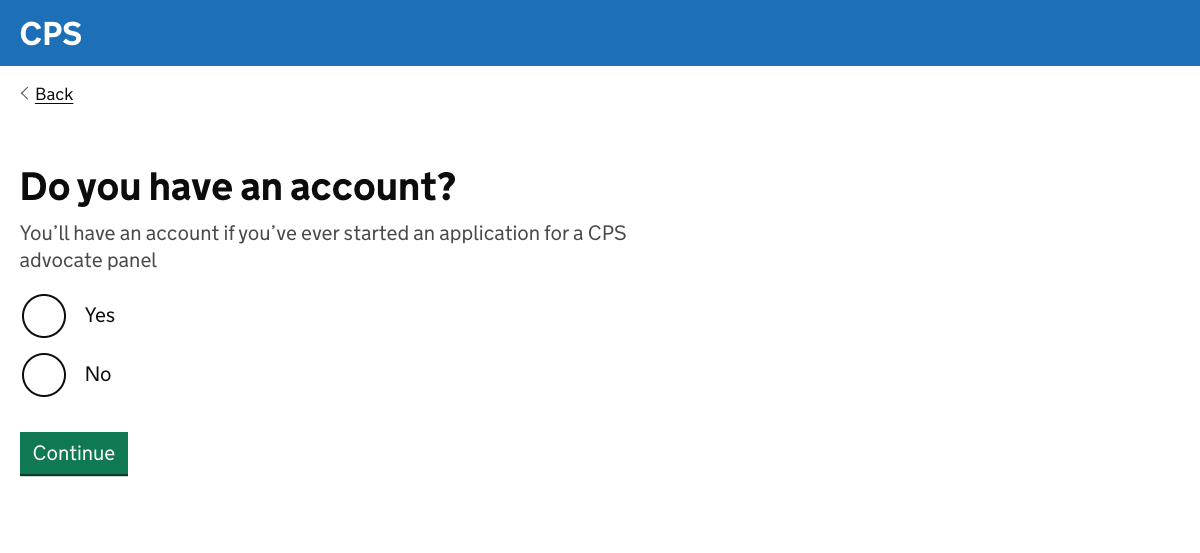
If the user does not have an account
The account creation journey has not yet been designed, since an authentication solution has not been agreed. There’s a placeholder page in the prototype.
Once they’ve created an account, the user is asked the question about whether they’re a barrister or solicitor. This allows us to generate the first of the two task lists which are central to the new design.
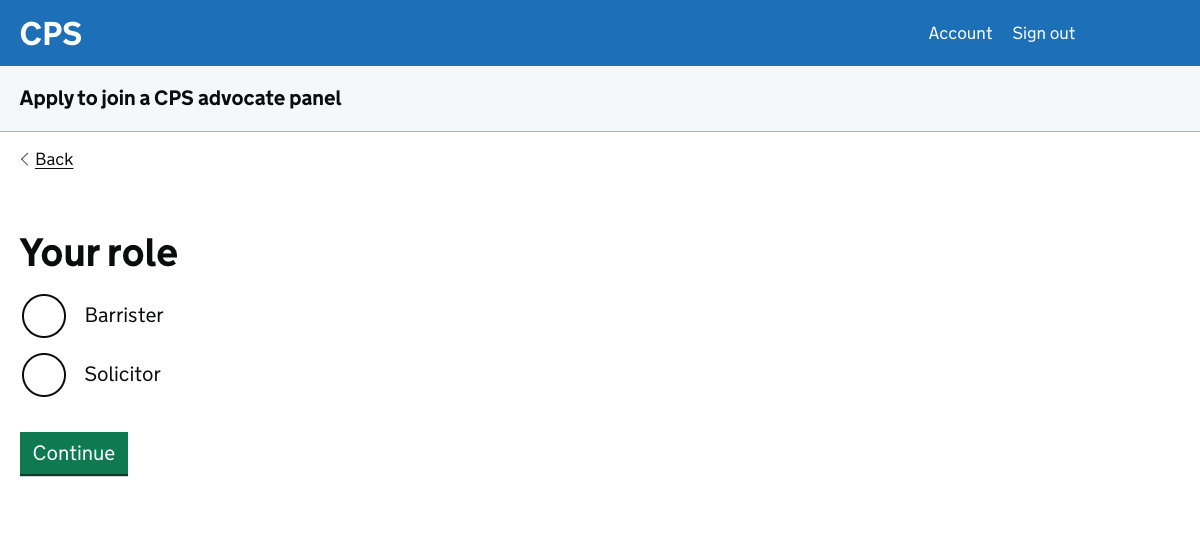
In this new design, we’ve separated the question about court types from the question about roles.
If the user says that they’re a barrister then they continue to the personal details task list. If they say that they’re a solicitor then they’re asked about what court types they want to work in.
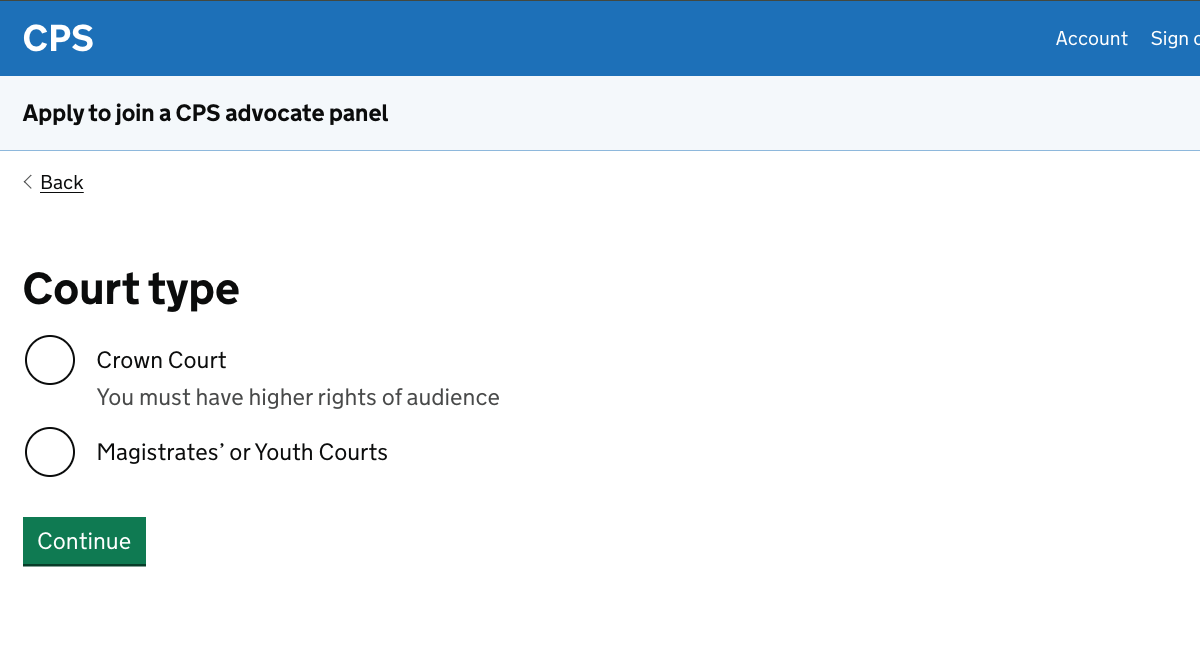
After answering this question they continue to the personal details task list.
If the user does have an account
The sign in journey has not yet been designed, again because an authentication solution has not been agreed.
Once a returning user signs in, they go straight to a profile page which shows:
- a button to start a new application
- a list of all their current and previous applications, including the status - they can click through to view these applications
- which panels they are already on
- their personal details
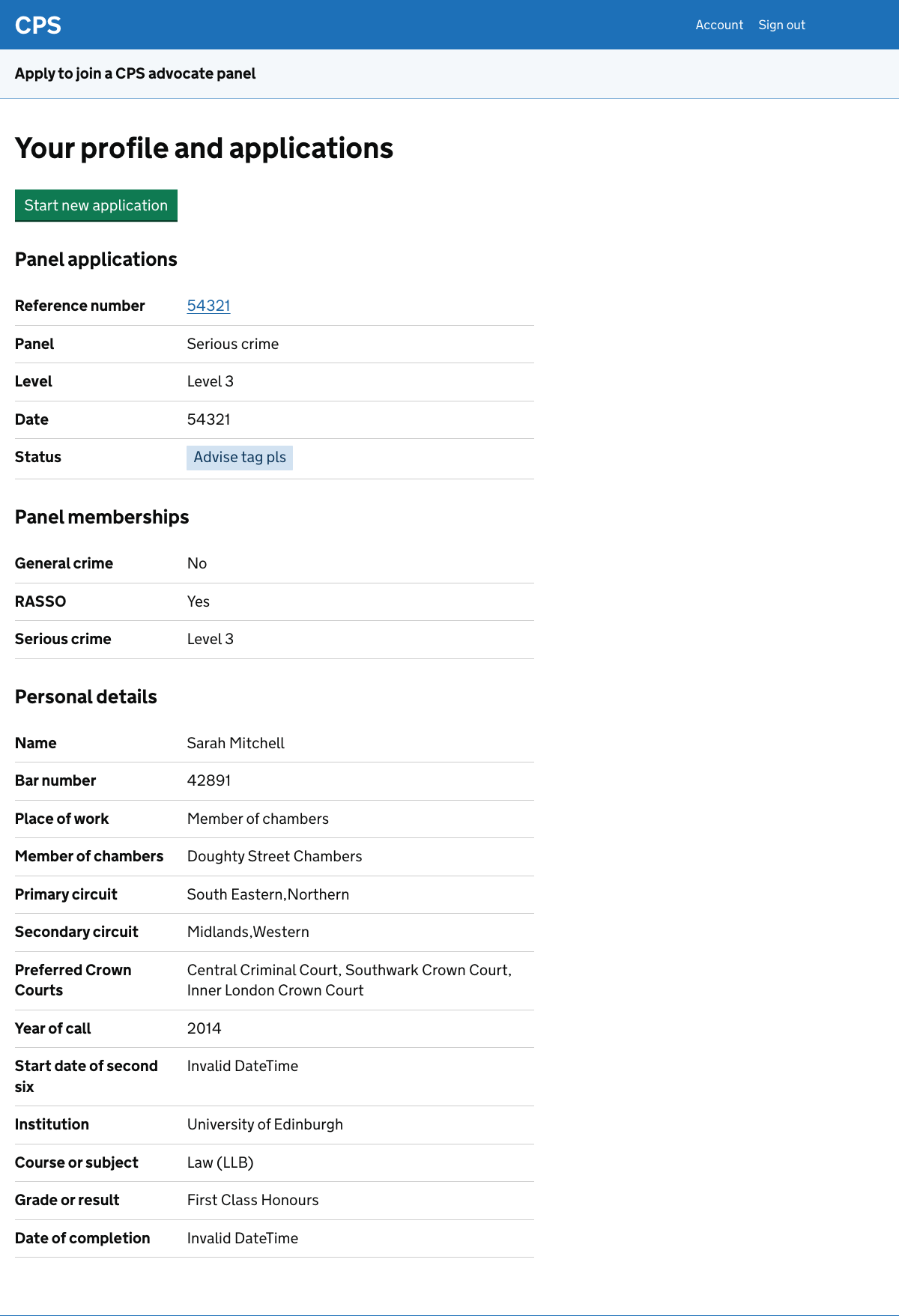
If the user needs to change their personal details before starting an application, they can do so using the change links on the page.
We know that users sometimes want to make multiple applications, for example if they have more than one speciality. This means that we need to show the ‘start new application’ button even if the user has an active application.
If they click ‘start new application’ then the user is taken to the questions which allow the second task list to be generated.
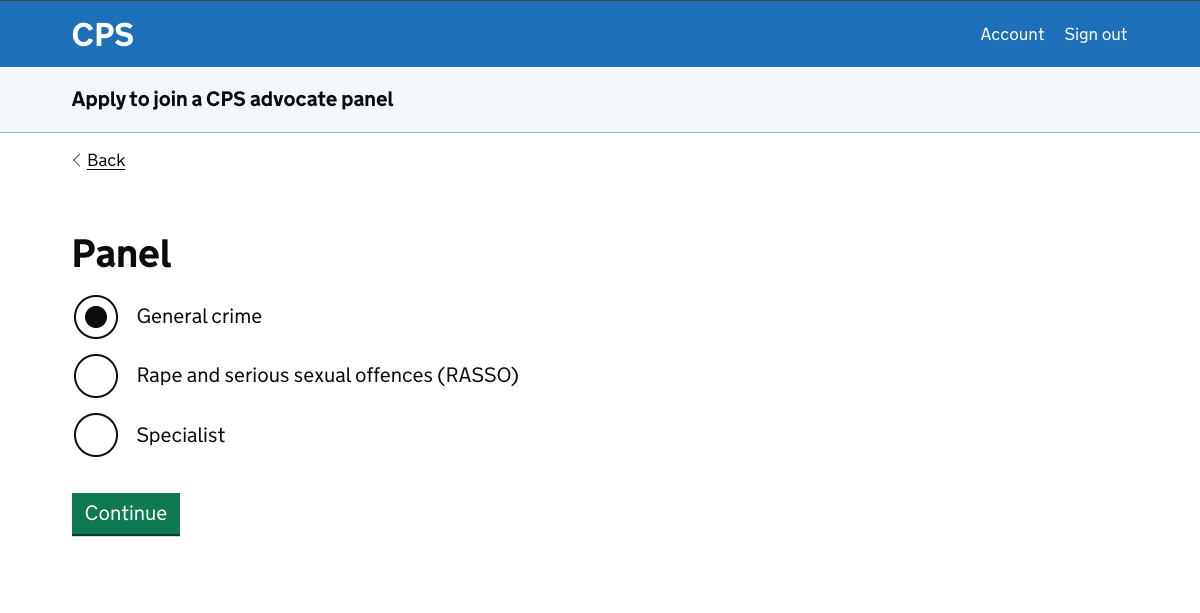
First they have to say which panel they want to apply for.
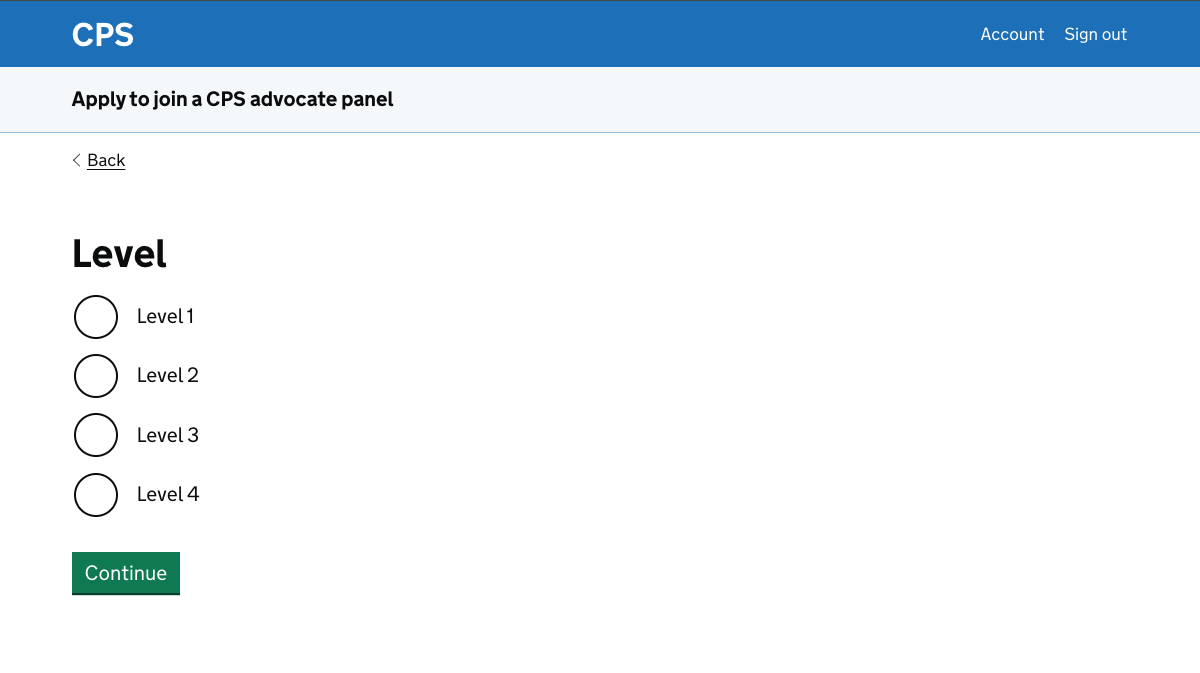
Next they have to say what level they want to apply for.
In some cases they may also need to answer additional questions before they reach the second of the two task lists. For example, they may need to say whether they want to apply for a temporary or permanent place on the panel.