Referee task
This is one of the tasks in the application form task list.
The number of references a user needs depends on:
- the panel they’re applying for
- the level they’re applying for
- whether it’s an upgrade or a new application to the panel
The user may:
- not be asked to request references - the ‘References’ section will not appear in the task list
- be asked to request one or more references - one task will appear for each reference
- be asked to choose whether to request a reference - (optional) will appear after the task name in the task list and in the h1 heading for the task
Completing a referee task sends a reference request email to the referee. This can be done before the rest of the application form is completed and submitted.
The task has 4 pages:
- referee
- referee role
- message to referee
- check referee details - the user can send the reference request from this page
Referee details
On the first page, the user enters their referee’s:
- name
- job title
- email address
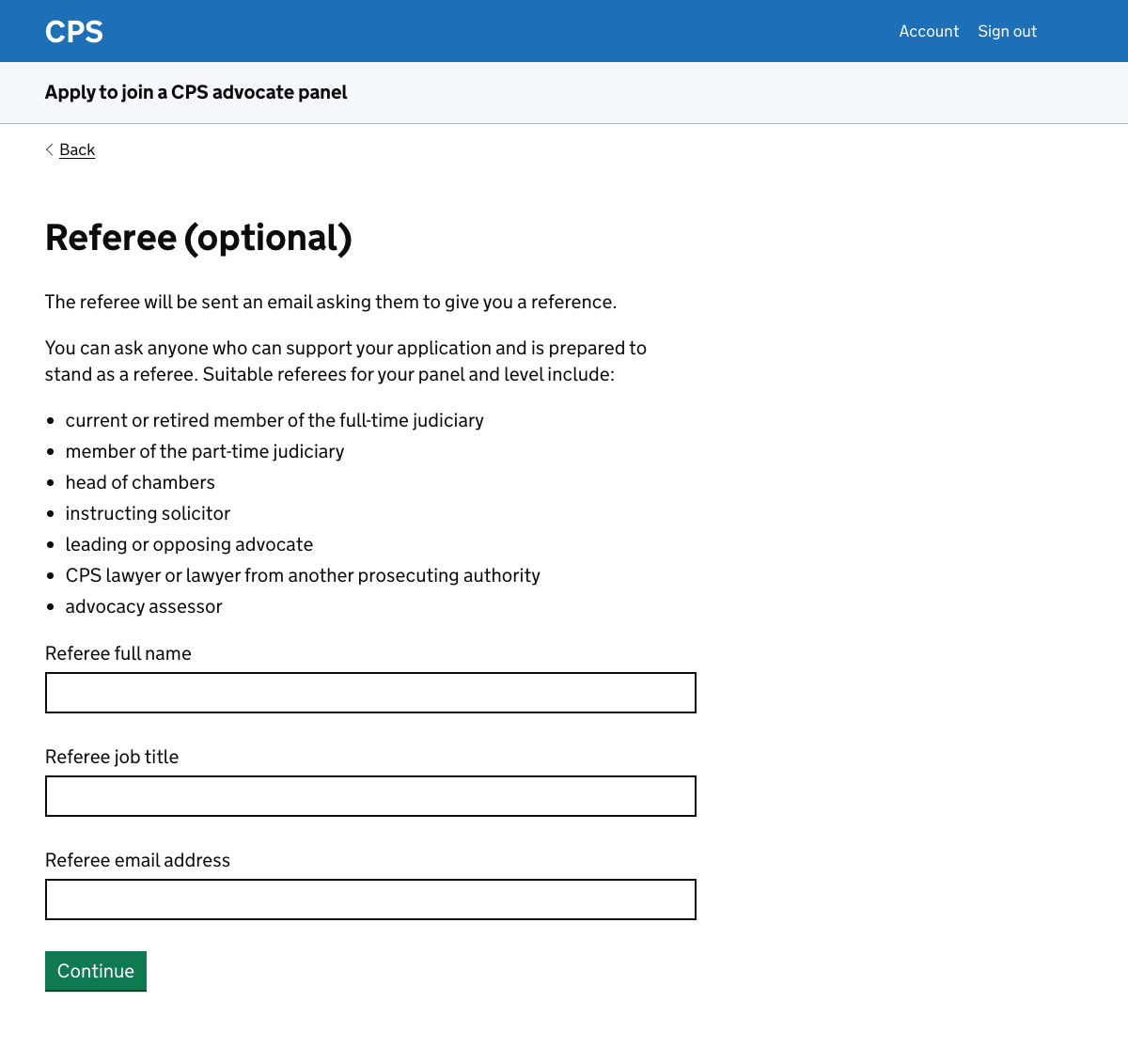
The page also tells the user who is a suitable referee, which varies by panel and level.
For example, for level 1 general crime the list includes pupil supervisors. For level 4 it includes members of the judiciary.
Referee role
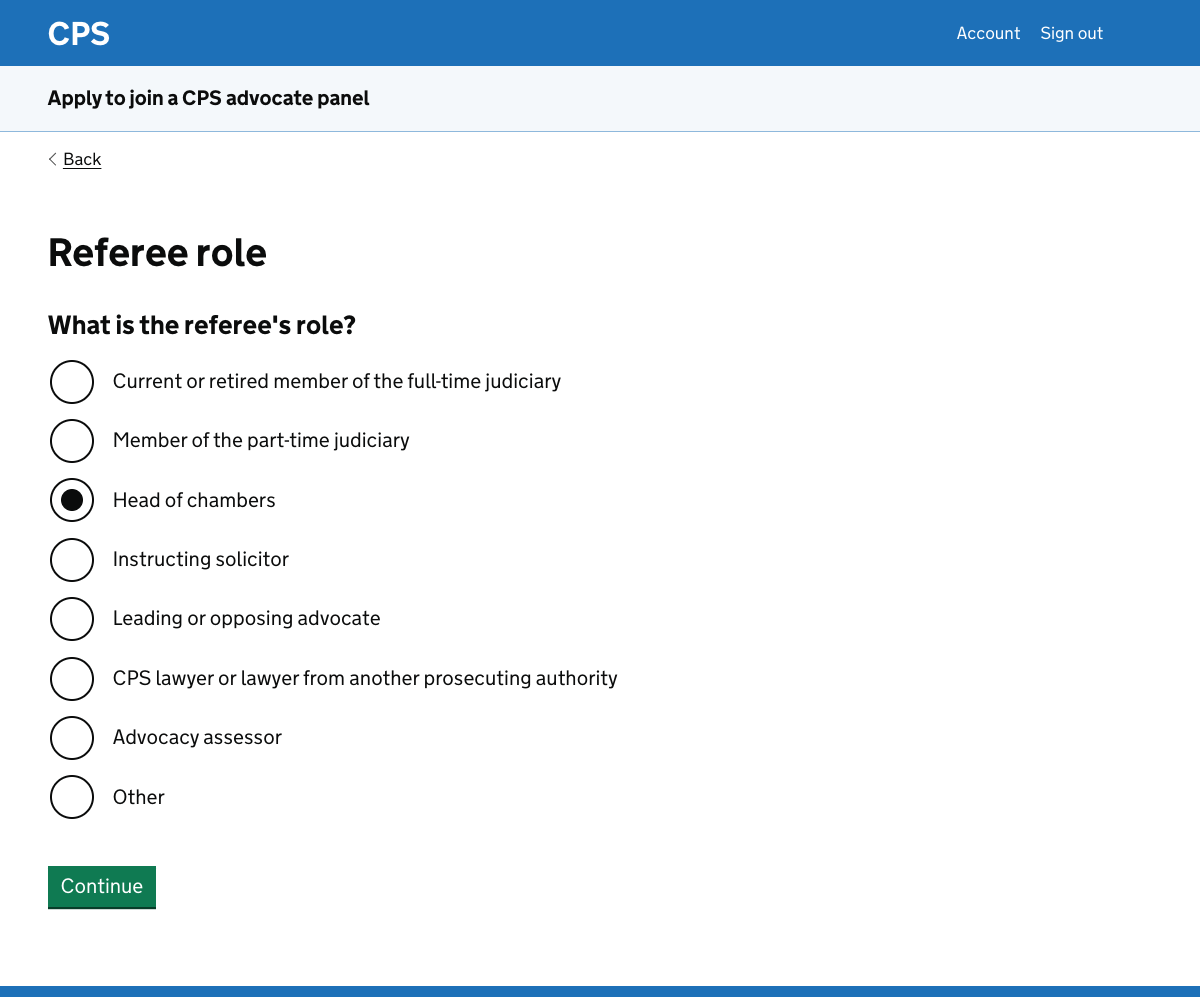
On the second page, the user selects their referee’s role from the same list shown on the first page.
This repetition is required because on the first page the user may still be deciding who to ask. They need to know whether their intended referee is appropriate.
The user can select ‘other’ if the role is not in the list. This reveals a text box where they can state the role.
Message to referee
On the third page the user writes a message which will be included in the reference request email.
The guidance suggests that they should explain:
- why they’re applying for the panel
- cases they’ve worked on with the referee
The field allows up to 400 words, using the standard character count component from the GOV.UK design system.
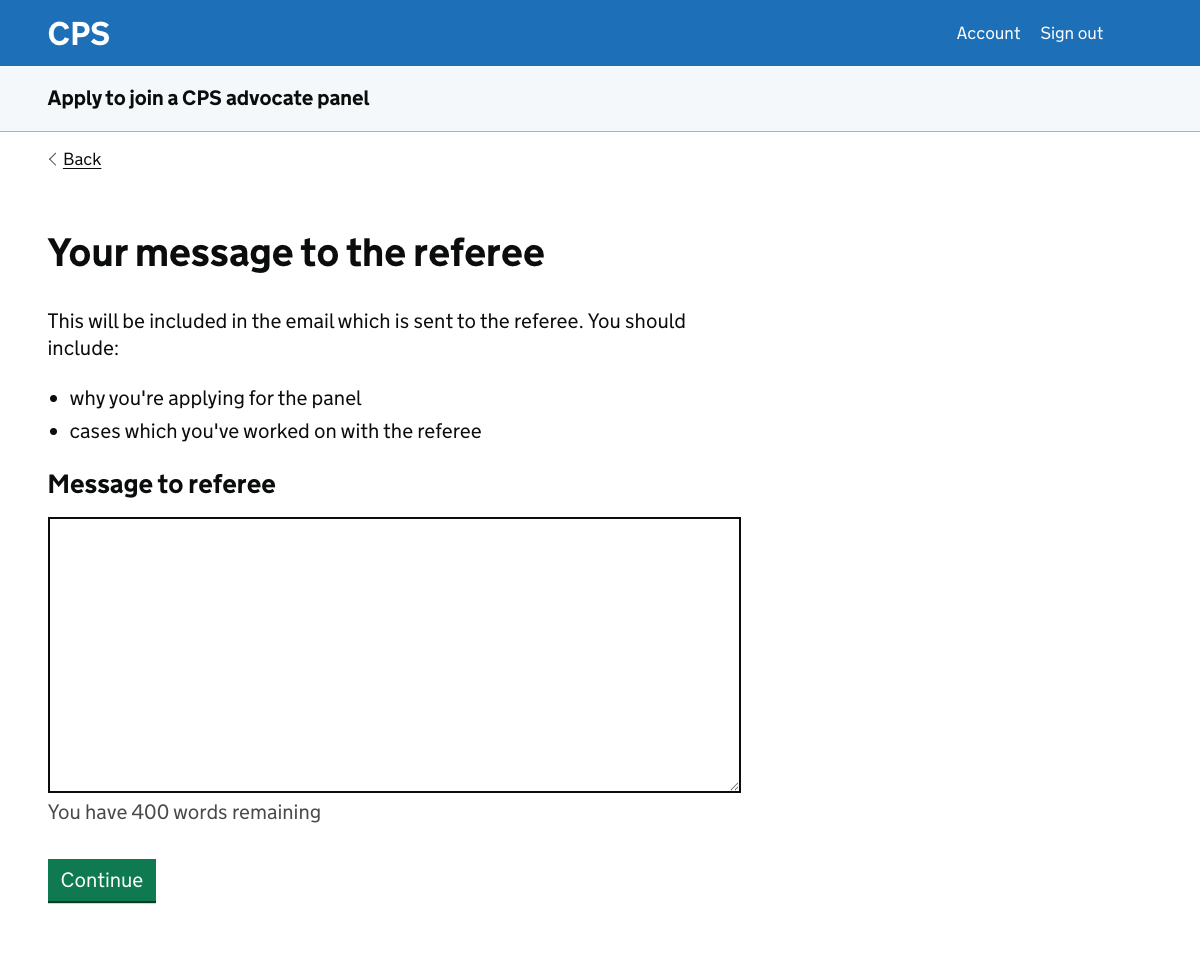
Research suggests that most applicants contact their referee before sending the request. As a result they may not need to say much on this page.
Check referee details
After the message page, the user is taken to a summary of their answers.
At the bottom of the page they’re asked whether they’ve completed the section.
For other tasks this just marks the task as complete in the task list. Here, answering ‘yes’ sends the reference request email.
Why we send the reference request before the application is submitted
If the application does not have a deadline then it will be processed within a month of the reference being received. This means that it’s in the user’s interests to get the reference underway as soon as possible.
If the application has a deadline then there’s a little less pressure to receive the reference. All applications from the September application window get responses by the end of January, no matter when the reference was received.
Nevertheless, some referees are very busy and users may want to give them as much notice as possible.
Further considerations
We should:
- learn about whether users understand that completing the task sends the email
- add a way for users to withdraw and resubmit a reference request
- allow users to say that they do not want to provide an optional reference
- consider whether any references should be optional
Whether users understand that completing the task sends the email
In our initial research on the prototype, users understood that marking the task as complete also sent an email to the referee.
We should check this with more users.
Withdrawing and resubmitting a reference request
In the current service, users can withdraw a reference request and make a new one. They might do this for example if a referee can no longer provide a reference.
This has not been built into the prototype. It was not prioritised because:
- it’s a relatively ususual scenario
- it would not typically be done at the same time as the user is making the application
We’ll need to be design this in the next phase.
Saying that the user does not want to provide an optional reference
References are optional for some upgrade applications.
The prototype marks this but does not otherwise handle this well. We need to design a way for users to indicate that they are not going to provide a reference, while still being able to complete the task.
Considering whether any references should be optional
We know that some assessors would prefer it if even upgrade applications had at least one reference. Since applications are anonymous, assessors cannot rely on knowledge of the applicant and say that it would therefore be useful to have a reference.
We could discuss this as part of conversations about the questions which are asked in the application.