Priority PCD review task iteration
We redesigned the ‘priority PCD review’ task to match the changes we made recently to the ‘Check new PCD case’ task.
These cases must be reviewed within 3 hours.
While making these changes, we also:
- added fields to capture management information about CPS Direct (CPSD) involvement
- added the ability to transfer the case to another unit
How it works
The task begins on the decision page:
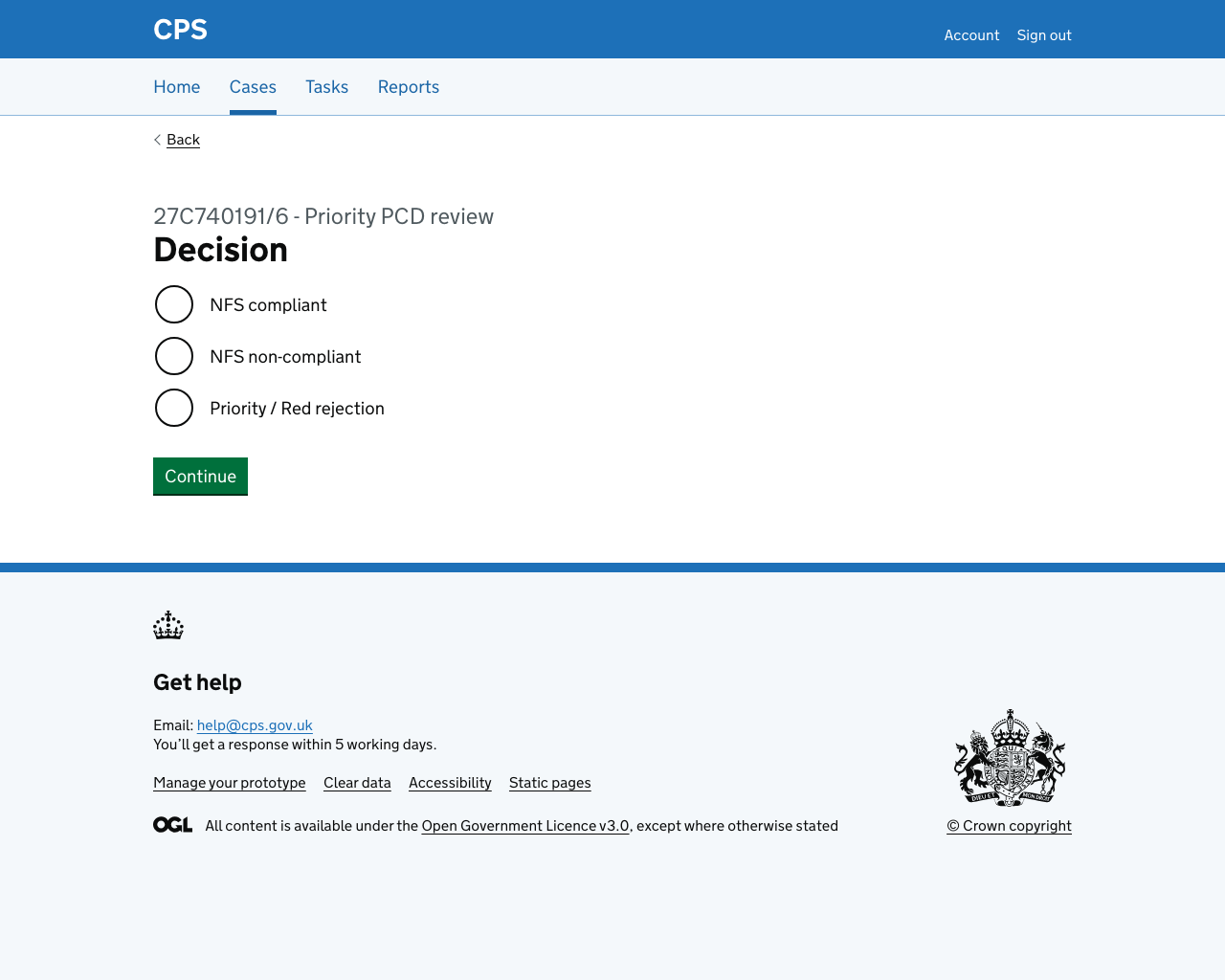
The options are:
- NFS compliant
- NFS non-compliant
- Priority / Red rejection
NFS compliant
If the user selects “NFS compliant” they’re taken to the case type:
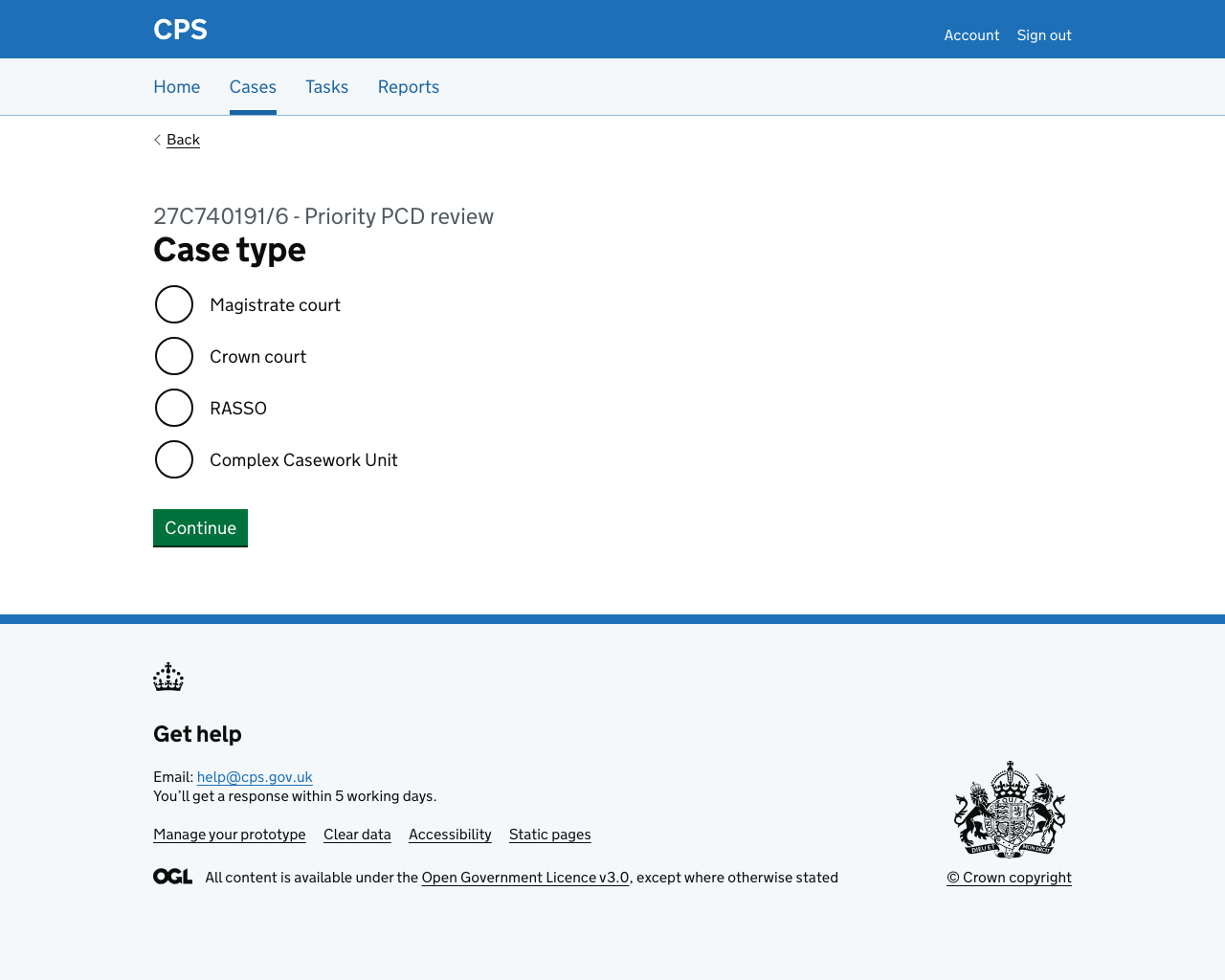
After selecting the case type, all users are asked ‘Are you CPS Direct?’ with Yes/No options.
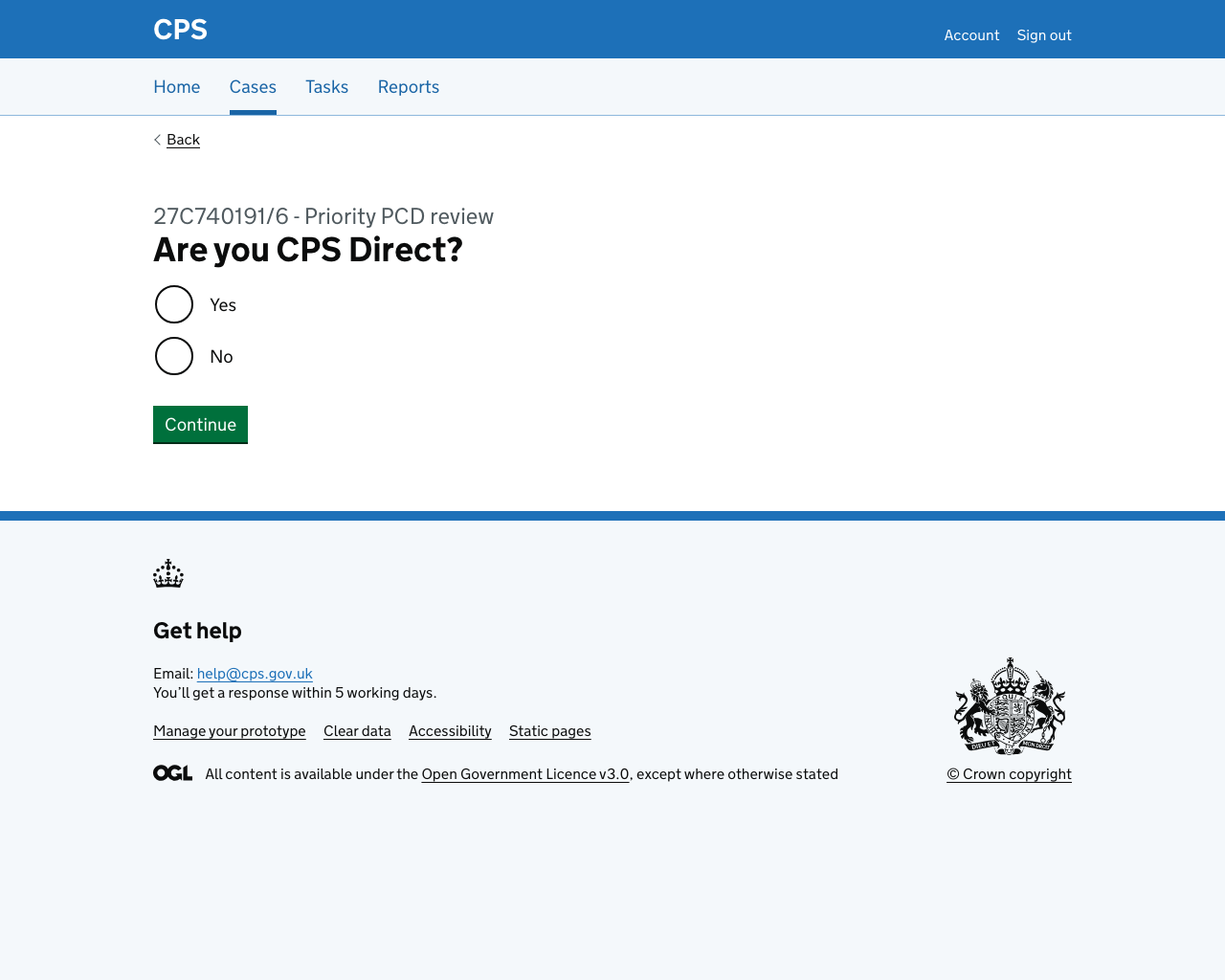
Users who select ‘Yes’ go to the check answers page. CPSD teams do not need to transfer cases.
Users who are not CPSD are asked if they want to transfer the case:
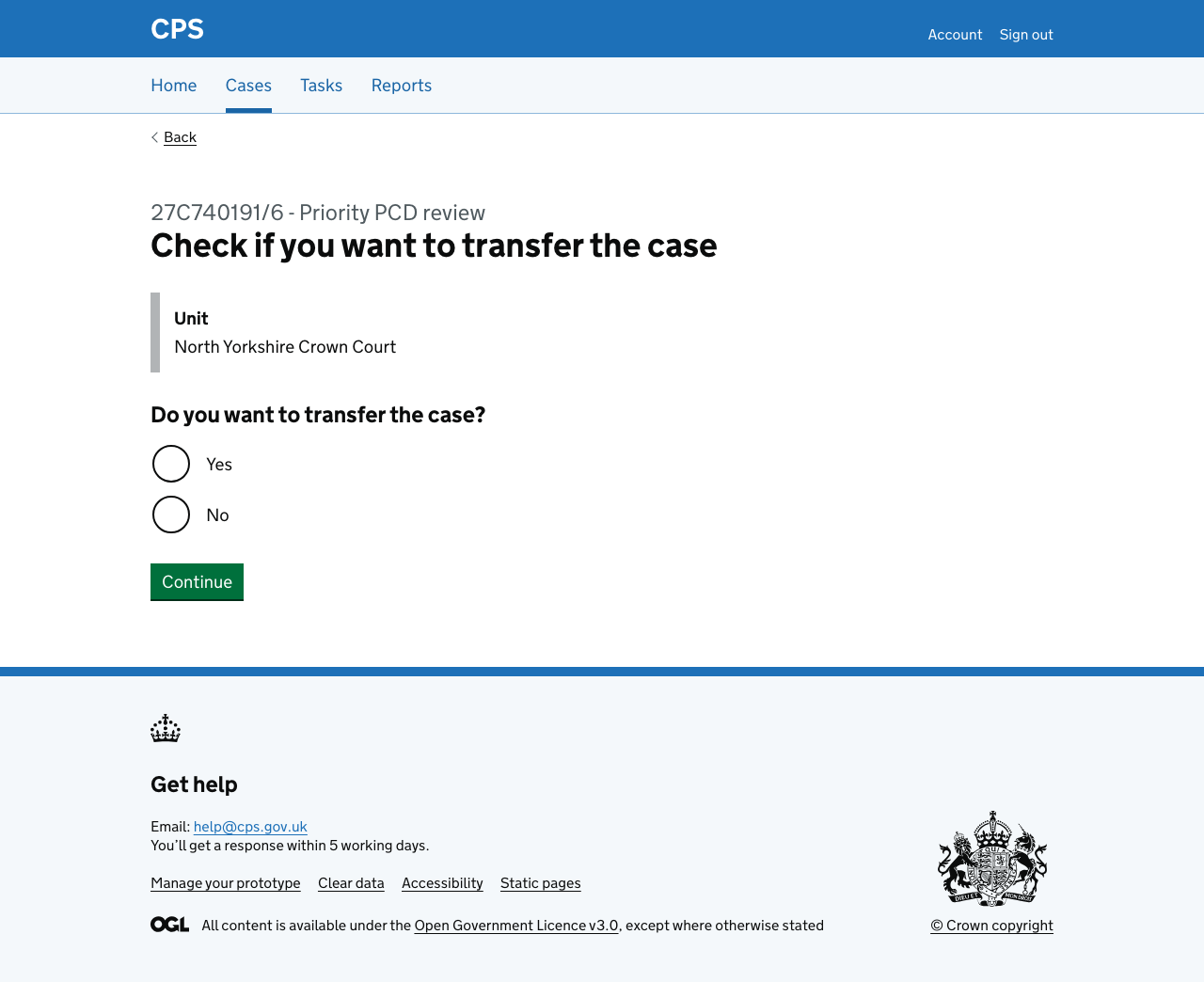
If they select “No” they go to the check answers page.
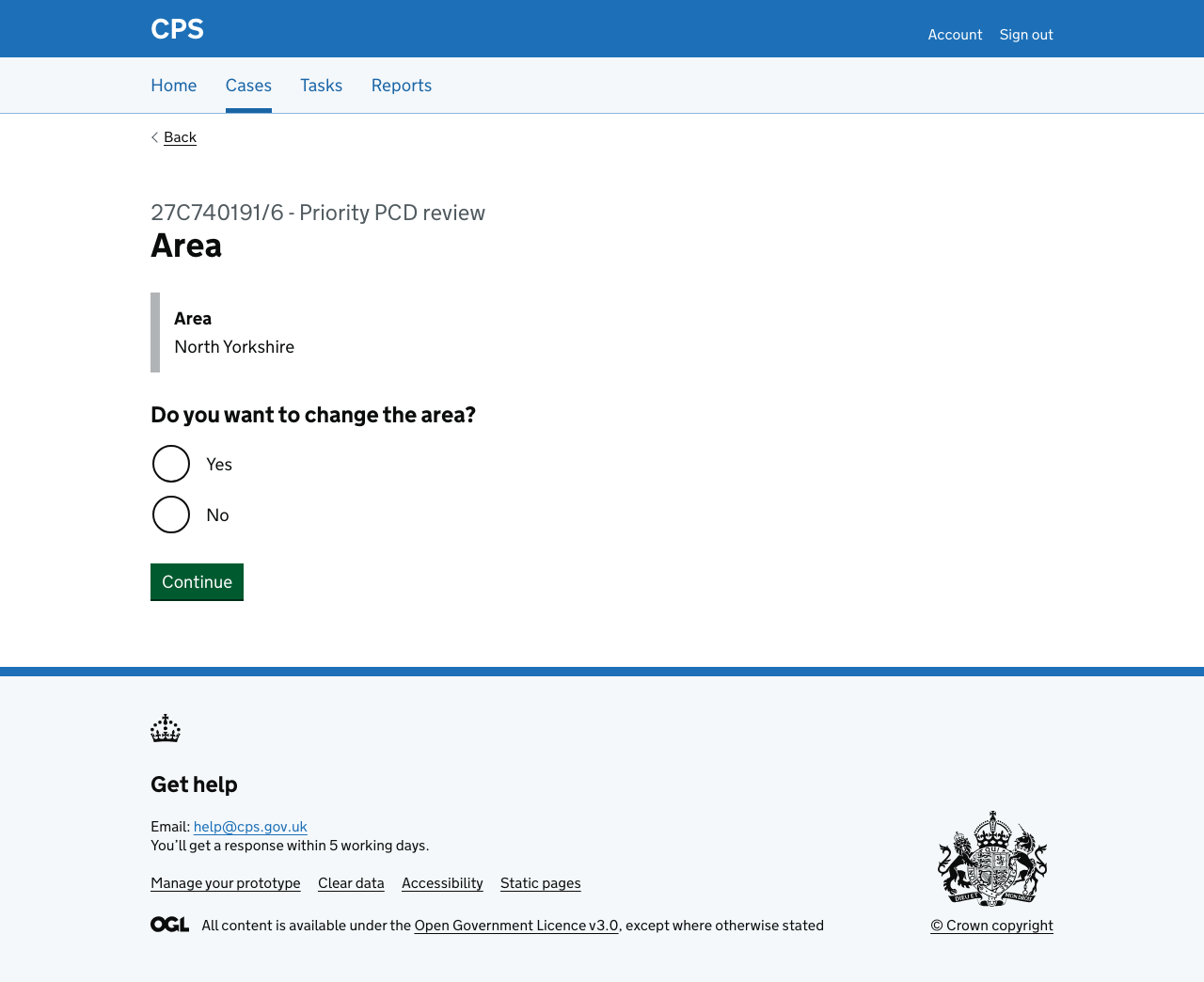
If they select yes, they’re asked ‘Do you want to change the area?’ The current area is shown in inset text.
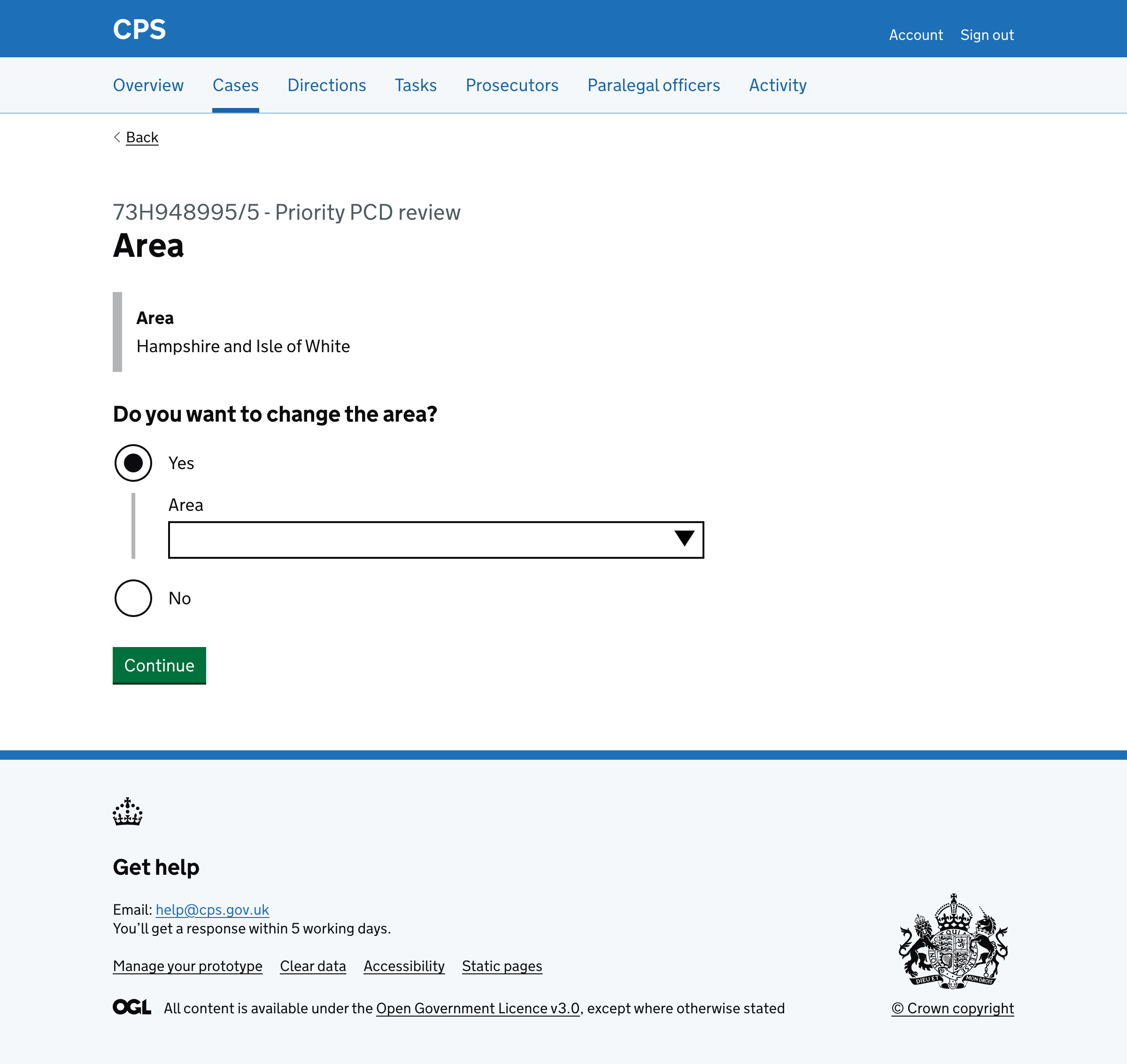
If they select ‘Yes’, an autocomplete appears where they can search for and select a different area. This uses the GOV.UK autocomplete component which makes it easy to find the right area from a long list.
If they select ‘No’, they go straight to unit selection within their current area.
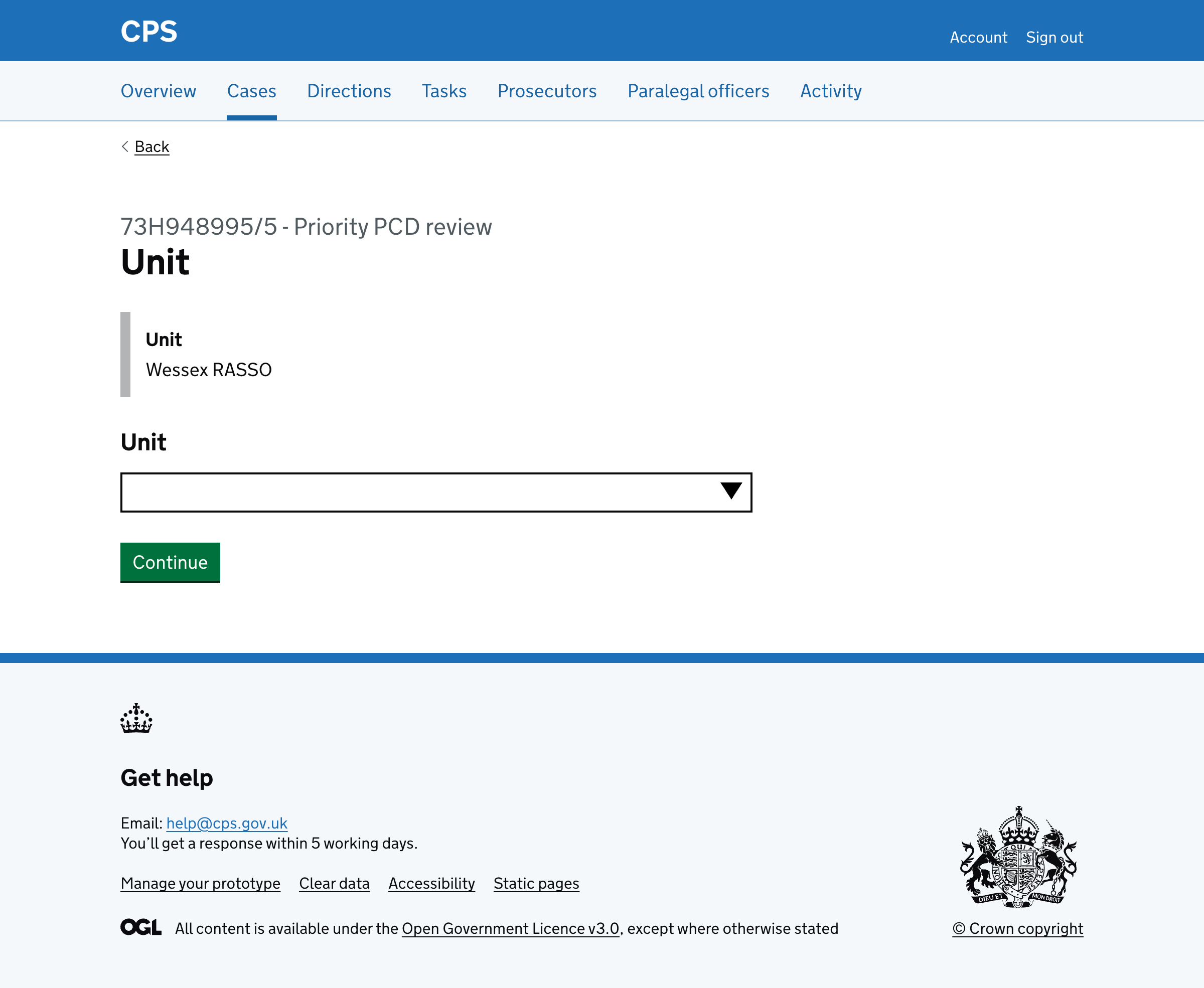
After selecting an area (or choosing to keep the current one), users select a unit using another autocomplete. The unit list is filtered to only show units within the selected area, making it easier to find the right team.
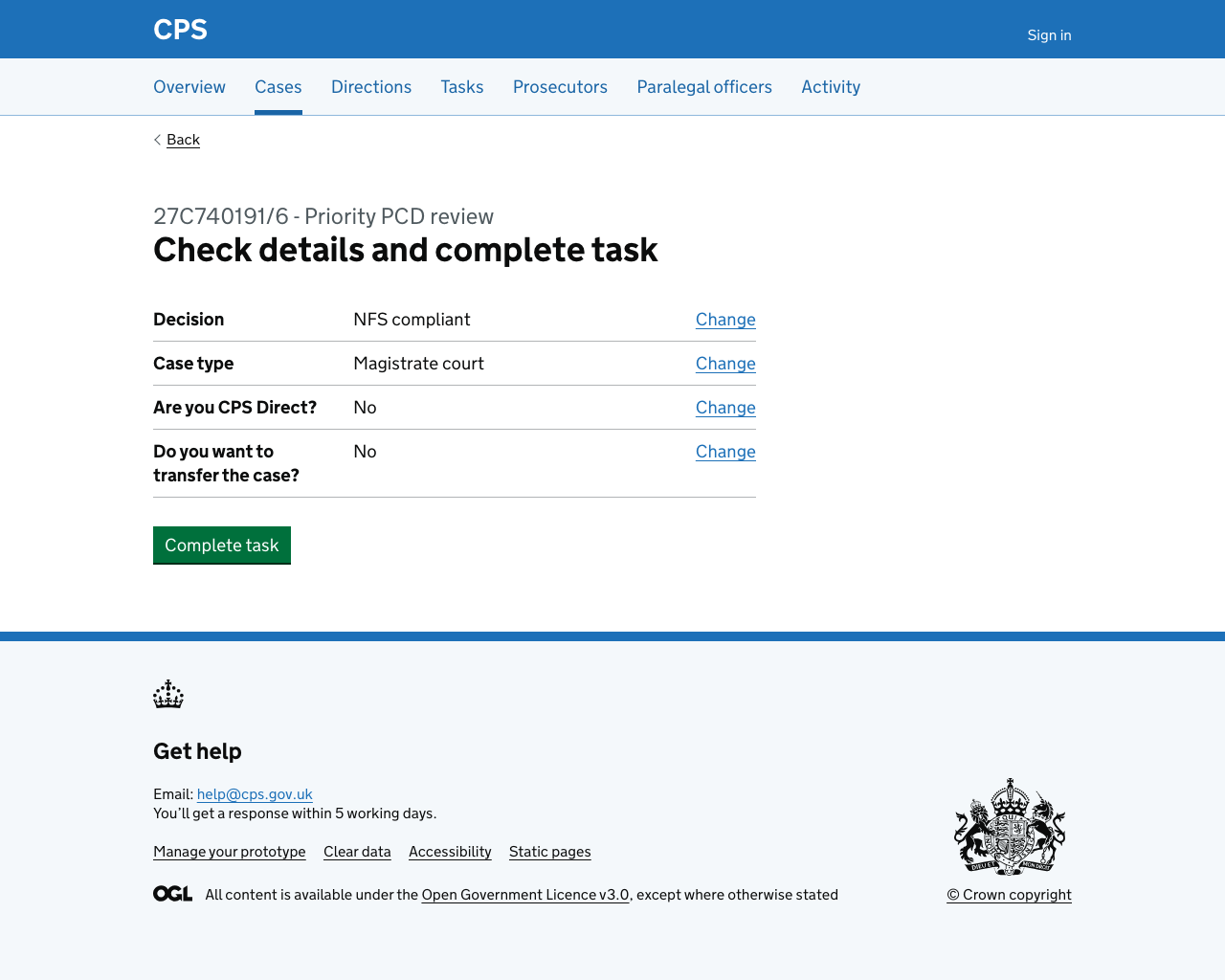
After selecting a unit, users go to check answers:
NFS non-compliant
If the user selects ‘NFS non-compliant’, they’re also asked for the case type, then shown a ‘Reason for rejection’ page:
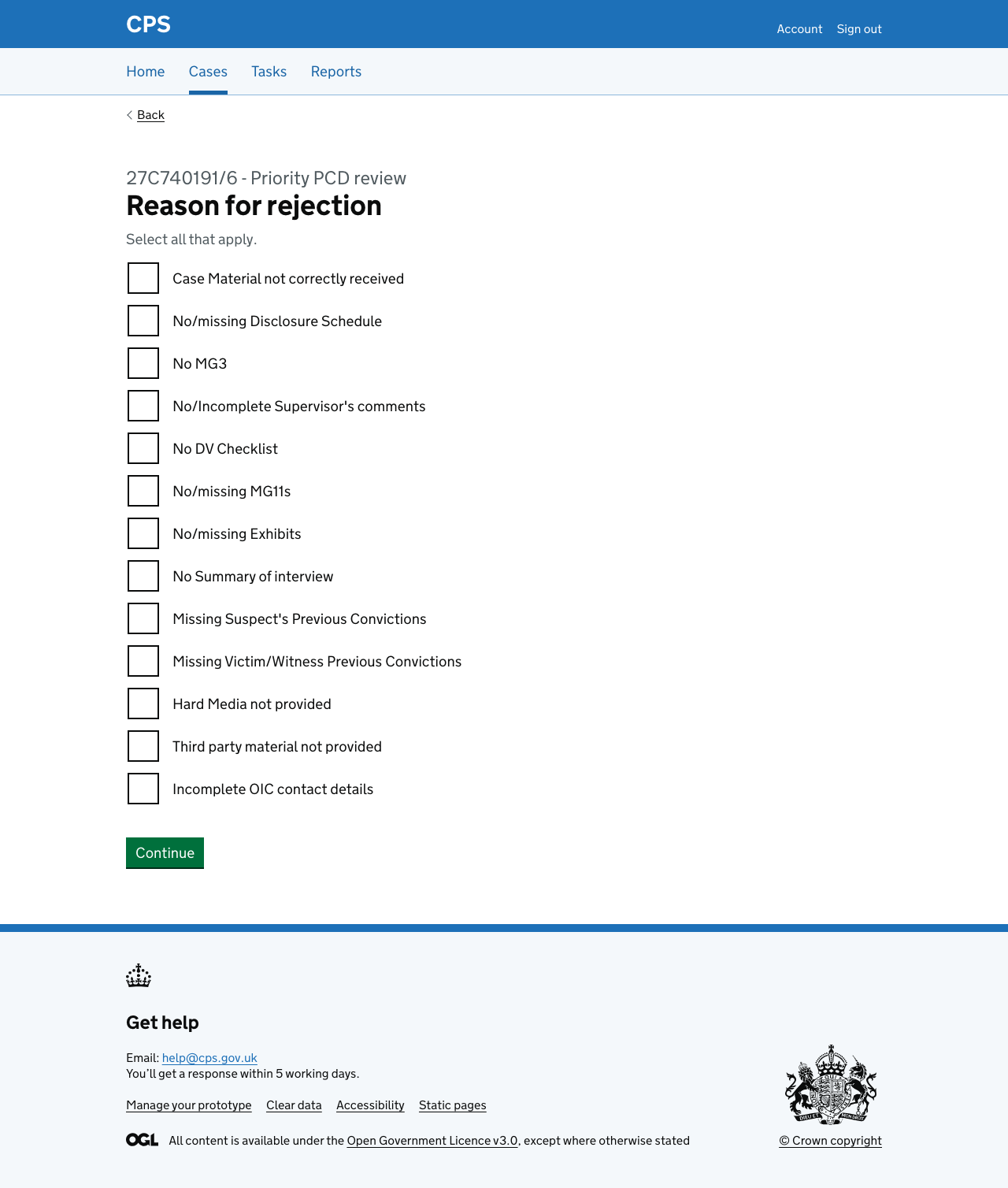
The options are:
- Case Material not correctly received
- No/missing Disclosure Schedule
- No MG3
- No/Incomplete Supervisor’s comments
- No DV Checklist
- No/missing MG11s
- No/missing Exhibits
- No Summary of interview
- Missing Suspect’s Previous Convictions
- Missing Victim/Witness Previous Convictions
- Hard Media not provided
- Third party material not provided
- Incomplete OIC contact details
Each checkbox conditionally reveals an optional details field.
After selecting reasons, users answer the CPSD question.
Unlike the NFS compliant path, all NFS non-compliant cases skip the transfer question and go straight to recording a police response date:
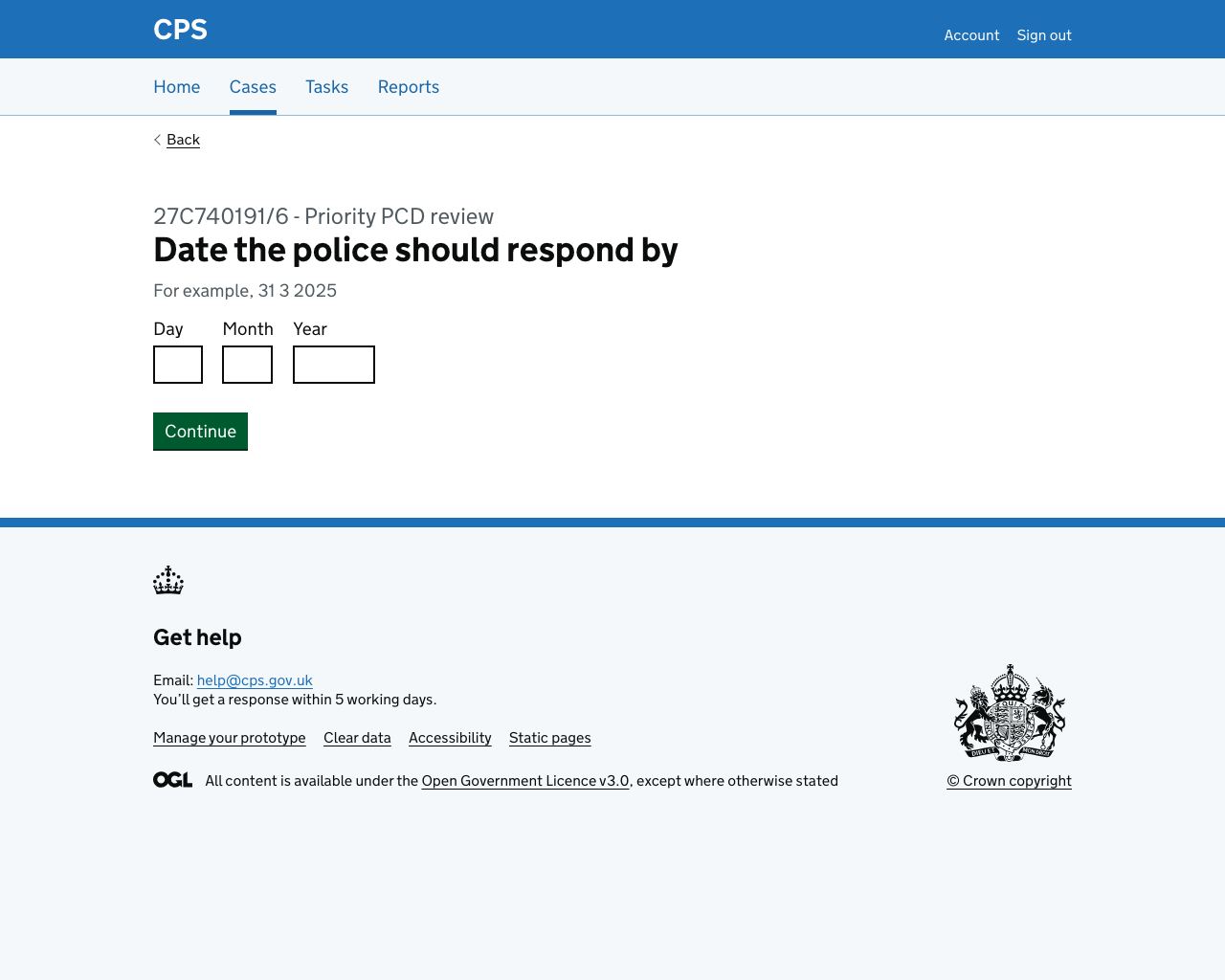
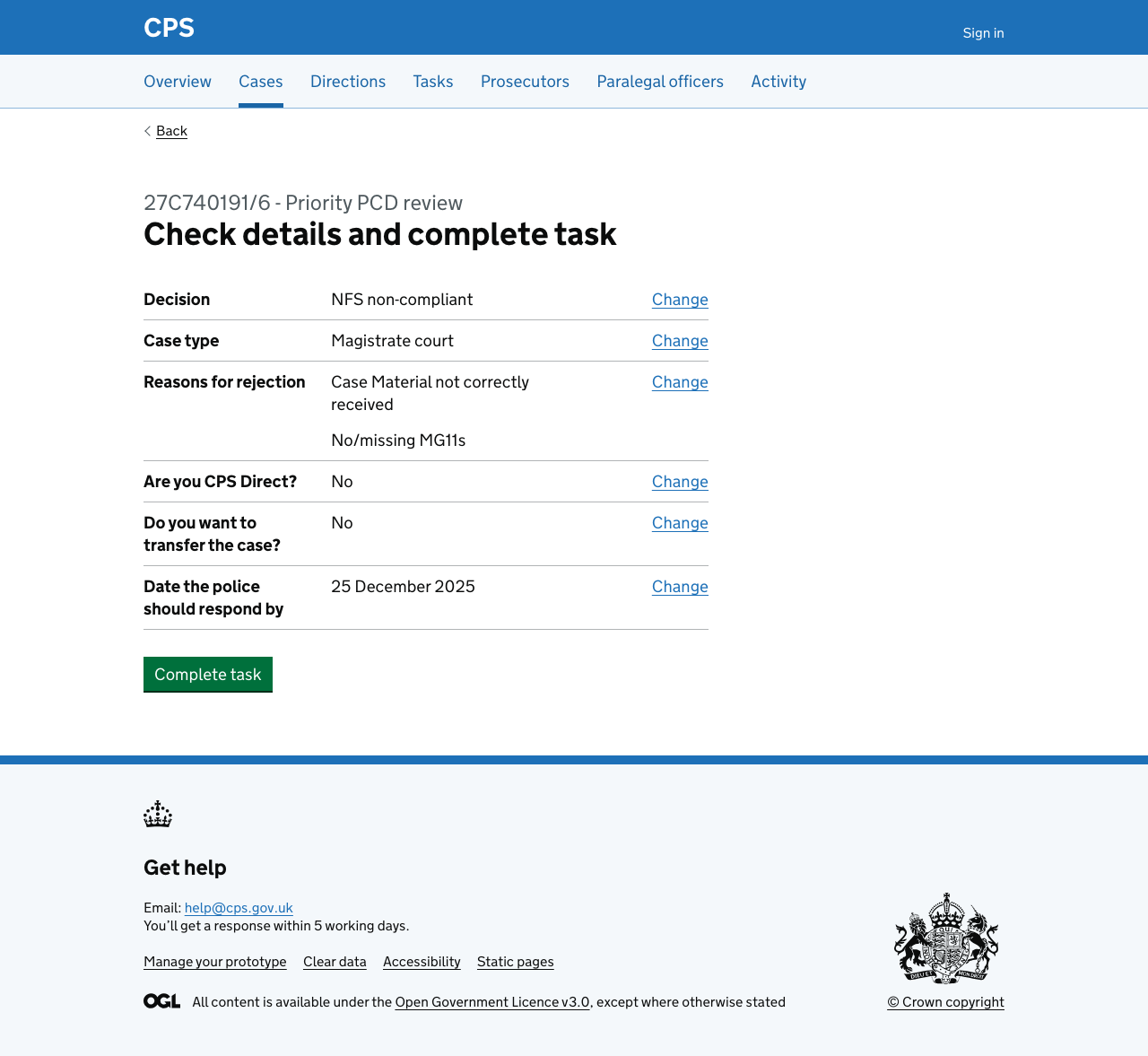
After entering the date, users go to check answers:
Priority / Red rejection
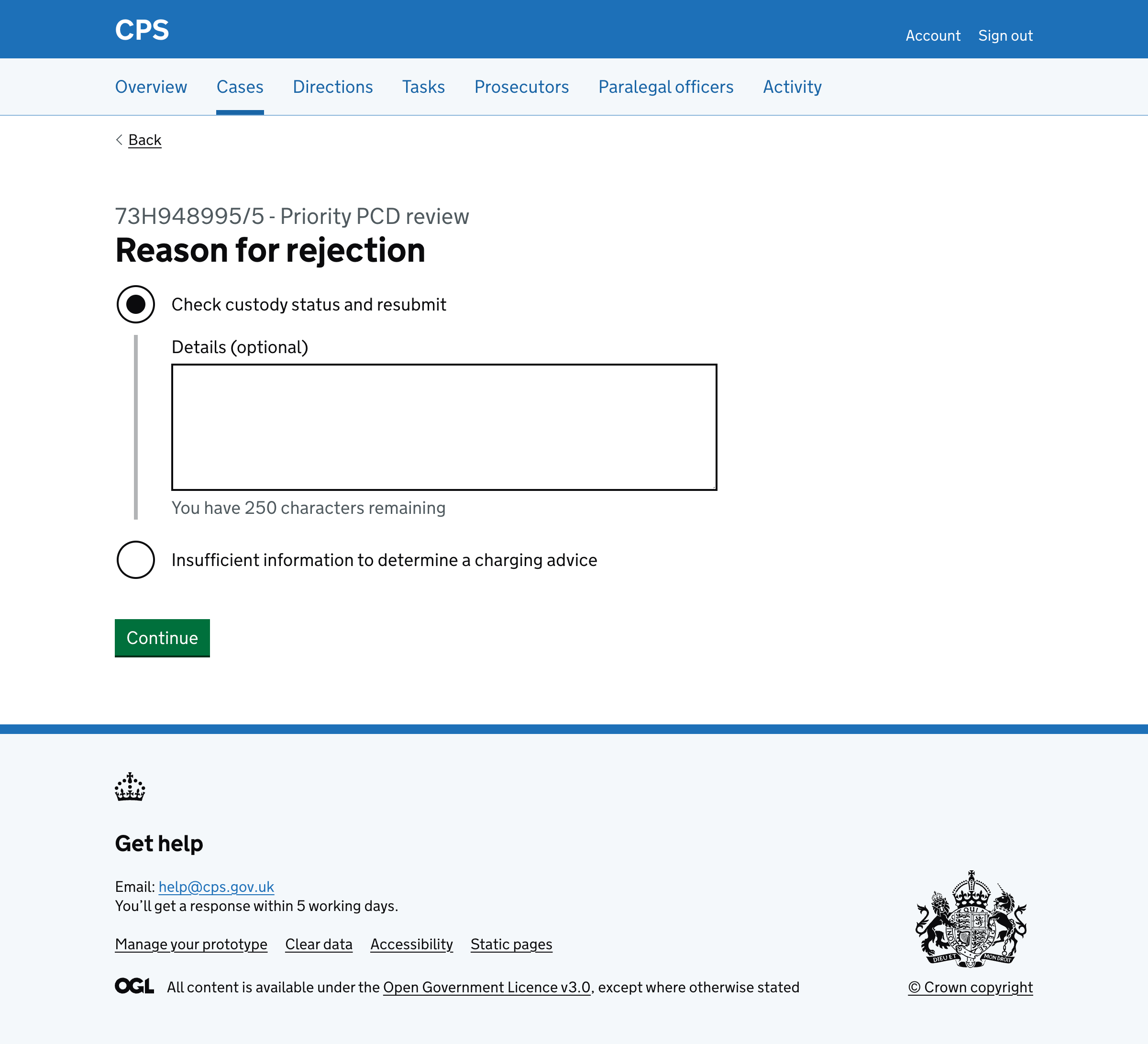
If the user selects ‘Priority / Red rejection’, they’re asked for the case type, then shown a ‘Reason for rejection’ page with radio buttons:
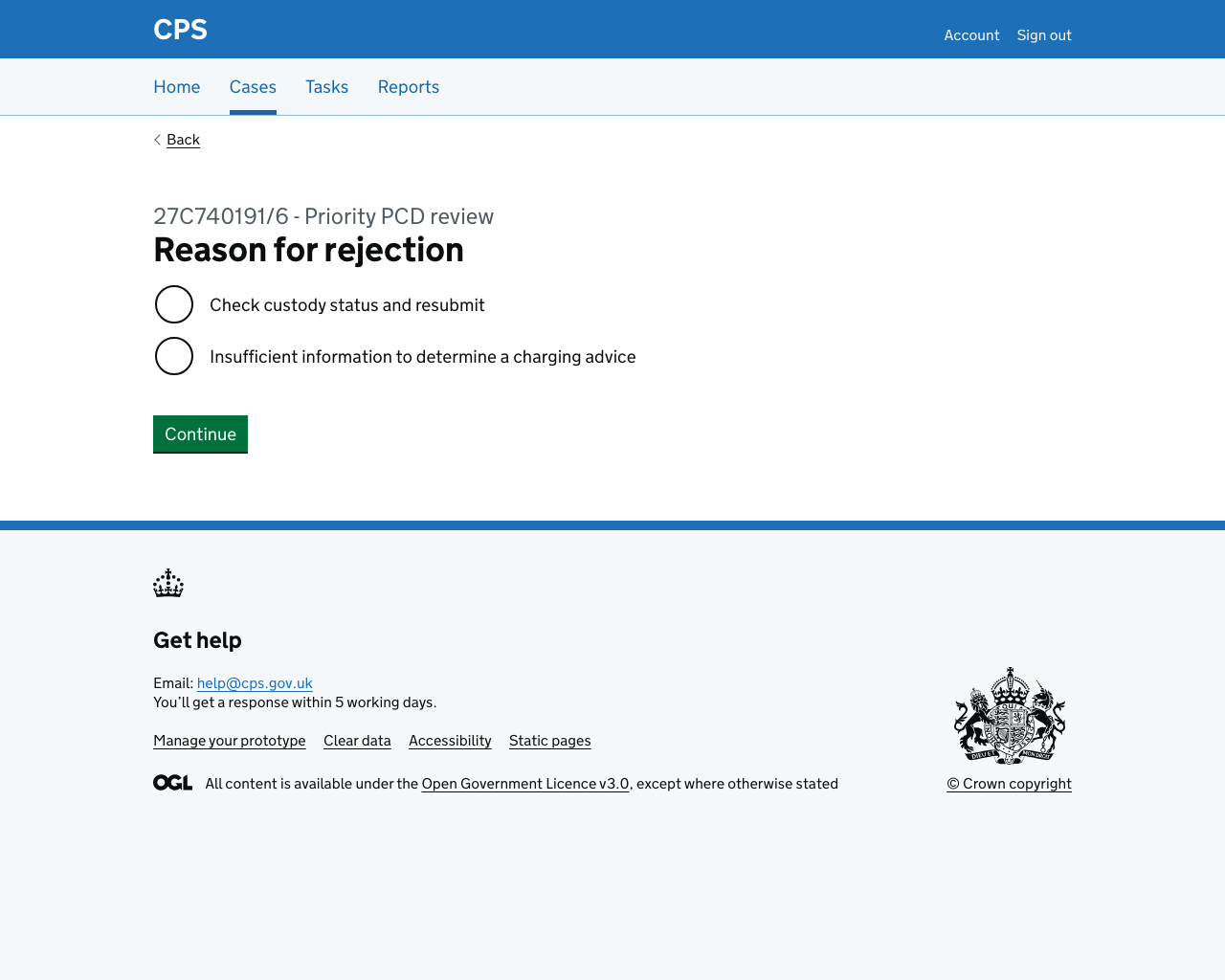
The options are:
- Check custody status and resubmit
- Insufficient information to determine a charging advice
Each option conditionally reveals an optional details field.
After selecting a reason, users answer the CPSD question, then record a police response date (same as the NFS non-compliant path). They then go to check answers.
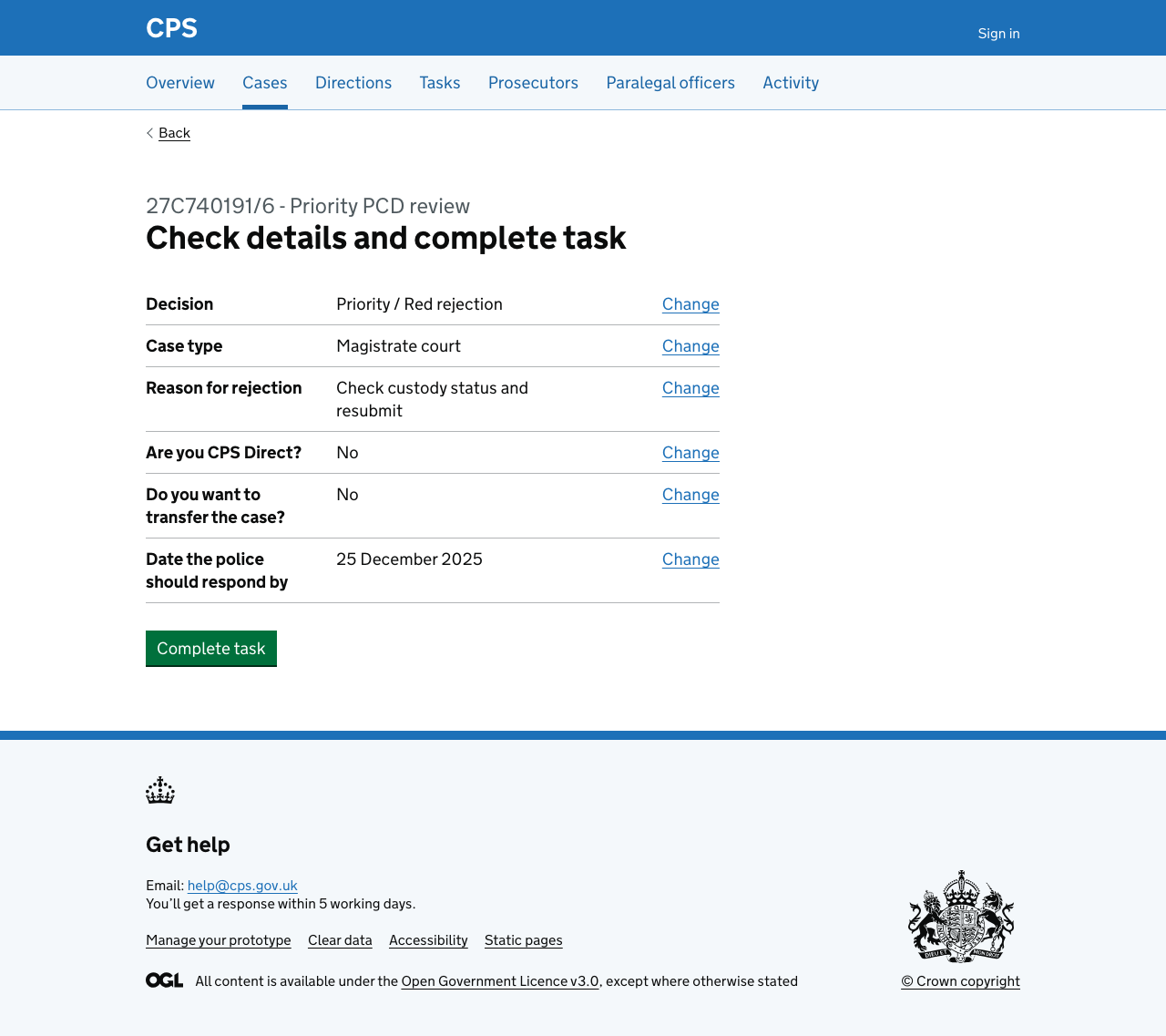
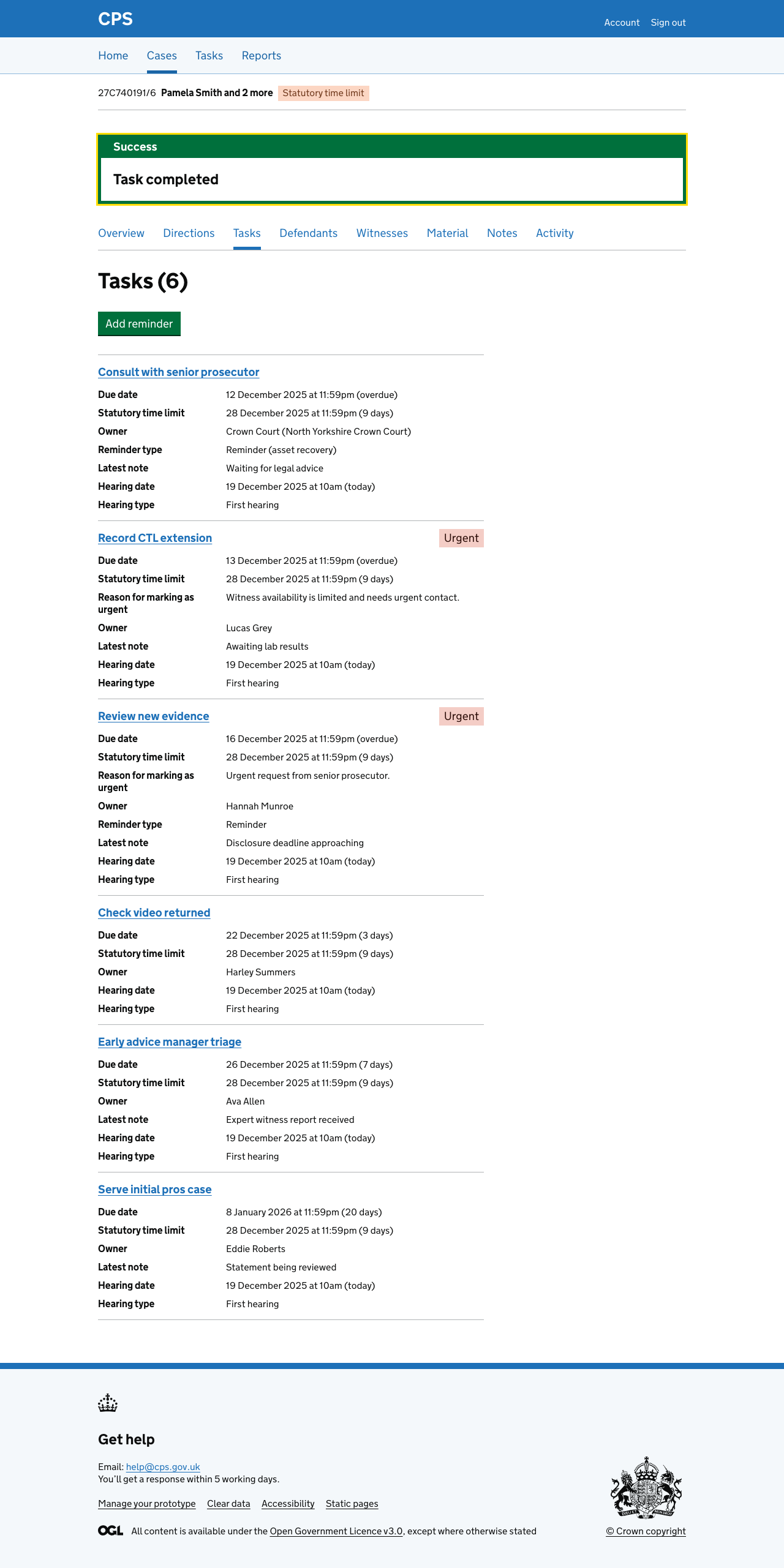
When the user clicks ‘Complete task’, the task is marked as completed:
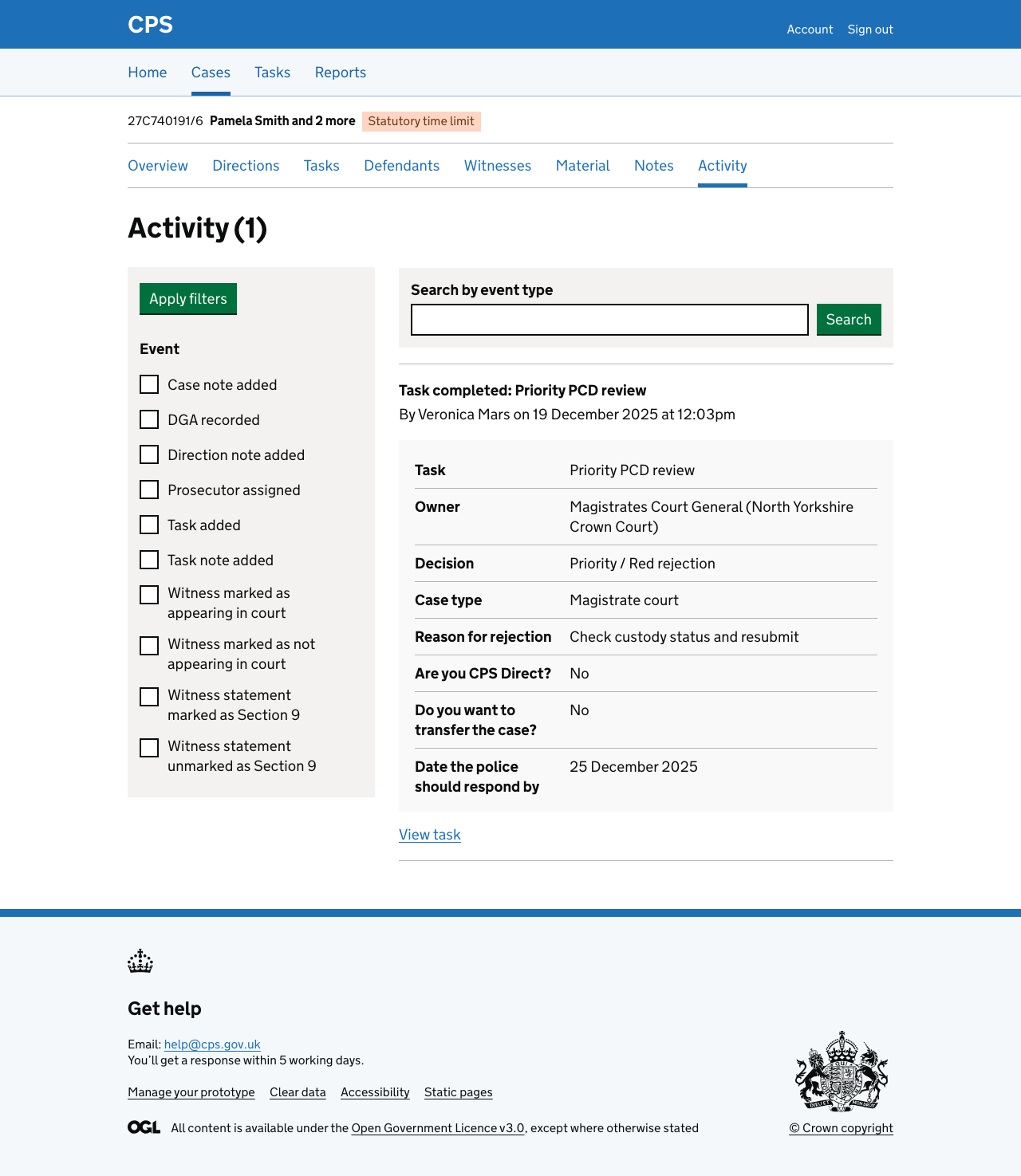
And an activity log entry is created:
Error messages
Decision
- Nothing selected: Select decision
Case type
- Nothing selected: Select case type
Are you CPS Direct?
- Nothing selected: Select yes if you are CPS Direct
Do you want to transfer the case?
- Nothing selected: Select yes if you want to transfer the case
Do you want to change the area?
- Nothing selected: Select yes if you want to change the area
Area
- Empty: Select area
Unit
- Empty: Select unit
Reason for rejection - NFS non-compliant
- Nothing selected: Select reason for rejection
Details for each ‘NFS non-compliant’ rejection reason
- Too long: Details about ‘No MG3’ must be 250 characters or less
Reason for rejection - Priority / Red rejection
- Nothing selected: Select reason for rejection
Details for each ‘Priority / Red’ rejection reason
- Too long: Details must be 250 characters or less
Date the police should respond by
- Empty: Enter date the police should respond by
- Missing day: Date the police should respond by must include a day
- Missing month: Date the police should respond by must include a month
- Missing year: Date the police should respond by must include a year
- Invalid: Date the police should respond by must be a real date
- Must be future: Date the police should respond by must be in the future